The TV sorts all stored stations in the Channel List.
You can edit this channel list, set favourites or set
active stations to be listed by using the Channel List
options. Press MENU button to view main menu.
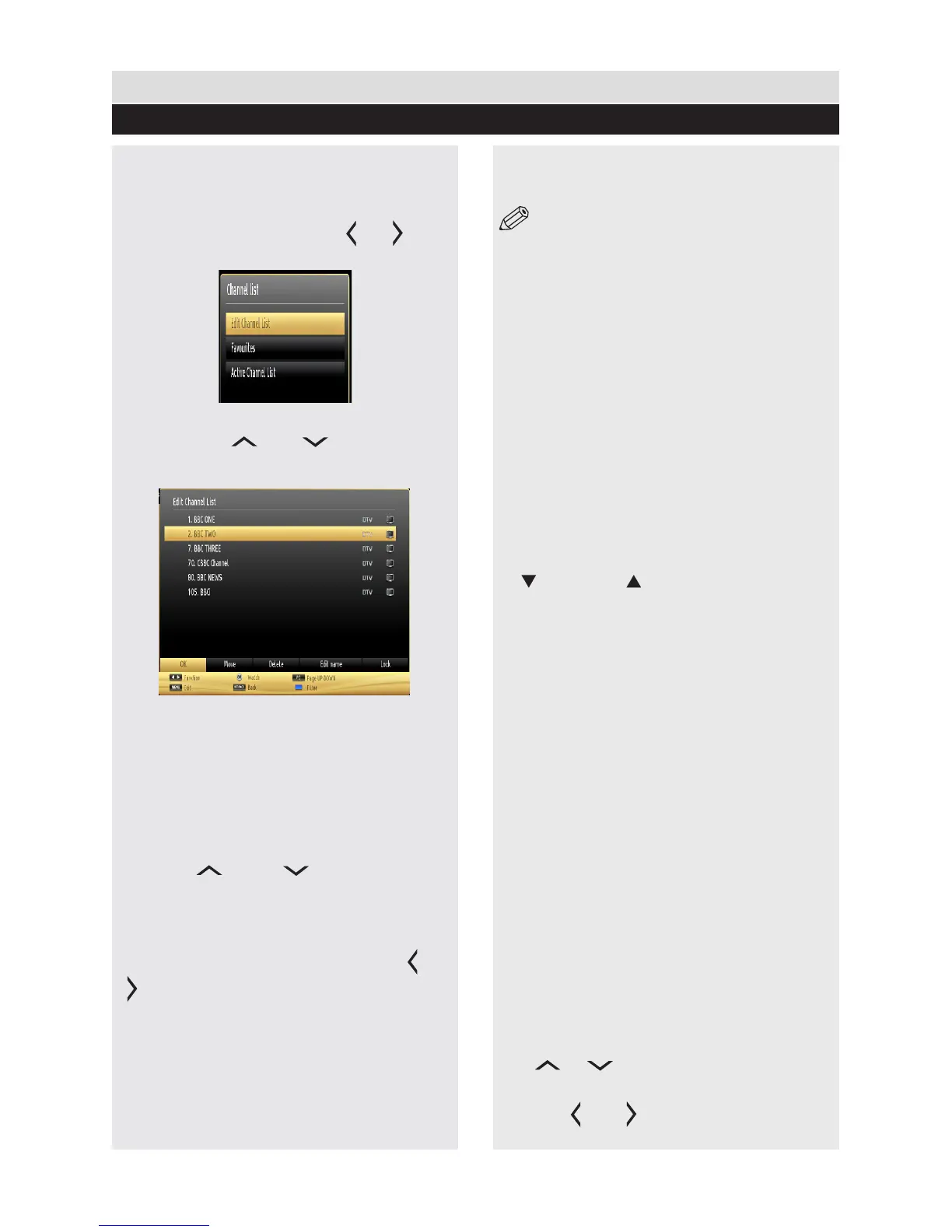
Select Channel List item by using “ ” or “ ” button.
Press OK to view menu contents.
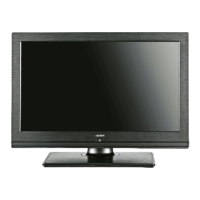
Select Edit Channel List to manage all stored
channels. Use “ ” or “ ” and OK buttons
to select “Edit Channel List”.
Note: The channels listed are mixed at
the channel list. Channel types can be
differentiated by the icons next to them: DTV
(digital tv), HD (HD TV) , ATV (Analogue TV)
,TV (TV), RD (Radio), encrypted, lock, and at
the favourite list.
Navigating Channel List
1. Press “ ” or “ ” button to select
previous or next channel. Press P+ or P- button
to move up or down the page.
2. To watch a specic channel, highlight the
“OK” box on Channel List menu using “ ” or
“ ” button.
Moving a Channel
1. Select the desired channel.
2. Select Move box in the channel list and press
OK button.
3. Edit Number screen will be displayed. Enter
the desired channel number by using the numeric
buttons on the remote control.
NOTE: If there is a previously stored
channel on that number, a warning screen will
be displayed.
4. Select Yes if you want to move the channel
and press OK.
Deleting a Channel
1. Select the channel that you want to delete and
select Delete box.
2. Press OK button to continue. A warning screen
will appear. Select YES to delete, select No to
cancel. Press OK button to continue.
Renaming a Channel
1. Select the channel that you want to rename and
select Edit Name box. Press OK button to continue.
2. Use navigation buttons to toggle between the
current character, i.e., ‘b’ character becomes ‘a’
by “ ” and ‘c’ by “ ”.
3. When nished, press OK button to save. Press
MENU to cancel.
Locking a Channel
1. Select the channel that you want to lock and
select Lock option. Press OK button to continue.
2. You will be asked to enter parental control PIN.
Default PIN is set as 0000. Enter the PIN number.
3. The desired channel is locked (Lock symbol is
displayed next to the selected channel) or unlocked.
Button Functions
OK: Add/remove a station.
YELLOW: Tag/untag a channel.
GREEN: Tag/untag all channels.
BLUE: Displays ltering options.
Sorting Channel List
You can select broadcasts to be listed in the
channel list. To display specic types of broadcast,
you should use Active channel list setting.
Select Active channel list from the Channel list menu by
using “ ” or “ ” button. Press OK button to continue.
You can select a network type option from the list
by using “ ” or “ ” and OK buttons.
General TV Operation
Channel Management
25


 To Next Page