Connectivity Functions
Nero MediaHome Installation
57
6. Click the Next button.
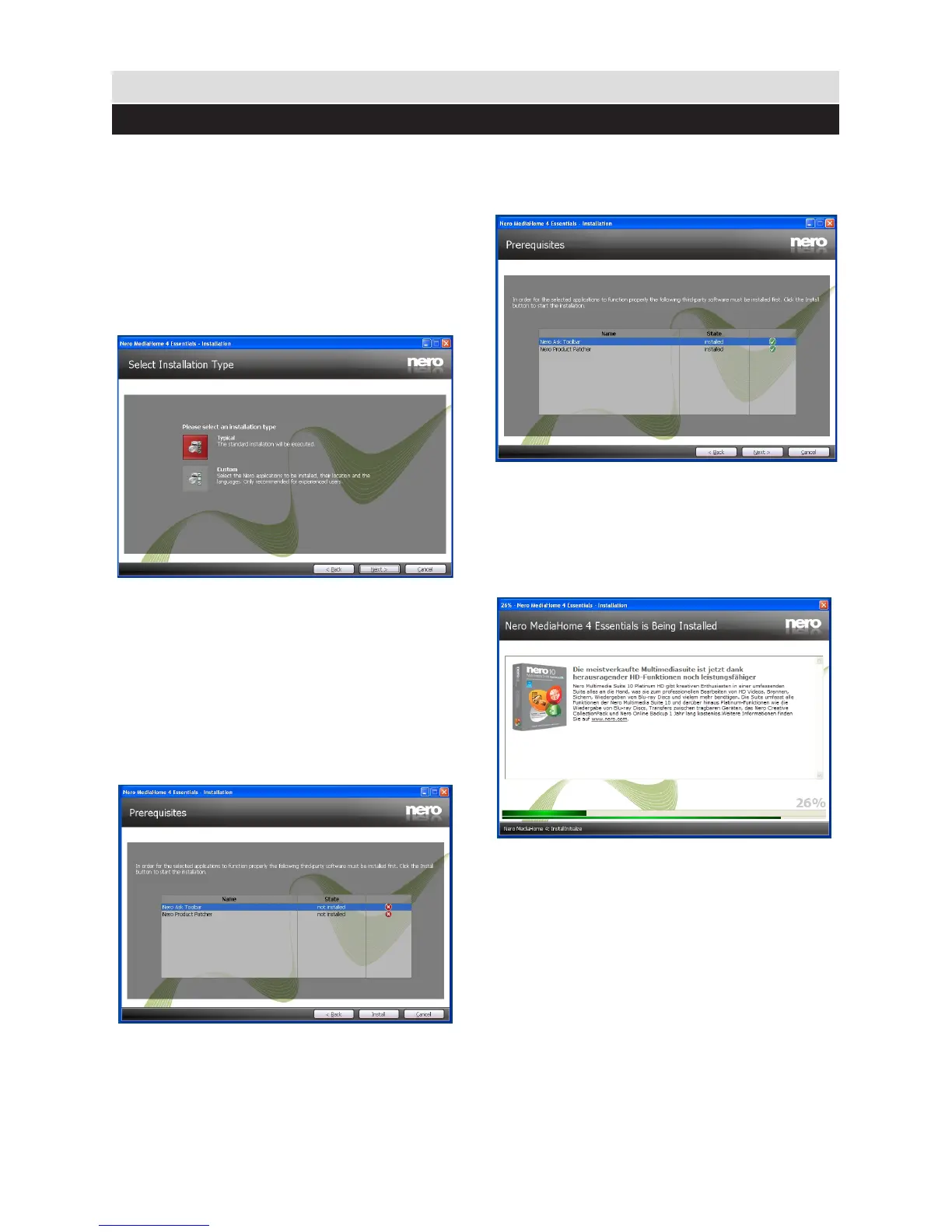
• The Select Installation Type screen is
displayed.
It is possible to choose between Typical, meaning
standard installation, or Custom installation.
User dened installation allows you to determine
languages to be installed and to choose the
installation path.
7. Use Typical installation and click the Next
button.
• The Prerequisites screen is displayed.
The Nero MediaHome installation wizard checks
the availability of required third-party software
on your PC. If applications are missing they are
listed and must be installed before continuing
installation.
8. Click the Install button.
• As soon as all prerequisites are installed, the
Install button will change to a Next button.
9. Click the Next button.
• The Ready to Start Installation Process
screen is displayed, installation begins and
nishes automatically. A progress bar informs you
of the progress of the installation process.


 To Next Page