12
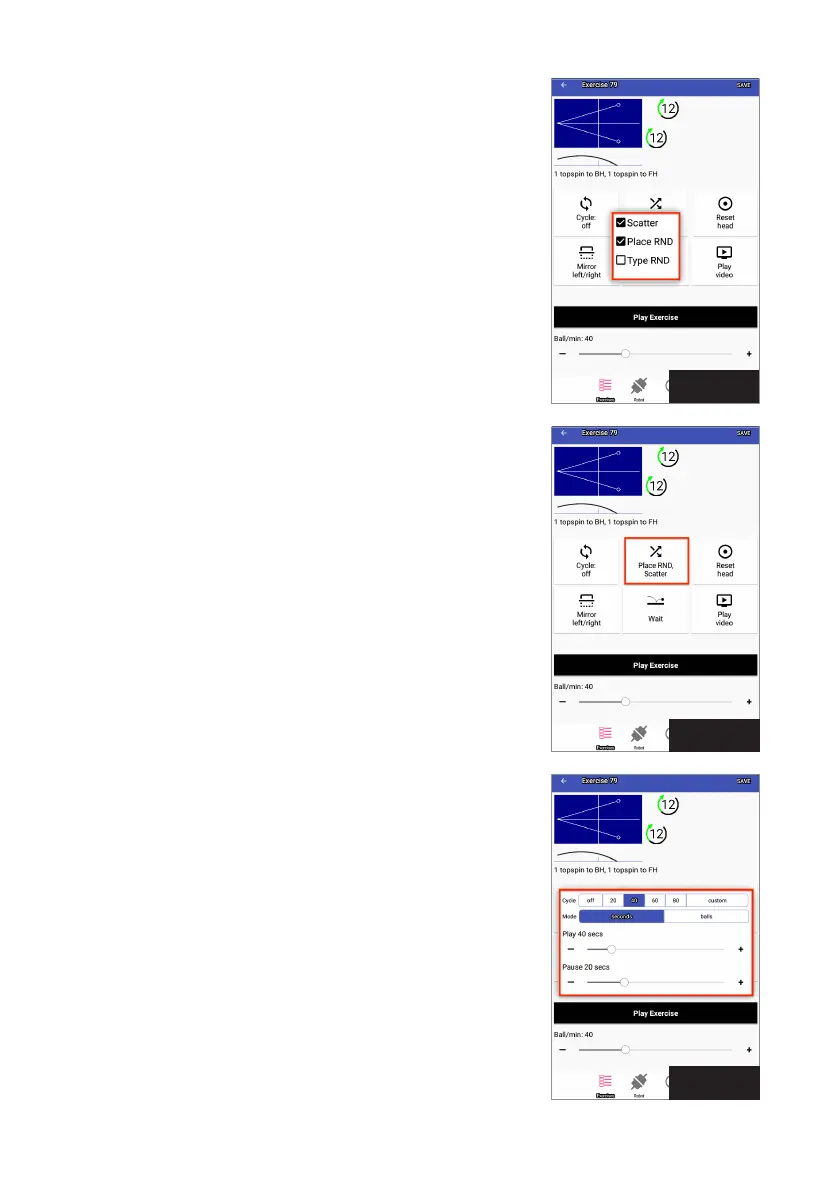
Next, let’s explore the Random options. Touch the Random button.
A popup window appears with Scatter, Place RND, and Type RND
checkboxes. Touching the checkbox in front of each option results
in a checkmark, indicating that option is selected (see Photo 16).
Here’s an explanation of each option:
1. Scatter — Is similar to the less precise shots a human might
deliver. Without Scatter, the robot delivers shots within an area
approximately 13 cm (5 in.) in diameter. But with Scatter, balls
are delivered in an enlarged area of approximately 40 cm (16 in.).
2. Place RND — This option requires at least 2 balls; it has no effect
on 1-Ball exercises. When selected, the robot randomly selects
one of the Placements programmed for the exercise and throws
the ball there in an unpredictable order. Using Exercise 79 as an
example, the normal order for ball throws would be left-right-
left-right. With Place RND selected, placements are random, so
something like right-right-left-right-left-left-left.
3. Type RND — This option randomizes Ball Type. If, for example,
Ball 1 is medium speed light backspin and Ball 2 is fast heavy
topspin, and Type RND is on, the robot throws balls such as
medium speed light topspin, fast heavy backspin, or medium
speed heavy topspin, in addition to the programmed Ball Types.
Use caution when using this option, as it is impossible to read
the robot as you would a human. If you can’t read the ball type
being delivered,don’t continue using this option as it is teaching
you to guess what type of ball is coming, not something you
want to do in your training.
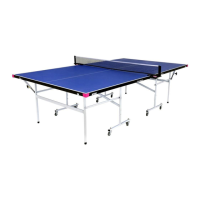
You may also select 2 or all 3 options. For instance, selecting both
Scatter and Place RND will enlarge the landing spot and randomize
the placement of each ball. Tap outside of the popup window to
make the popup go away and the selected options will be shown on
the Random button (see Photo 17).
Cycle is useful as it emulates interval training on your robot, widely
regarded as one of the best ways to maximize the effectiveness
of your robot training. Interval training alternates intense, all-out
periods of exercising (the Play period) with shorter periods of rest
(the Pause period). This is the same type of rhythm that occurs nat-
urally in a table tennis game — you serve, followed by several quick
shots in the rally, the rally ends, and then you wait a few seconds
until the next serve begins a new rally.
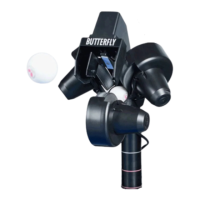
Tap the Cycle button. A popup window appears. At the top are some
quickset options — 20, 40, 60, and 80. Touching one of these options
sets Play at the number selected (in seconds) and Pause at one half
that time. This will be reflected in the 2 sliders below (see Photo 18).
Photo 18
Photo 17
Photo 16


 To Next Page