File Management
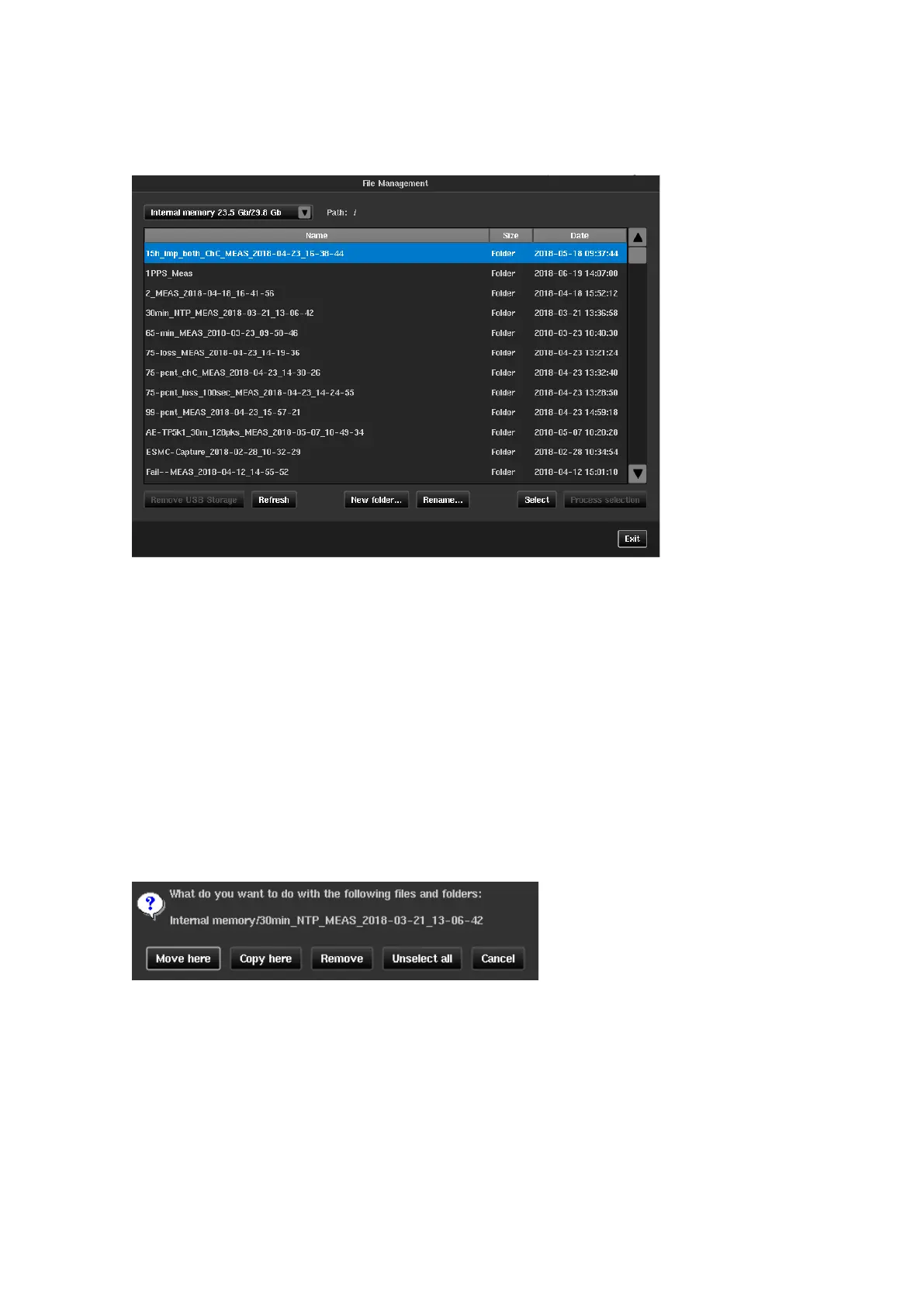
The File Management screen is used to manage the measurement files. A drop-down list provides information on
available space on the internal memory of the instrument, or on the external USB memory stick if connected. The
files can also be moved via the Ethernet network when they have been saved internally.
If you want to remove an external USB memory storage device, press Remove USB Storage button before
unplugging to ensure that data has been saved properly. If the display is not updated after plugging / unplugging
USB memory press the Refresh button to force display update.
Note: To aid remote control of the Sentinel the Remove USB Storage button changes to Remount USB
Storage button when the external USB memory storage device has been dismounted. The device can
be remounted by pressing this button which then returns to Remove USB Storage.
Various buttons are available at the bottom of the File dialog. The New folder... button is used to create a new
folder. The folder name is entered using the virtual keyboard. The Rename... button is used to rename a file or
folder, in the same way. The Select/Unselect button is a toggle used to select/unselect files and folders in the
list for further processing using Process selection button; the selected items are identified by highlighting and
switching to italic characters.
Note: Files and/or folders remain selected even when user chooses a folder different from which selected items
belong to. This allows processing of files and/or folders from several different locations in memory.
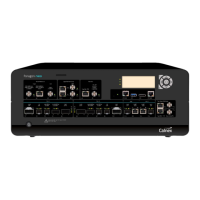
The Process selection button is enabled when at least one file or folder is selected and will indicate the number
of files currently selected. A window is opened with the available operations, applicable to the internal memory
and to any external memory: Move here, Copy here, Remove, Unselect all, Cancel.


 To Next Page