129
The function adjusting the color tone so that white objects look white in
the picture is called white balance (WB). Normally, the Auto [Q]
(Ambience priority) or [Qw] (White priority) setting will obtain the
correct white balance. If natural-looking colors cannot be obtained with
Auto, you can select the white balance to match the light source or set it
manually by shooting a white object.
In Basic Zone modes, [Q] (Ambience priority) is set automatically. (In
the <P> mode, [Qw] (White priority) is set.)
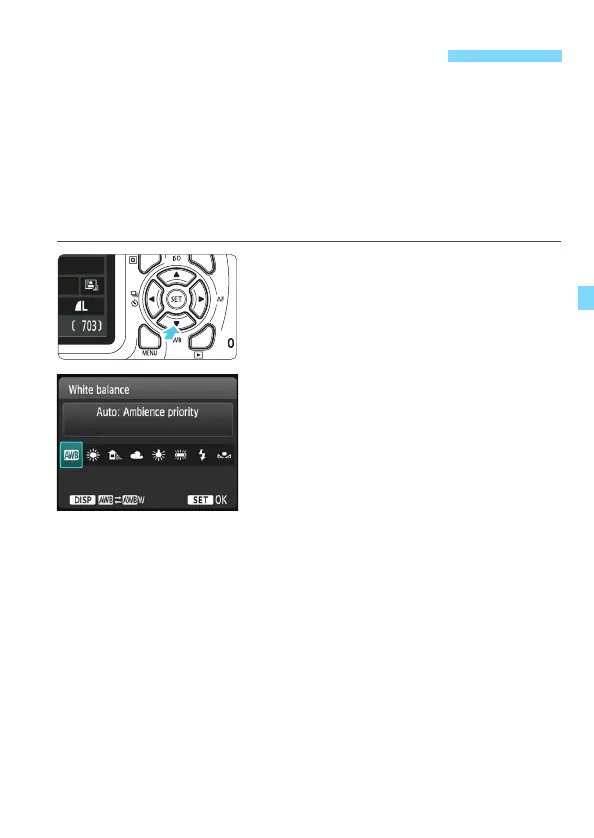
1
Press the <XB> button.
[White balance] will appear.
2
Select a white balance setting.
Press the <Y> <Z> keys or turn the
<6> dial to select the desired
setting, then press <0>.
The “Approx. ****K” (K: Kelvin)
displayed for the white balance
settings <W>, <E>, <R>, <Y>
or <U> is the respective color
temperature.
B: Matching the Light SourceN





 To Next Page