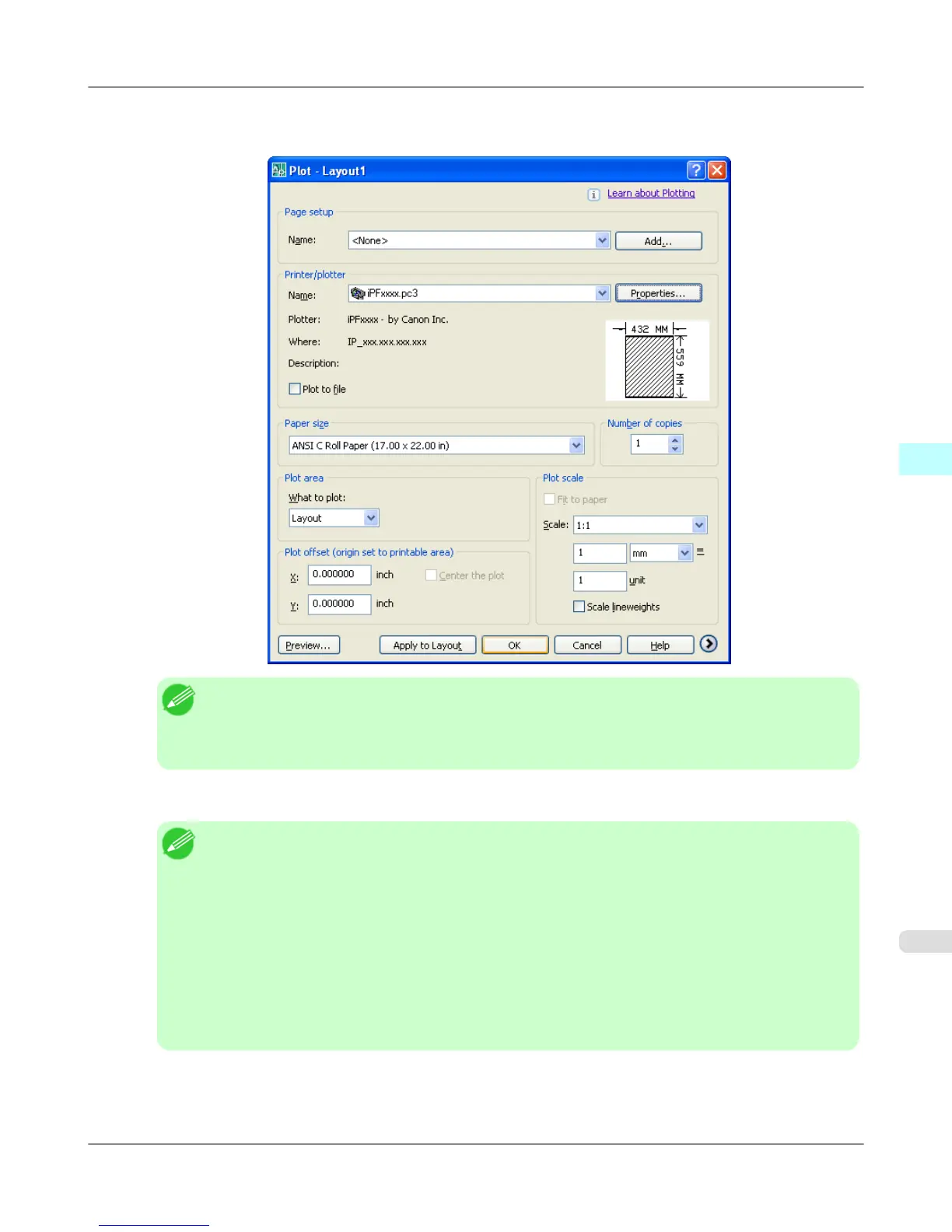
4. The Plot dialog box opens.
Perform the settings that you need on the Plot dialog box, then click the OK button.
Note
• The content of the settings done in the Plotter Configuration Editor dialog box are reflected in the
Paper size settings on the Plot dialog box.
• For more details about the Plot dialog box, please refer to the AutoCAD manual.
5. The print job begins.
Note
• If the output exceeds the number of pixels prescribed for the media, in order to prevent AutoCAD
from hanging up during the print job a warning dialog box opens and asks if you want to lower the
resolution or reduce the number of colors. If this occurs, click the OK button to cancel the print job
and then lower the resolution or reduce the number of colors.
• Some media may not allow printing with certain resolution settings. If you have selected a resolution
setting that cannot be used for printing, then a dialog box will open and prompt you to change the
resolution. If this occurs, click the OK button to cancel the print job and then lower the resolution.
• A message from AutoCAD is displayed when printing starts. Press the OK button to execute the print
job. This message display can be disabled with the Options setting in the AutoCAD Tools menu. For
more details, please refer to the AutoCAD manual.
Windows Software
>
HDI Driver
>
iPF755 Printing
4
385


 To Next Page
 Loading...