3-12
Direct Print
Using the Printer
3
6
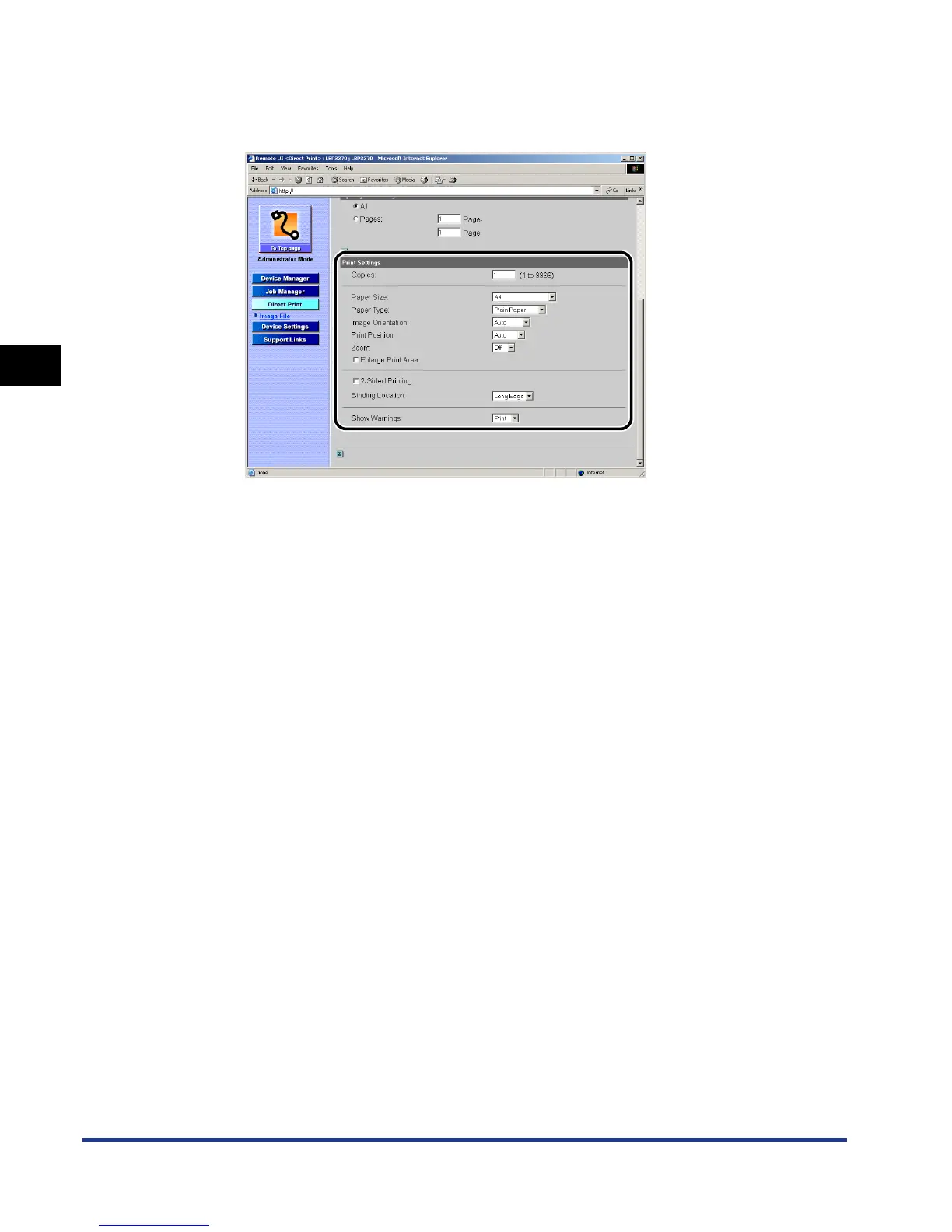
Specify the settings for [Print Settings] as the following, as
needed.
[Copies] Enter the number of copies (1 to 9999) to be printed.
[Paper Size] Specify the size of the paper to be printed.
[Paper Type] Specify the type of the paper to be printed.
[Image Orientation] Select the orientation of the image to be printed from
[Auto], [Vertical] (portrait), and [Horizontal] (landscape).
[Print Position] Select the printing position for the image from [Auto],
[Center], and [Top Left]. If [Auto] is selected, and if the
data to be printed is in TIFF format in which the printing
position is specified, the image is printed on the specified
position. If a printing position is not specified, the image
is printed in the center of the paper. You cannot specify a
printing position for data in JPEG format. Therefore, if
[Auto] is selected, the image is printed in the center of the
paper.
[Zoom] Select [Off] or [Auto] based on whether the printer should
print with scaling outputs according to the printable area.
[Enlarge Print
Area]
Specifies whether the printer should print a document
with its printable area expanded. If the check box for this
option is selected, the printer prints with the printable
area expanded to the edges of the paper, with no
margins. However, the edges of the printout may be
partly missing depending on the property of the
document to be printed.
[2-Sided Printing] Specifies whether the printer should perform automatic
2-sided printing. If the check box for this option is
selected, the printer prints on both sides of the paper.






 To Next Page