Video 49
3 Return ( ) to the index screen to select a scene or photo.
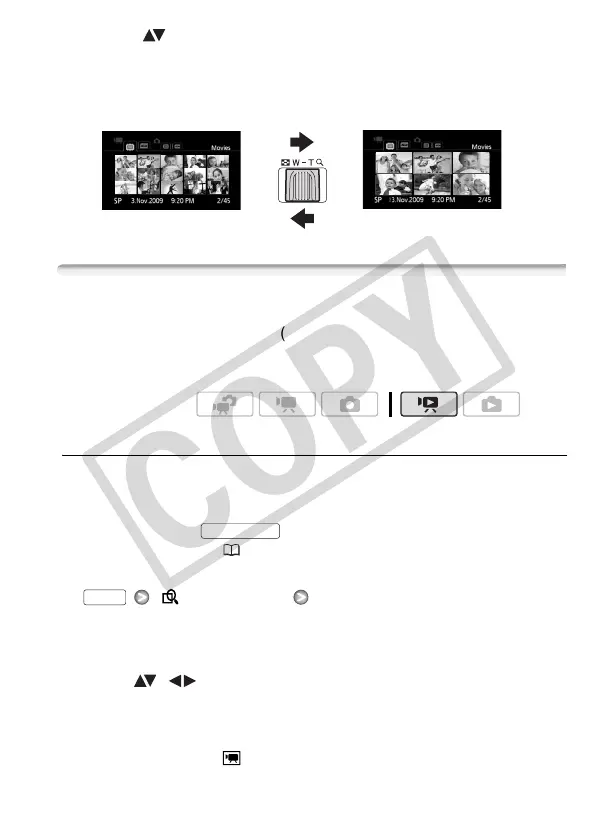
By default, the index screen will show up to 6 items (scenes or photos).
Move the zoom lever toward W to show up to 15 items per screen.
Move it toward T to return to the default index screen display.
Searching for Scenes
From the original movies index screen, you can search for recordings
you made on a particular date (for example, to find all the movies you
shot during a special event). You can also search for scenes in which
people’s faces were detected.
Selecting from the Calendar Screen
1 Open the original movies index screen.
• You can select the original movies in the built-in memory or on the
memory card.
• You can press to open the index screen for video
snapshot scenes ( 63).
2 Open the calendar screen.
[ Scene Search] [Calendar Screen]
• The calendar screen appears.
• Dates that contain scenes (that is, movies were recorded on that
date) appear in white. Dates without recordings appear in black.
3 Move ( , ) the cursor to the desired date.
• When you move the cursor to a date displayed in white, a thumbnail
showing a still image from the first scene recorded on that date will
be displayed next to the calendar. Below it will appear the number of
scenes recorded ( ) and the total recording time for the same day.
T 6 scenes/photos
W 15 scenes/photos
Operating modes:
VIDEO SNAP
FUNC.








 To Next Page