Video 75
Digital Effects
Options (
Default value)
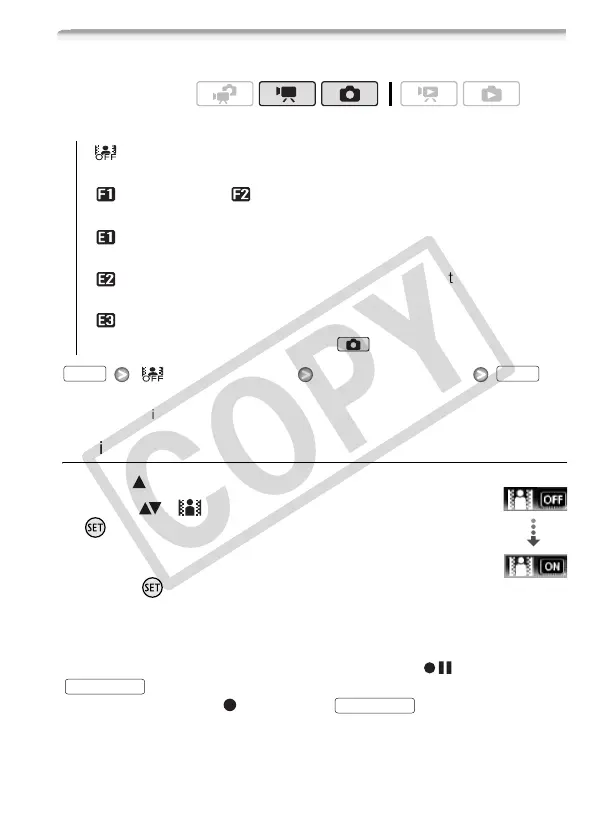
[ Digital Effect Off] Desired fader/effect*
The icon of the selected digital effect appears.
* You can preview the digital effect on the screen.
Applying the Selected Digital Effect
1 Open ( ) the joystick guide.
2 Select ( ) [ Digital Effect] and press
.
• The icon of the selected digital effect turns
green.
• Press again to deactivate the digital
effect (its icon will turn white again).
To fade in/out
Activate the selected fader in record pause mode ( ), then press
to start recording with a fade in. Activate the selected
fader while recording ( ), then press to fade out and
pause the recording.
Operating modes:
[ Digital Effect Off]
Select this setting when you do not intend
to use the digital effects.
[ Fade Trigger], [ Wipe]Select one of the faders to begin or
end a scene with a fade from or to a black screen.
[ Black & White]* Records movies and photos in black and
white.
[ Sepia]* Records movies and photos in sepia tones for an
“old” look.
[ Art]Select this effect to add “flavor” to your recordings.
* Only these digital effects are available in mode.
FUNC. FUNC.
Digital Effect
START/STOP
START/STOP









 To Next Page