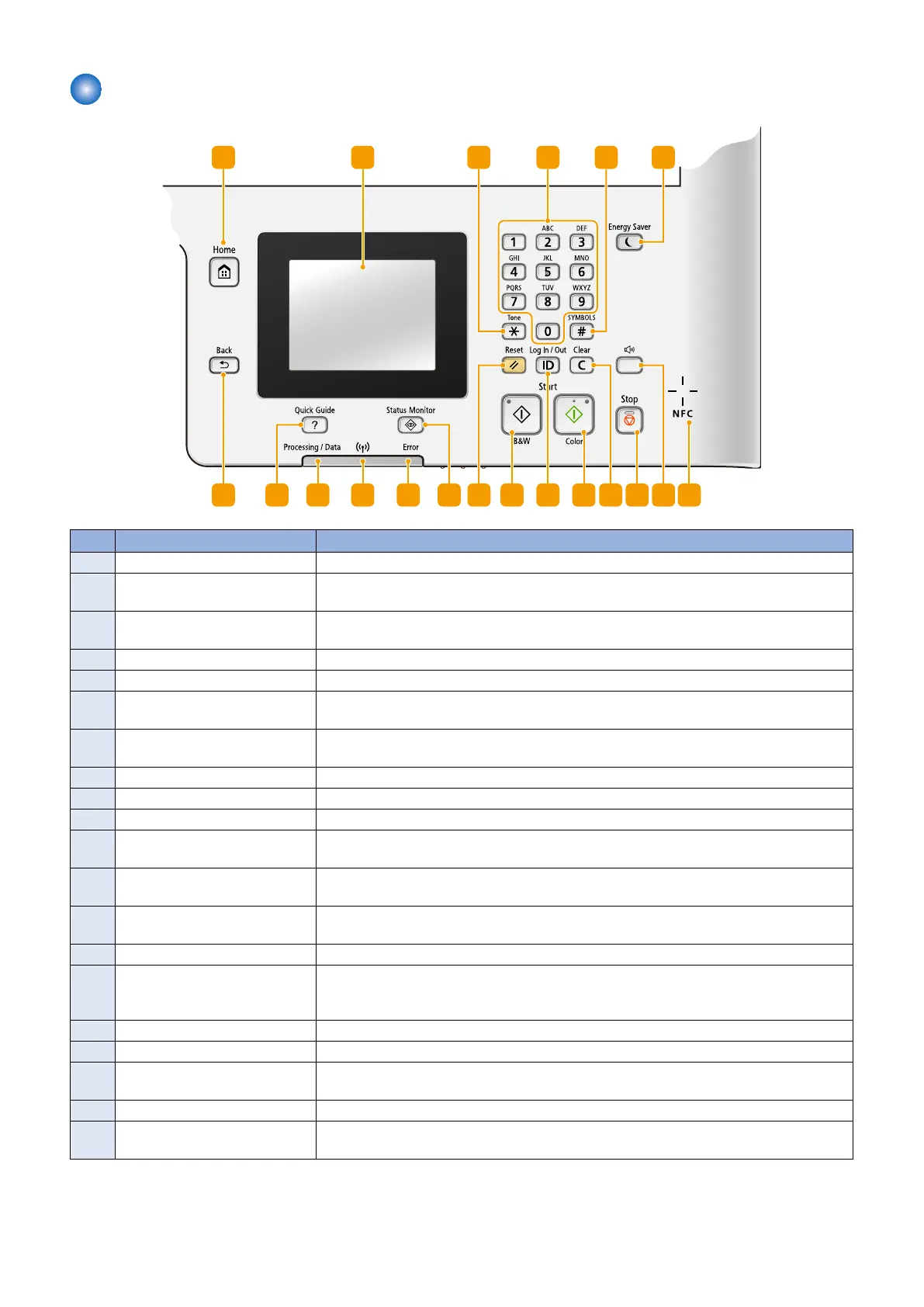
Control Panel
1 2
151617181920
3
4
5
6
78
9101112
1314
No. Name Explanation
1 [Home] key Press to display the <Home> Screen.
2 Display You can view the progress of copy, fax, and other jobs and error statuses. The display is a
touch panel, allowing you to operate the screen by touch to specify settings.
3 [*] key • Press to switch the type of text that is entered.
• Press to use tone dialing such as when receiving fax information services.
4 Numeric keys ([0]-[9] keys) Press to enter numbers and text.
5 [#] key Press to enter symbols such as "@" or "/".
6 [Energy Saver] key Press to put the machine into sleep mode. The key lights up green when the machine is in
sleep mode. Press the key again to exit sleep mode.
7 NFC (Near Field Communication)
mark *1
Pass an NFC-enabled smartphone,etc. with a Canon NFC-compliant application installed on
it over this mark to perform printing and other operations.
8 [Sound Volume] key Press to adjust volume.
9 [Stop] key Press to cancel copying, faxing, and other operations.
10 [Clear] key Press to delete the entered numbers and text.
11 [Start] (Color) key Press to scan or copy documents in color. In addition, if you press this key when you start
printing images from a USB memory device, printouts are printed in color.
12 [ID] key Press after entering the ID and PIN to log on when Department ID Management is enabled.
After you finish using the machine, press this key again to log off.
13 [Start] (B&W) key Press to scan or copy documents in black and white. In addition, if you press this key when
you start printing images from a USB memory device, printouts are printed in black and white.
14 [Reset] key Press to cancel the settings and restore the previously specified settings.
15 [Status Monitor] key Press to check the status of printing or faxing, to view the usage history, or to view the network
settings such as the IP address of the machine. You can also check the status of the machine,
such as the remaining amounts of paper and toner, or whether any errors occurred.
16 [Error] indicator Blinks or lights up when an error such as a paper jam occurs.
17 Wi-Fi indicator *2 Lights up when the machine is connected to wireless LAN.
18 [Processing/Data] indicator Blinks while operations such as sending or printing are being performed. Lights up when
there are documents waiting to be processed.
19 [Quick Guide] key Press to view operation guidance and error causes/solutions.
20 [Back] key Press to return to the previous screen. If you press this key when specifying settings, for
example, the settings are not applied and the display returns to the previous screen.
*1 : Models supporting NFC only
*2 : Models supporting wireless LAN only
1. Product Overview
18





 To Next Page