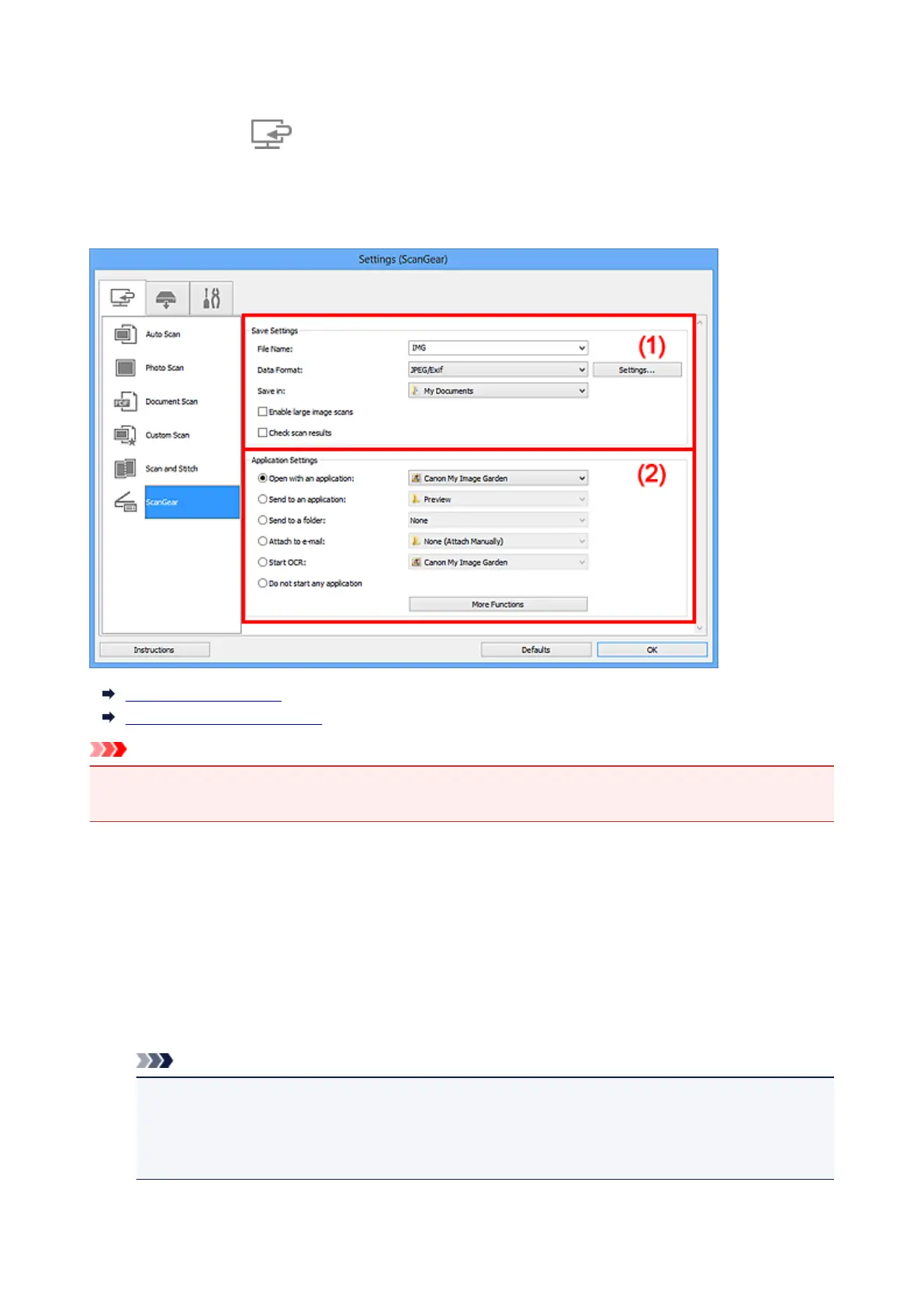
Settings (ScanGear) Dialog Box
Click ScanGear on the (Scanning from a Computer) tab to display the Settings (ScanGear) dialog
box.
In the Settings (ScanGear) dialog box, you can specify how to save images when scanning items by
starting ScanGear (scanner driver) and how to respond after saving them.
(1) Save Settings Area
(2) Application Settings Area
Important
• When the Settings dialog box is displayed from My Image Garden, the setting items for Application
Settings do not appear.
(1) Save Settings Area
File Name
Enter the file name of the image to be saved. When you save a file, the date and four digits are
appended to the set file name in the "_20XX0101_0001" format.
Data Format
Select the data format in which to save the scanned images.
You can select JPEG/Exif, TIFF, PNG, PDF, or PDF (Multiple Pages).
Note
• When PDF or PDF (Multiple Pages) is selected, images up to 9600 pixels x 9600 pixels can be
scanned.
• When the Enable large image scans checkbox is selected in Save Settings, or when Start
OCR is selected in Application Settings, you can select JPEG/Exif, TIFF, or PNG.
472













 To Next Page