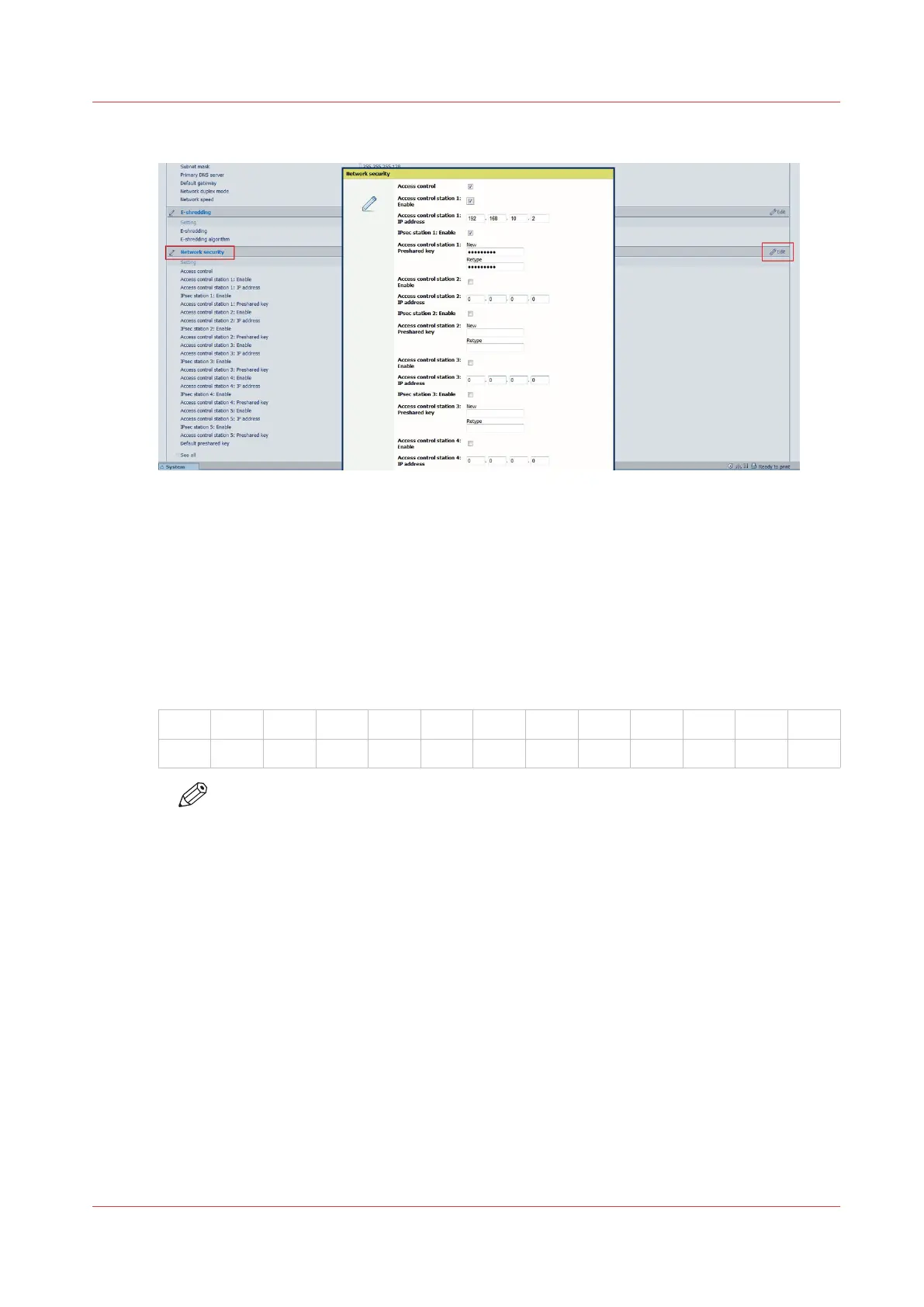
3.
In 'Network security' section, click on the general Edit
4.
Enable Access control
5.
Enable Access control station 1
6.
Enter IP address of the station 1
7.
Enable IPsec control station 1
8.
Enter the IPsec preshared key or keep it empty to use the default preshared key (you can
configure at the bottom of the Network security section)
• 256 characters maximum
• Any number [0-9]
• Any letter lowercase/upper-case [a-z][A-Z]
• the following special characters:
_
- ~ ! @ # $ % ^ * ? { }
( ) = + , . ; : [ ] / | \
NOTE
Write it down. This preshared key will be required during the IPsec configuration on the
workstation.
9.
Restart the controller
Result
The IPsec settings are configured on the controller for a connection to a workstation (which can
be a print server).
Configure the IPsec settings on a workstation or a print server
When to do
After the IPsec configuration on the controller.
Pre-requisites
Log on the workstation with the Administration rights.
Configure the IPsec settings on a workstation or a print server
Chapter 5 - Security on Océ ColorWave 550/600/650 (and Poster Printer)
255









 To Next Page