Purpose
Complete the IPsec configuration for a secure connection between the printer/copier system and
a workstation.
On the workstation, perform the 6 following actions:
1-
Add the security snap in
on page 256
2-
Create the security policy
on page 257
3-
Create the filter list
on page 258
4-
Define the filter actions and security negotiation
on page 260
5-
Define the security rule
on page 261
6-
Assign the security policy
on page 263
NOTE
The procedure below shows the configuration steps on Windows server 2008.
The procedure is similar on other Operating Systems (Windows Server 2003, Windows XP,
Windows Vista, Windows 7)
Add the security snap-in
Procedure
1.
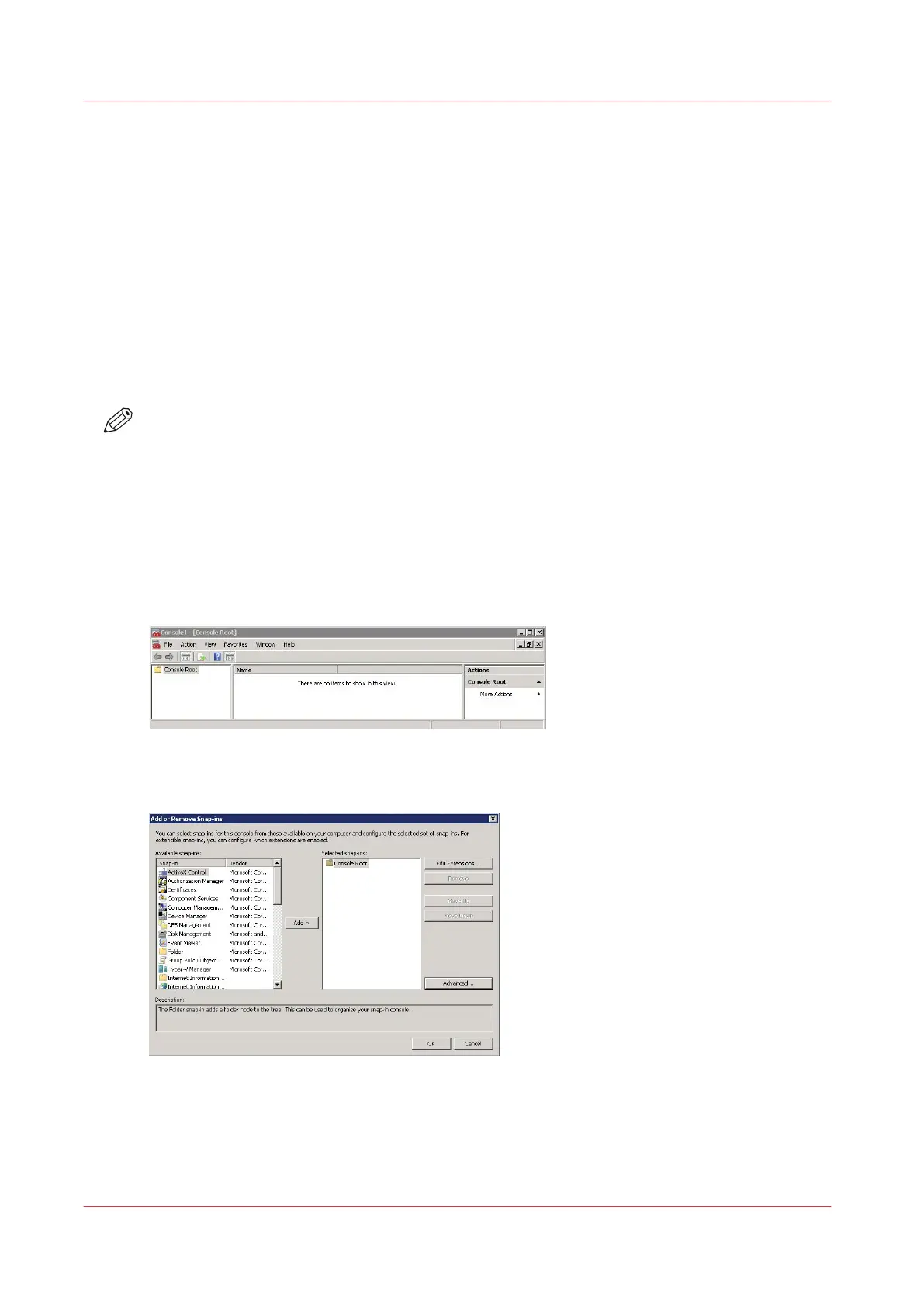
In the 'Start' - 'Run' window, enter 'mmc' to open the management console
2.
In the top menu select 'File' - 'Add/Remove Snap-in'
3.
Select 'IP Security Policy Management' and click 'Add' to add it to the root console
4.
Keep 'Local computer' checked and click 'Finish'
The security snap-in is added, click 'OK'
Add the security snap-in
256
Chapter 5 - Security on Océ ColorWave 550/600/650 (and Poster Printer)









 To Next Page