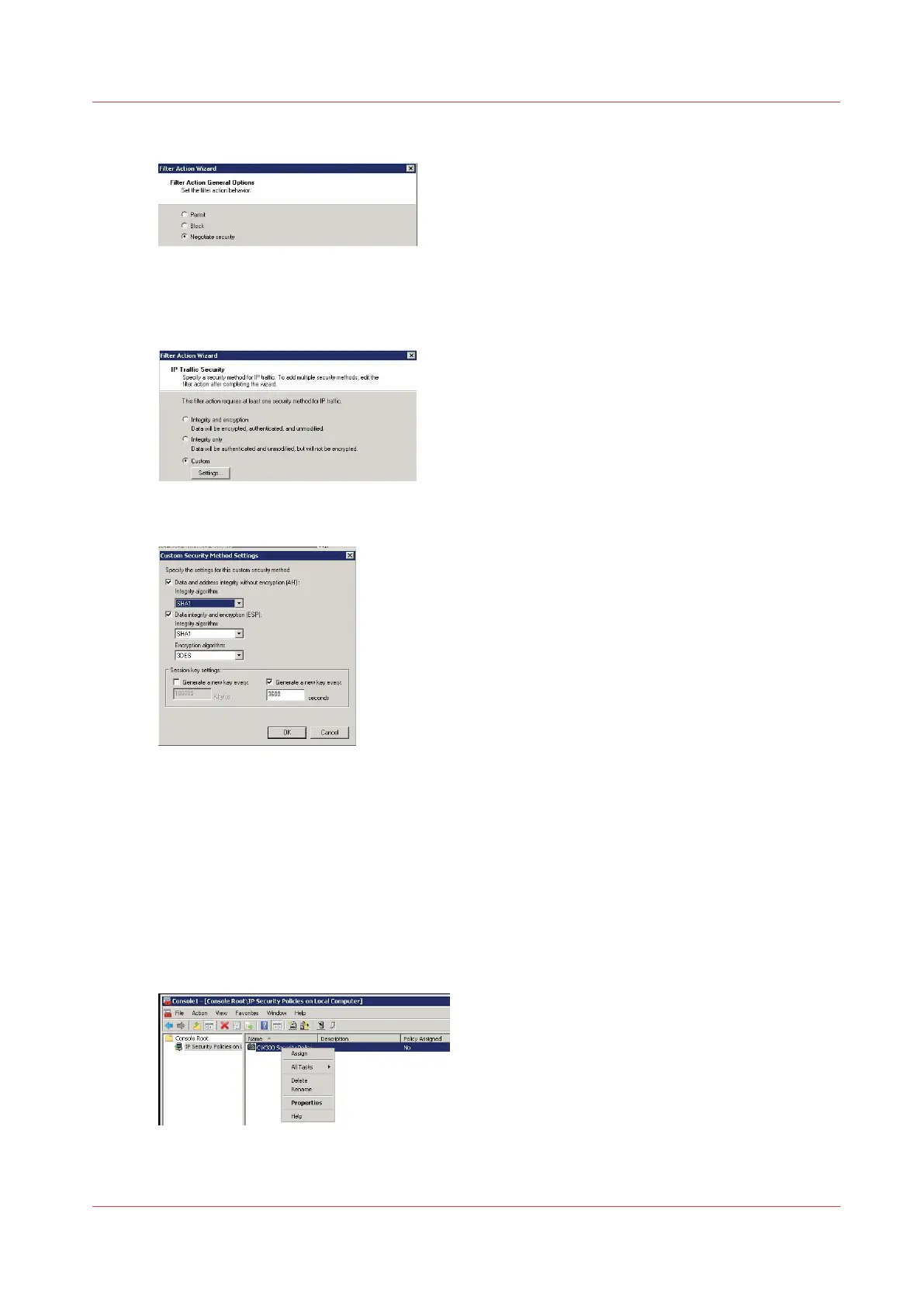
4.
Select 'Negotiate security' and click 'Next'
5.
Select 'Allow unsecured communication if a secure connection cannot be established' or 'Fall
back to unsecured communication' (depending on the Operating System) and click 'Next'
6.
Select 'Custom' and click on the 'Settings...' button
7.
Configure the settings as below
8.
Click 'OK' and 'Next', then 'Finish'
Define the security rule
Procedure
1.
In the console, right click on the IP security policy just created and select 'Properties' to open the
wizard
(On Windows 7, a new window opens: check that "Use Add Wizard" is checked, then click on
"Add")
2.
Click 'Next'
Define the security rule
Chapter 2 - Security on Océ PlotWave 300/350, PlotWave 750, PlotWave 900 and ColorWave 300
49









 To Next Page