Setting Up Envelope Printing
1. Load envelope on the printer
2. Open the printer driver setup window
3.
Select the media type
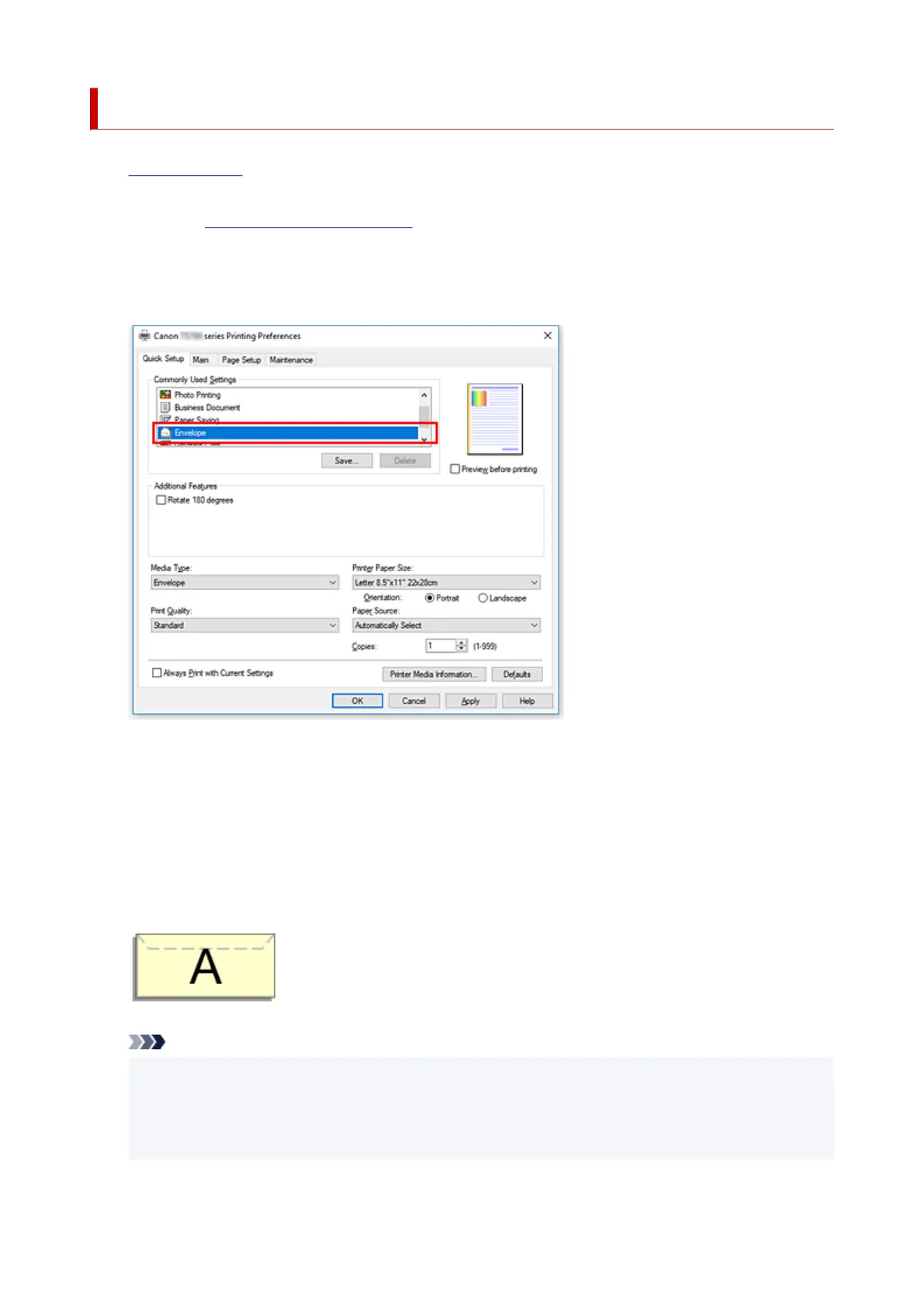
Select Envelope from Commonly Used Settings on the Quick Setup tab.
4.
Select the paper size
When the Envelope Size Setting dialog box is displayed, select Envelope Com 10, Envelope DL,
Yougata 4 4.13"x9.25", or Yougata 6 3.86"x7.48", and then click OK.
5.
Set the orientation
To print the addressee horizontally, select Landscape for Orientation.
Note
•
If Envelope Com 10, Envelope DL, Yougata 4 4.13"x9.25", or Yougata 6 3.86"x7.48" is
selected for Printer Paper Size, the printer rotates the paper 90 degrees to the left to print,
regardless of the Rotate 90 degrees left when orientation is [Landscape] setting for Custom
Settings in the Canon IJ Printer Assistant Tool.
255





 To Next Page