Basic Operating Tasks
2011-03-31 9G3886_en 2-7
Loading a different
film size to match a
print request
If a print request requires a different film size, the requested film size
flashes on the display screen. Change the installed film to match the print
request.
1. If the Pause symbol is on, press it and wait until it goes off.
2. Open the film supply. Hold the edges of the film cartridge and lift
the cartridge out of the film supply.
3. Store the removed film cartridge.
4. Insert the new film cartridge. Align the cartridge with the label
facing up and the perforations to the front. Set the leading edge on
the cartridge guides, and then slide the film cartridge into the laser
imager to engage the detents in the bottom of the cartridge.
5. Close the film supply.
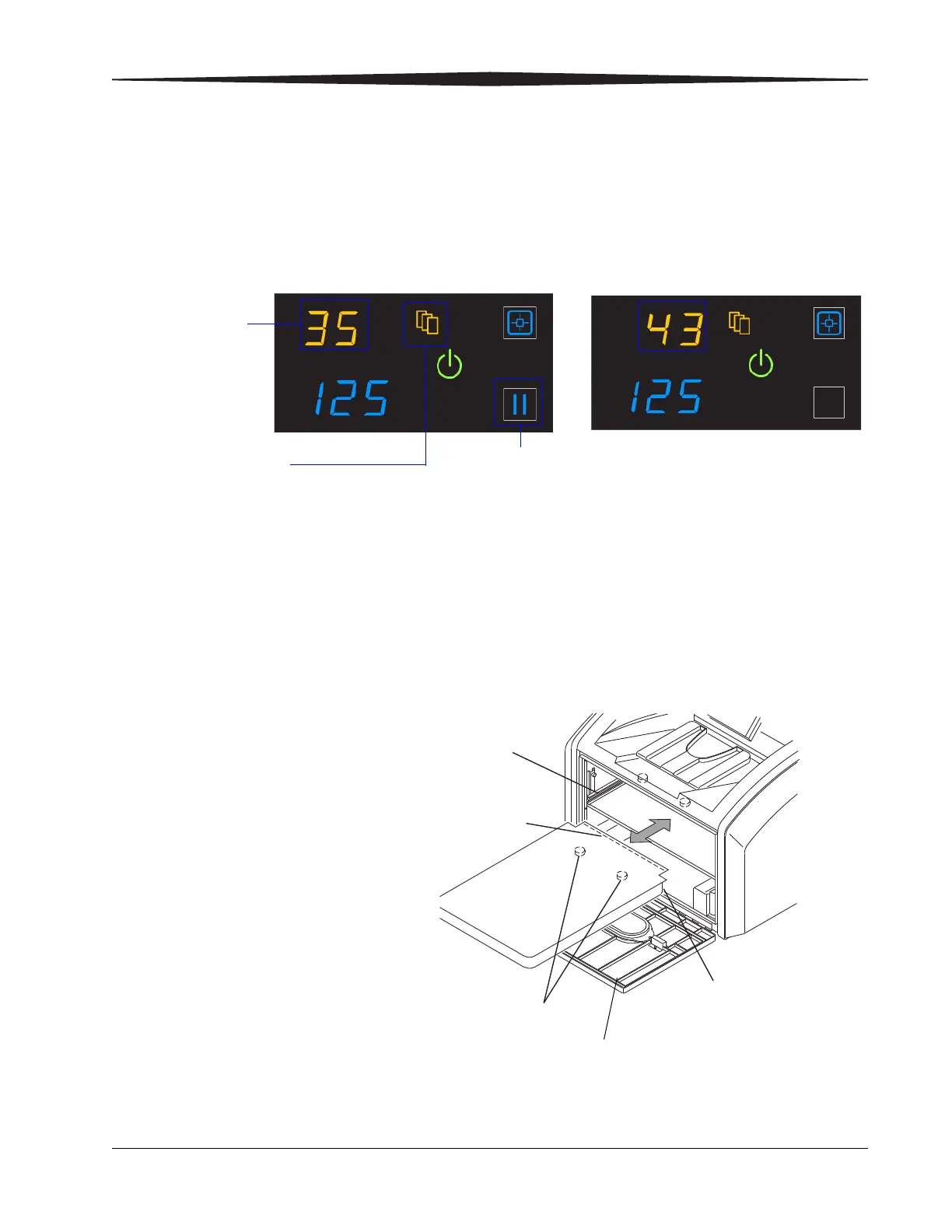
6. Check that the display screen changes to reflect the new film size.
The requested film
size flashes. In this
example, load
35 x 43 cm
(14 x 17 in.) film.
The Film Size symbol
indicates that you
must change the film size.
Screen 1: "35" flashes
Screen 2: "43" flashes
In most cases, the Pause symbol is off. Do not open the film
supply if the Pause symbol is on. The Pause symbol indicates
that the film cartridge is open.
H210_1020AC
H210_1020ACA
Leading Edge
Detents
Perforations
Cartridge
Guide






 To Next Page