Field
Gateway PIN
The step of WPS establishment:
PBC
1.
Click or press the WPS button on the
Push Button Configuration (PBC) option radio then click “Connect”
wireless LED will flash with orange color.
2.
Click or press the WPS button on the wireless devi
3.
If WPS connection successfully established, the wireless LED will turn
PIN
1.
Identification Number (PIN) option radio then a “PIN” column will
2.
device's sticker or generated by connection manager of that device.
3.
Click “Connect”, then the wireless LED will flash with orange color.
4.
Start PIN registration process by connection manager of that
5.
If WPS connection successfully established, the wireless LED will turn
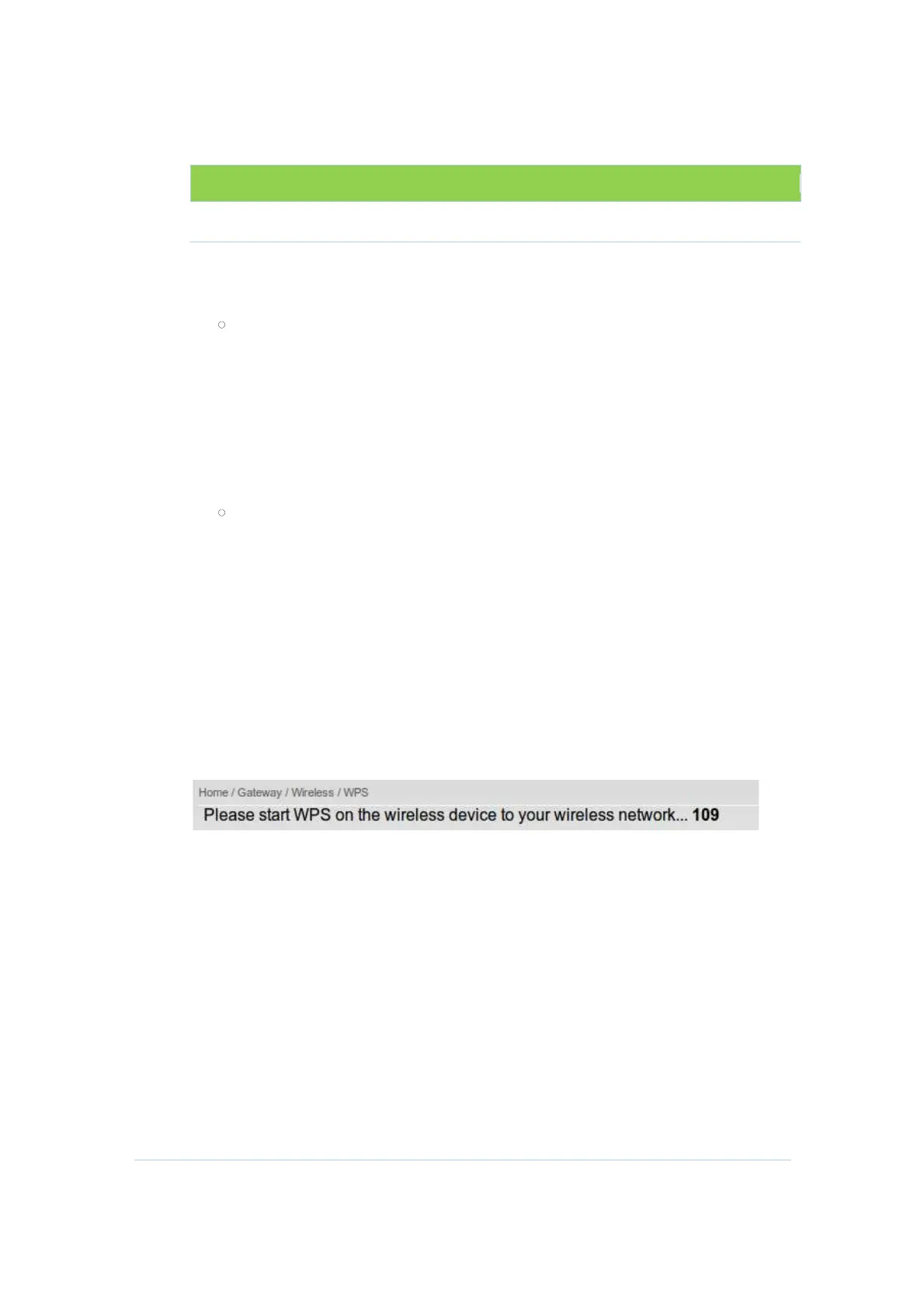
The countdown timer will start after you click “Connect” button
Description
CH6643E gateway’s PIN code,
The step of WPS establishment:
Click or press the WPS button on the
CH6643
E’s front panel or select
Push Button Configuration (PBC) option radio then click “Connect”
section
“Home / Gateway / Wireless / WPS”, the
wireless LED will flash with orange color.
Click or press the WPS button on the wireless devi
If WPS connection successfully established, the wireless LED will turn
section
“Home / Gateway / Wireless / WPS”, select Personal
Identification Number (PIN) option radio then a “PIN” column will
ireless device’s PIN code that
is normally printed on the
device's sticker or generated by connection manager of that device.
Click “Connect”, then the wireless LED will flash with orange color.
Start PIN registration process by connection manager of that
If WPS connection successfully established, the wireless LED will turn
The countdown timer will start after you click “Connect” button
39
E’s front panel or select
Push Button Configuration (PBC) option radio then click “Connect”
“Home / Gateway / Wireless / WPS”, the
If WPS connection successfully established, the wireless LED will turn
“Home / Gateway / Wireless / WPS”, select Personal
Identification Number (PIN) option radio then a “PIN” column will
is normally printed on the
device's sticker or generated by connection manager of that device.
Click “Connect”, then the wireless LED will flash with orange color.
Start PIN registration process by connection manager of that
device
If WPS connection successfully established, the wireless LED will turn
The countdown timer will start after you click “Connect” button


 To Next Page