- 14 -
CHANGING VALUES IN THE MENUS
A highlighted area in the BB2 means that you can use the or keys to change the
selection. However, an exception is when values or numbers are displayed one figure at
a time. In this case, the arrow keys are used to change the value and ENTER is used to
advance to the next digit. When changing options, the highlighted option Settings
indicates that and can be used to change between options. When the shaded area
is over a number, then the arrow keys will increase or decrease the value.
Occasionally, a list indicator ( ) will appear in a dialog box. This indicates that the user
can use the arrows to select between the different functions that are available.
When a value can not be displayed, which might be due to the fact that it is to large,
negative or an error has occurred in a calculation stars are shown instead of a number,
e.g. *****.* (number of stars is depending on value and unit settings). If it is possible to
edit the parameter it can be set to zero by pressing ENTER a number of times.
All selected changes are implemented immediately and measuring is continuous.
DIALOGS
The BB2 sometimes shows a small dialog box containing a message. Sometimes at the
bottom of the dialog box there is a message that says, “ENTER”. This indicates that the
dialog will be confirmed and consequently disappears when the ENTER key is pressed.
If several dialogs are stacked, the one at the top will be confirmed first.
SENSOR MENU
The sensor menu is accessed by first selecting the sensor, then pressing ENTER for five
seconds. See the sensor manual for more information.
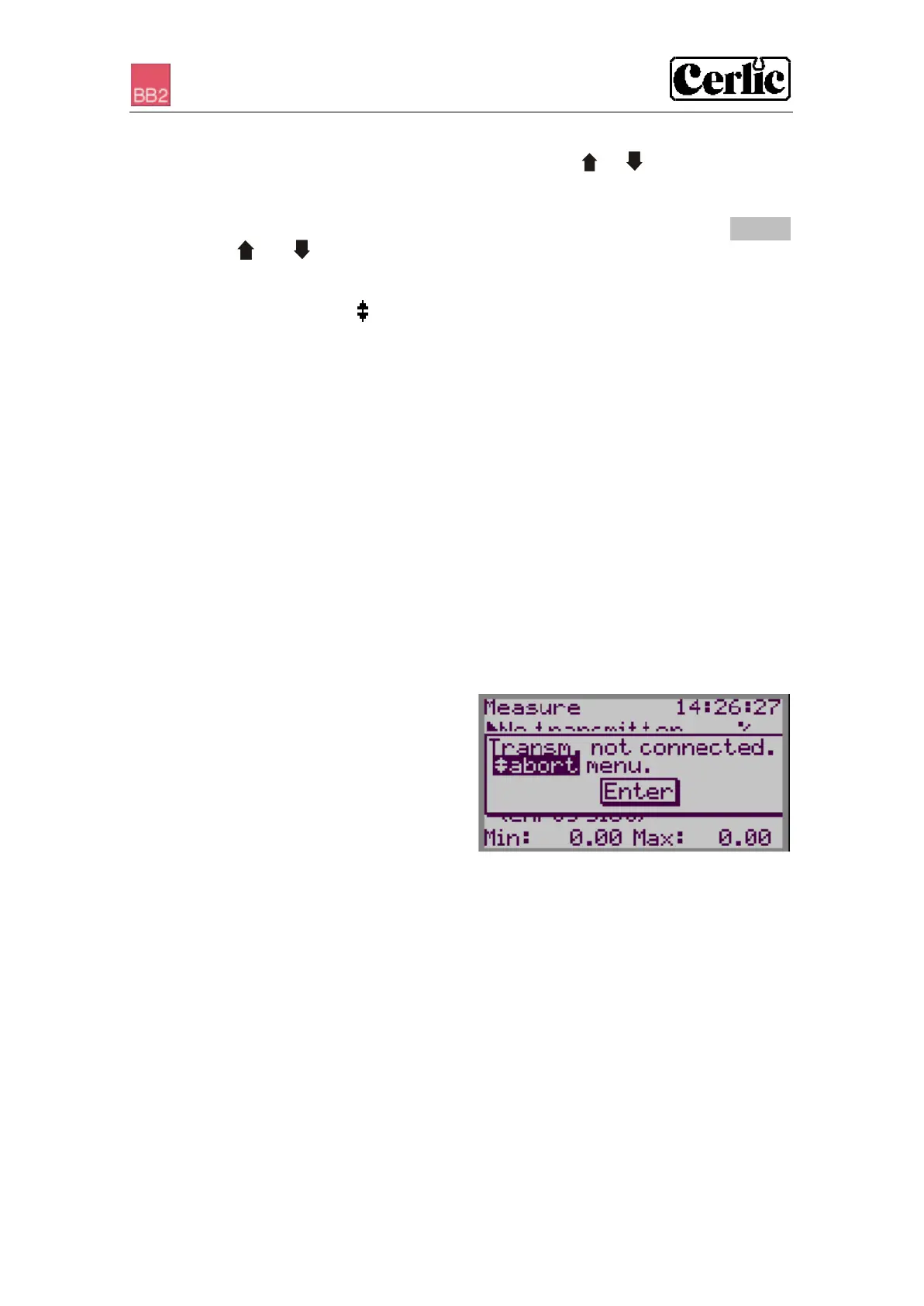
If the selected sensor is not active (the text
No transmitter is shown) a warning is
displayed that asks you to make another
choice in order to show the sensor menu.
To access the menu of a sensor that is not
connected, change the highlighted text from
“abort” to “show” using the arrows and
press ENTER.


 To Next Page