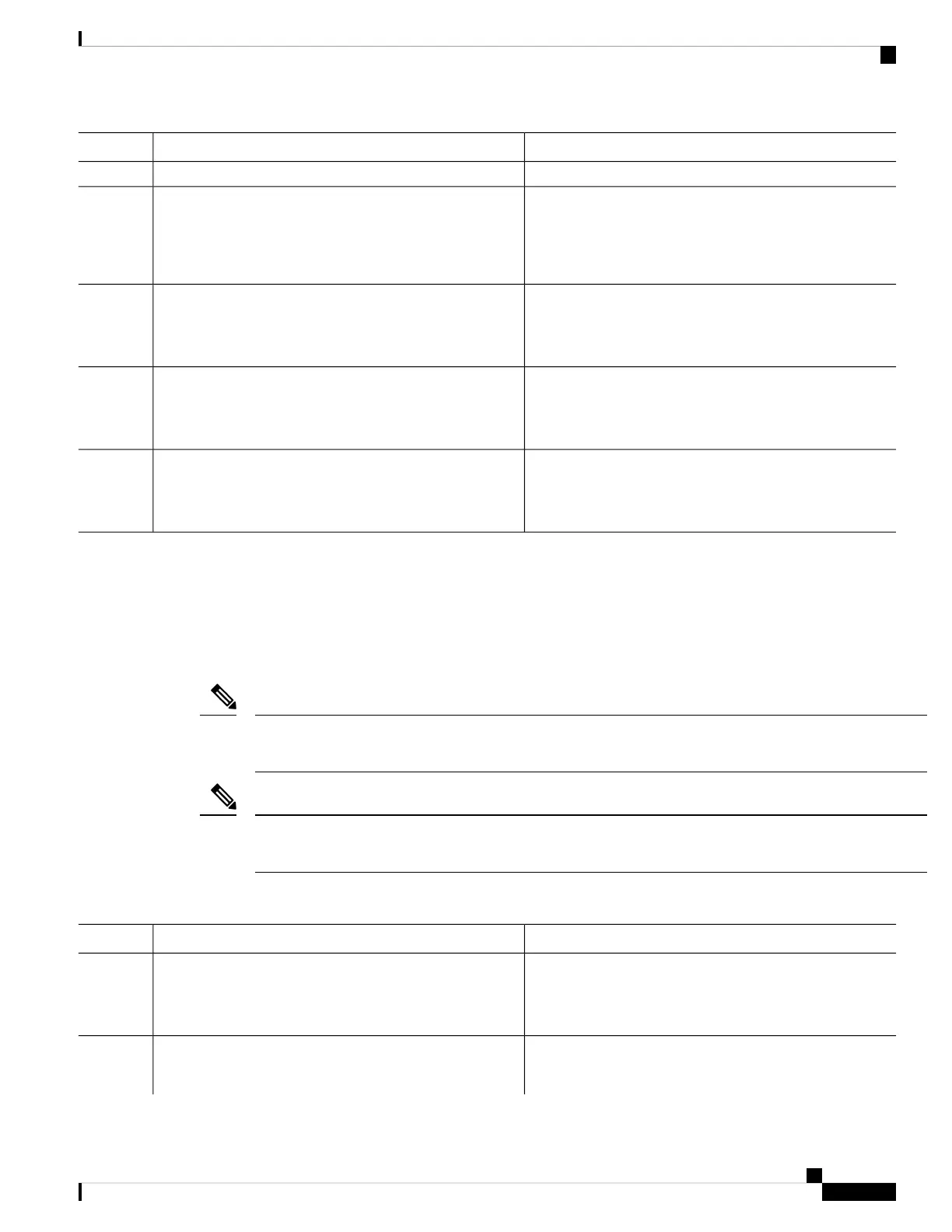
PurposeCommand or Action
Device(config)# interface gigabitethernet 0
Sets a primary IP address for an interface.ip address ip-address mask
Example:
Step 5
Device(config-if)# ip address 209.165.200.240
255.255.255.224
Enables an interface.no shutdown
Example:
Step 6
Device(config-if)# no shutdown
Returns to privileged EXEC mode.end
Example:
Step 7
Device(config-if)# end
Displays a brief status of the interfaces that are configured
for IP.
show ip interface brief
Example:
Step 8
Verify that the interfaces are up and configured correctly.
Device# show ip interface brief
Saving Your Controller Configuration
This section describes how to avoid losing your configuration at the next system reload or power cycle by
saving the running configuration to the startup configuration in NVRAM. The NVRAM provides 32 MB of
storage on the controller.
To aid file recovery and minimize downtime in case of file corruption, we recommend that you save backup
copies of the startup configuration file and the Cisco IOS-XE software system image file on a server
Note
To avoid losing work you have completed, be sure to save your configuration occasionally as you proceed.
Use the copy running-config startup-config command to save the configuration to NVRAM.
Note
Procedure
PurposeCommand or Action
Enables privileged EXEC mode.enable
Step 1
Example:
Enter your password if prompted.
Note
Device> enable
Saves the running configuration to the startup configuration.copy running-config startup-config
Example:
Step 2
Cisco Catalyst CW9800H1 and CW9800H2 Wireless Controllers Hardware Installation Guide
71
Power Up and Initial Configuration
Saving Your Controller Configuration



 To Next Page