16
Cisco TelePresence System Codec C60/C40 and Profiles using C60/C40 Administrator guide
D14636.06 Profile C60-C40 and Codec C60-C40 Administrator Guide TC4.2, July 2011.
Copyright © 2010-2011 Cisco Systems, Inc. All rights reserved.
www.cisco.com
Connecting to the video
conference system
The web interface provides full configuration access to your
video conference system.
You can connect from a computer and administer the system
remotely.
This section describes the web interface functions and how
you can use them for system configuration and maintenance.
Starting to use web interface
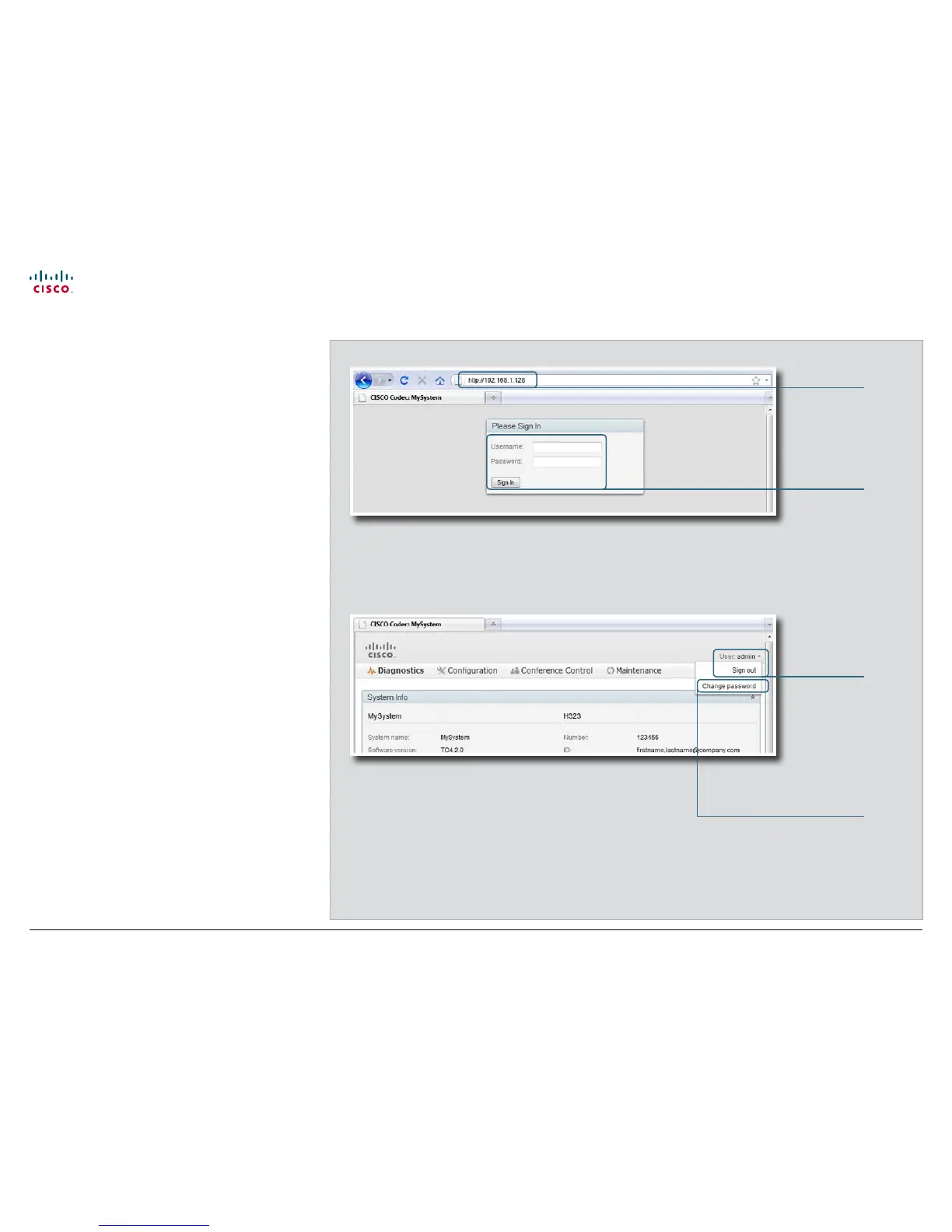
1. Open a web browser and enter the IP address of the video
system in the address bar.
To find the IP address, open the System Information page
on the Touch controller. Tap the icons More > Settings,
select System Information and find the IPv4Address or
IPv6 Address.
2. Enter your user name and password and click Sign In.
The system is delivered with a default user named admin
with no password (i.e. leave the Password field blank when
signing in).
3. To sign out, click your user name and select Sign out from
the drop down menu.
About password protection
You sign in to the web interface with the same user name and
password as for the video conference system.
NOTE: We strongly recommend that you set a password for
the admin user to restrict access to system configuration.
Read more about password protection in the Password
protection chapter.
1. Connect
Enter the IP
address of the
video system.
2. Sign in
Enter the user
name and
password and
press Sign in.
3. Sign out
Click on your user
name and select
Sign out.
Change your password
Click on your user
name and select
Change password.




 To Next Page