www.cisco.com
11
Cisco IP Video Phone E20 Administrator guide
D143 30.12 Administrator guide Cisco IP Video Phone E20, TE4.1 November 2011.
All contents are Copyright © 2010–2011, Cisco Systems, Inc. All rights reserved.
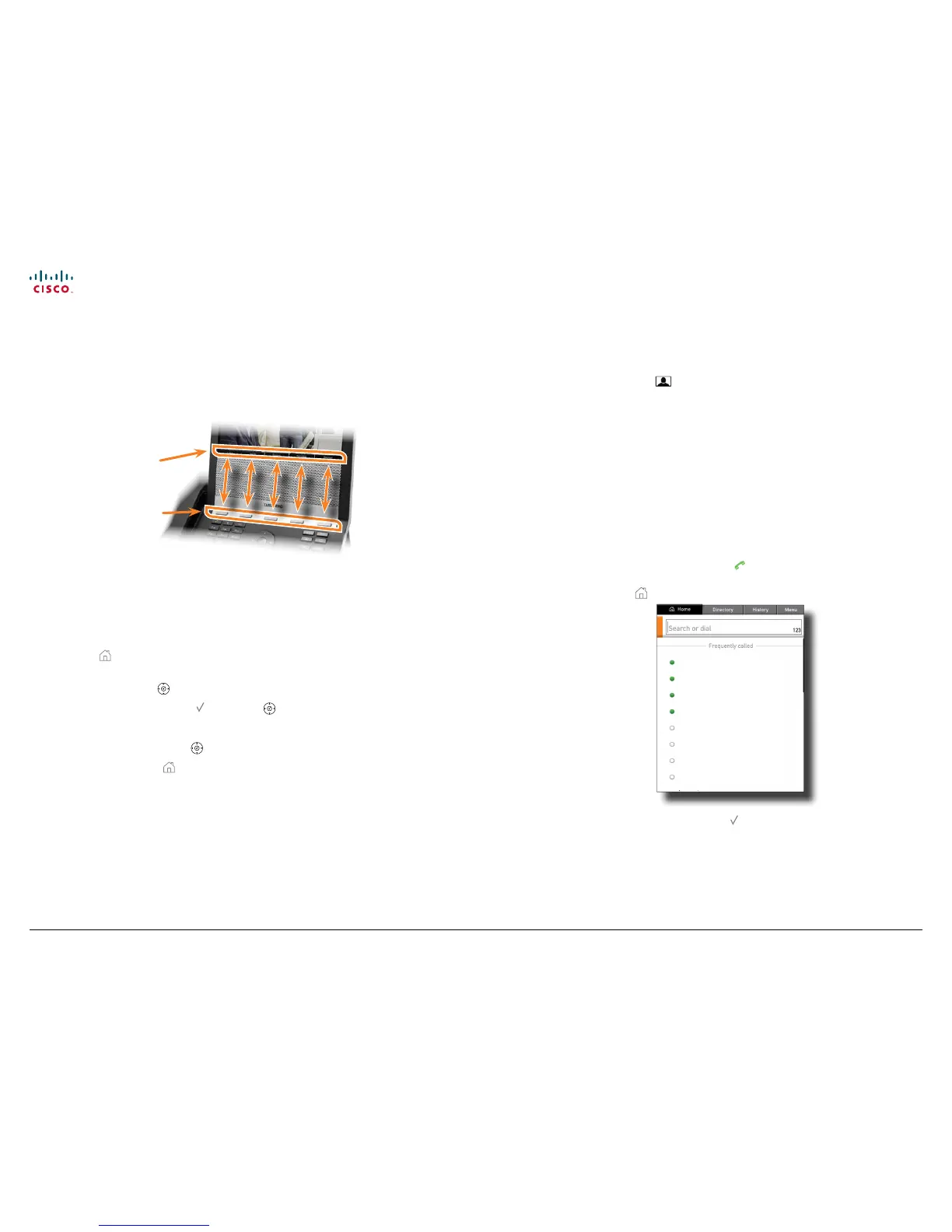
The
softbuttons
are
operated
using these
buttons
Operating the softbuttons
In the lower line of the display, context sensitive softbuttons will appear to give
you choices when operating the unit. Observe that these buttons are operated by
means of the upper row of keypad buttons as shown below.
Navigation principles
The following navigation principles apply:
• Press the
button to show the Home menu whenever no menu is shown.
Press again to remove the menu.
• Use the up and down
keys to navigate inside a menu.
• Open a submenu by pressing
or the right button.
• Repeat, if needed, if there are more submenu levels.
• Inside a submenu, press left
button to go one level back.
• Inside a menu, use the
button to close all submenus and go directly back
to Main menu.
• When entering information in a text or number eld, use the C button to delete
inputs to the left of the current cursor position.
• To switch between numeric and alphanumeric setting use the # (abc/123)
softbutton.
• The softbuttons along the bottom of the screen are controlled by the
corresponding buttons of the keypad.
Selfview
• Outside a call, press the button to see what others see of you.
• Use this image to see whether you need to adjust the camera tilt (described
on the previous page), your distance to the phone and/or the lightning if
required.
• Press again to remove the selfview image. Any wallpaper chosen will now be
displayed.
• In a call, the selfview will appear as a picture-in–picture image.
Calling someone by dialing their number
Key in the number or URI directly and press . You can lift o the handset both
before and after dialing.
Alternatively, just press
to show the Home menu, if needed:
norah dollhouse
hedda gabler
peer gynt
hjalmar ekdahl
hedwig ekdal
emma bovary
oscar w. ilde
harry p. otter
Green indicates that the
entry is online.
Red indicates busy.
None indicates status
unknown.
Indicators work when
PresenceSubscribe is active
only—see page 27.
Key in the number or URI to call and press twice to start calling.
While doing this you may need to switch to alphanumeric setting by means of the
# (abc/123) key. Activate Special Characters, if needed.
The E20 will search for matches as you key in a number or URI. Matches found
will be presented according to categories; Recent calls, My contacts and
Phone book.
Below the Dial eld is the list of those you have called frequently and your


 To Next Page