EasyManua.ls Logo

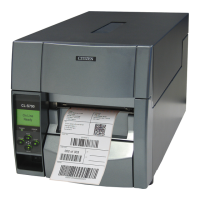
Citizen CL-S700DT - User Manual

Citizen CL-S700DT
62 pages
Print Icon
To Next Page IconTo Next Page
Loading...
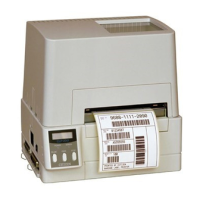
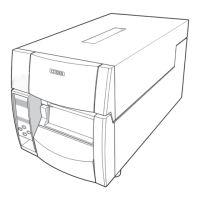
Direct Thermal Barcode & Label Printer
CL-S700DT
USER'S MANUAL

Questions and Answers

  • Y
    yorkjonathanAug 11, 2025
    How to fix a Citizen Printer that is not printing neatly?
    • M
      Mariah JohnsonAug 11, 2025
      If your Citizen Printer is not printing neatly, first ensure that the media is correctly set. Adjust the printing density via the menu or control software. Check if the platen is dirty or deformed. If dirty, clean it with ethyl alcohol; if deformed, it should be replaced.
  • G
    garciajohnAug 20, 2025
    What to do if my Citizen CL-S700DT Printer feeds paper but prints nothing?
    • N
      Nicholas JohnsonAug 20, 2025
      If your Citizen Printer feeds paper but doesn't print, the thermal printhead may be dirty or have a label stuck to it. Clean any dirt with the attached head cleaner. If a label is stuck, carefully remove it, avoiding metal objects. If adhesive remains, use a soft cloth with ethyl alcohol to remove it.
  • J
    James MeyersAug 31, 2025
    Why does the LED not light up on my Citizen CL-S700DT Printer?
    • J
      Jason LawrenceAug 31, 2025
      If the LED on your Citizen Printer doesn't light up when connected to power, ensure the power cord is correctly plugged into both the electrical outlet and the printer's power inlet. Check if the power cord is damaged and replace it with one specifically designed for the printer. Verify that the electrical outlet is receiving power and that the building's main fuse is not burnt out. Replace the fuse or reset the breaker if necessary.

Summary

Safety and Compliance

Safety Instructions

Crucial safety guidelines and warnings to prevent injury and damage during printer operation.

Setup

Printer Operation

Setting the Media

Instructions and diagrams for correctly installing and configuring media for printing.

Printer Adjustments

Sensor Adjustments and Calibration

Process for adjusting and calibrating the printer's media sensors for optimal performance.

Media Thickness Adjustment

How to adjust the printhead for optimal print quality based on media thickness.

Media Width Adjustment

How to adjust the printhead pressure for optimal print quality based on media width.

Troubleshooting

Malfunction Checks and Corrections

Table guiding users through common checks and corrective actions for printer malfunctions.

Citizen CL-S700DT Specifications

General IconGeneral
Print Resolution203 dpi
Print MethodThermal Transfer
Max Print Width104.1 mm (4.1 in)
Media Width25.4 – 118 mm (1 - 4.6 in)
Media SensorsReflective and Transmissive
Media Roll Diameter200 mm (7.9 in)
Ribbon Width4.33 inches
Ribbon Core25.4 mm (1 in)
Memory4 MB Flash
ConnectivityUSB
Optional InterfacesEthernet, Wireless
EmulationsZPL, EPL
Paper Width25.4 – 118 mm (1 - 4.6 in)
Paper TypeLabel, Tag

Related product manuals