OPERATING MANUAL
800.749.2761 www.coachcomm.com
33
6. Connect a Cat 5 cable from your PC to the LAN port on the rear of the X-System CU (in the Press Box Rack Unit.)
See page 14 for a diagram of the CU rear and the location of the LAN port.
7. Complete the procedures detailed in the Game Day
Setup section on page 5 of this manual.
8. Double-click on the X-Ware icon on your desktop to
open X-Ware. X-Ware will open and connect to the CU,
and you will be able to view the real-time status of all
connected and paired X-System devices from X-Ware.
See page 34 for more information about X-Ware
Operation.
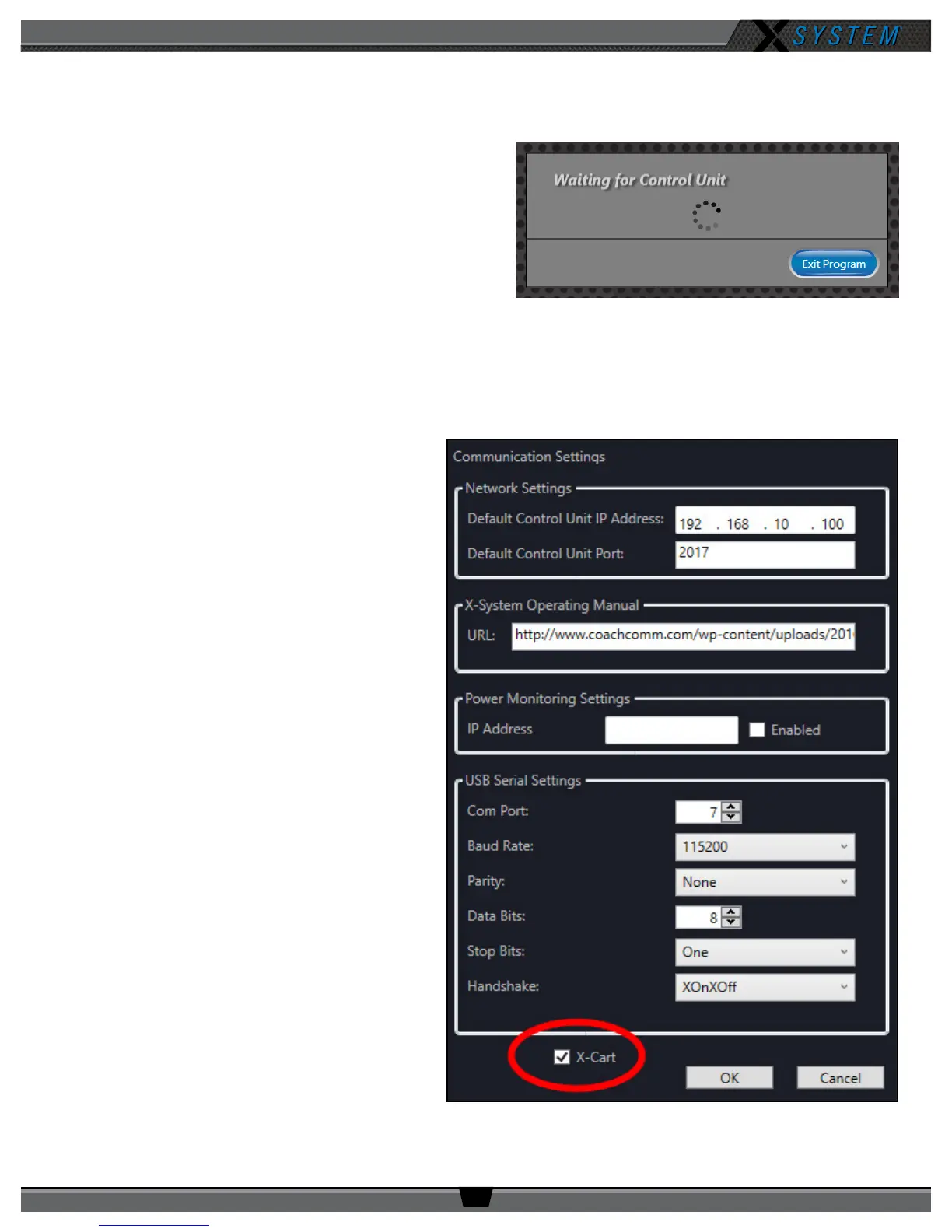
Note: If X-Ware is not connected to your CU or if the CU
is not powered on, you will see the following message when you open the game day interface of
X-Ware: “Waiting for Control Unit.”
Enabling Game Day Interface
Sometimes Windows 10 PCs open X-Ware to the
Advanced Settings interface instead of the Game Day
Interface depicted in Figure 43 on page 34.
To modify X-Ware’s startup behavior to show the Game
Day Interface when opened, follow the steps below:
1. Right-click the X-Ware icon on your PC’s
desktop and choose
Run as Administrator
.
2. Once X-Ware is open, click
Edit,
then
Conguration
, then
Communication
Settings
. A dialog box will display.
3. Click the checkbox beside
X-Cart
, then click
OK
.
4. Close X-Ware. The next time you open X-Ware,
the game day interface will display.
Figure 41: Waiting for Control Unit X-Ware Screen
Figure 42: Checkbox to Enable X-Ware Game Day Interface



 To Next Page