OPERATING MANUAL
800.749.2761 www.coachcomm.com
32
Connecting X-Ware to Your CU
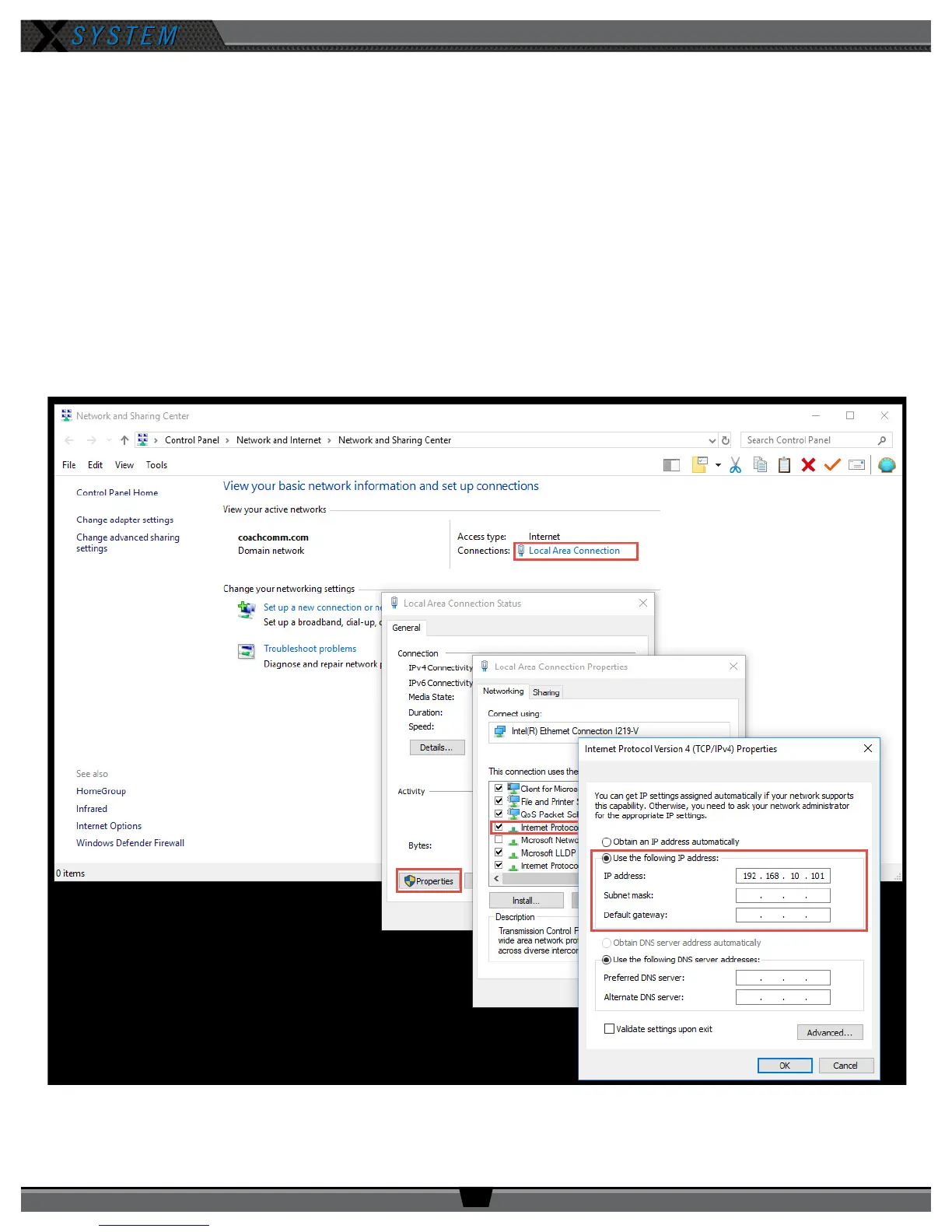
Follow the steps below to connect your X-System to your PC so that you can use X-Ware on game day as a real-time
monitoring tool.
1. Right-click your PC’s connection icon and select
Open Network and Sharing Center.
(Or access the same
window from your PC’s Control Panel.)
2. Click
Local Area Connection
near the upper right of the window. The Local Area Connection Status window will
display.
3. Click
Properties
. A Local Area Connection Properties window will display.
4. Double-click the
Internal Protocol Version 4 (TCP/IPv4)
option from the list of connection properties. A TCP/IPv4
Properties window will display.
5. Click the radio button beside
Use the following IP Address
, then type
192.168.10.99
in the eld. Click
OK.
Figure 40: Changing PC IP Address



 To Next Page