OPERATING MANUAL
800.749.2761 www.coachcomm.com
34
X-Ware Operation
Home Screen
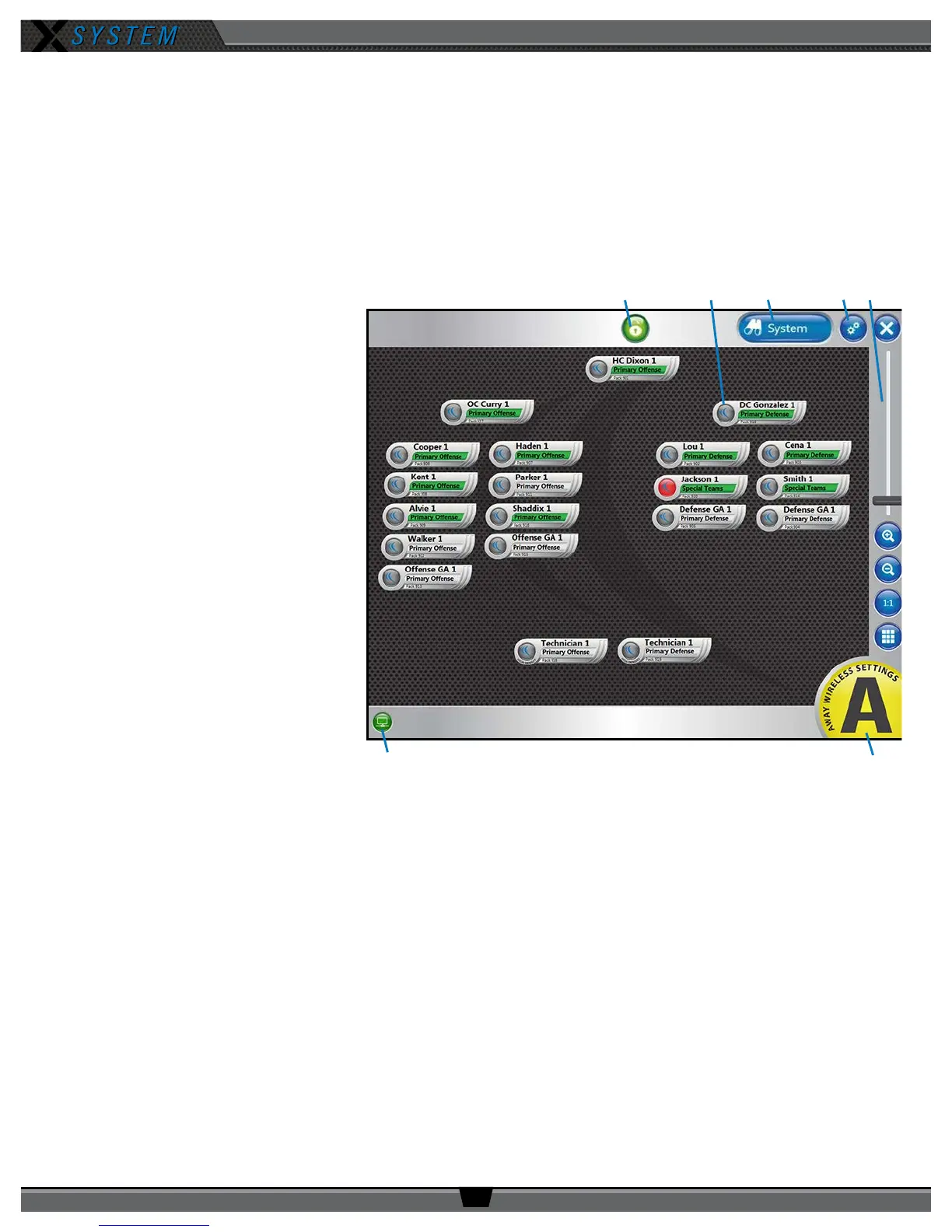
When X-Ware opens, the Home screen displays an overview of icons that represent all Radio Packs (RPs) on the system and
their current status on the system. This is the default screen that displays during game time, and it is often referred to as
the “game day interface.” If this screen does not display when you open X-Ware, you may need to enable the game day
interface (see page 33 for more details about this procedure).
A. Lock-Out Button – Locks X-Ware.
This prevents unauthorized
access.
B. RP Icon – Contains the Prole
Name, Active Conference,
Pack Name, and a color-coded
status indicator. The icons can
be positioned to your liking by
dragging them to a location on the
screen.
C. System Button – Opens X-Ware’s
additional RT (Antenna), RP, and
Conference views.
D. Advanced Settings Button –
X-Ware’s Advanced Settings
interface is where the core
operational settings for the system
conguration reside. Changes to
these settings can impact system
performance if made improperly.
In particular, changes to these
settings during “live” operation on
game day should be avoided. It is
highly recommended you contact CoachComm Customer Support prior to game day if changes are desired.
E. Zoom – Slider bar and other view options allow you to adjust the magnication of the Home Screen view.
F. CU Connection Indicator – Green illumination of this indicator conrms that the Control Unit (CU) and X-Ware are
connected and communicating. When not illuminated, an “X” will appear in the indicator meaning the CU is not
connected to X-Ware.
G. “Away” Indicator – If your system is set as the “Away” team, a yellow Away indicator will display in the bottom
right-hand corner of the Home screen. If your system is set as the “Home” team, no icon will display.
Figure 43: X-Ware Home Screen



 To Next Page