OPERATING MANUAL
800.749.2761 www.coachcomm.com
45
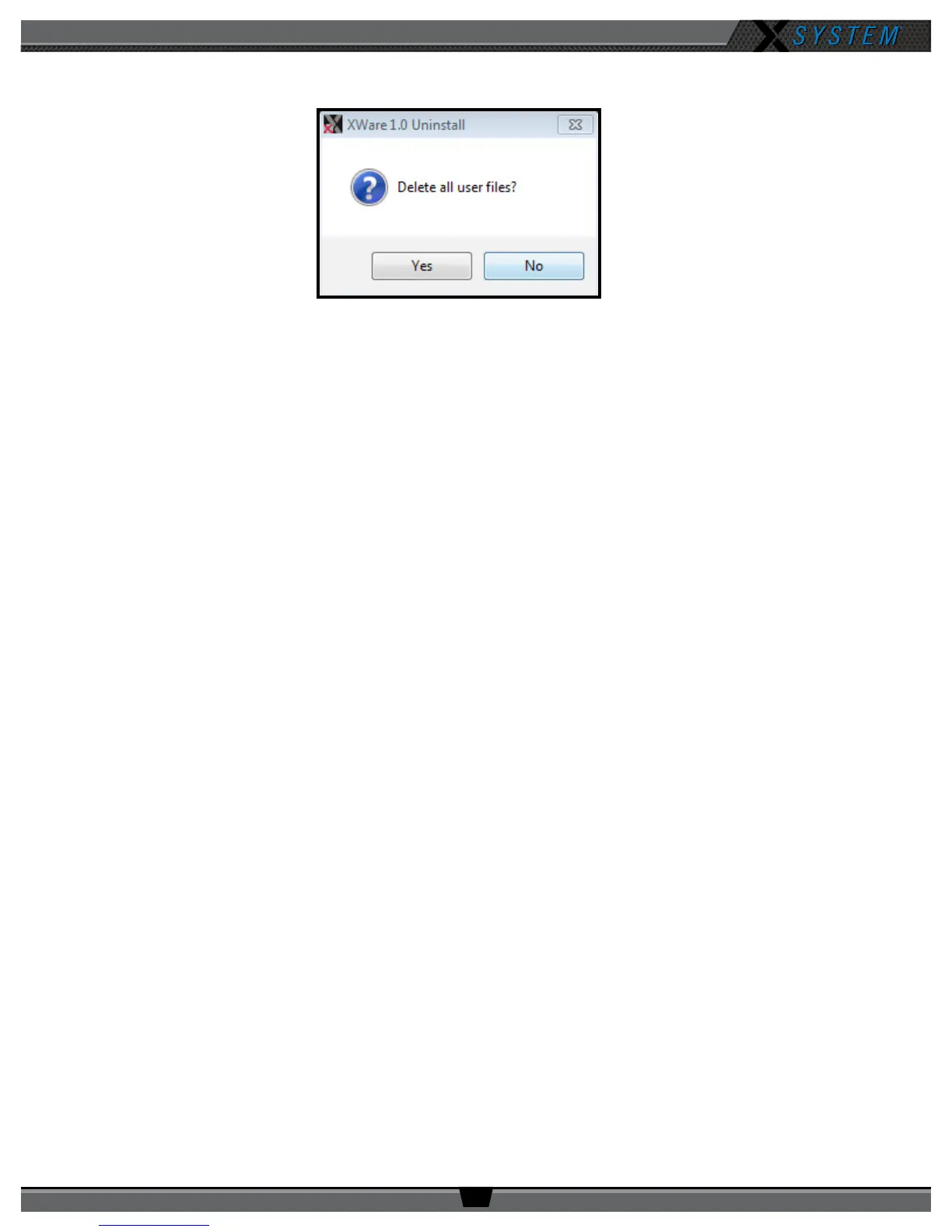
4. You will be asked to conrm your decision to “Delete all user les.” Click
Yes
.
5. The uninstall process will complete. Click
Close
. Verify the original X-Ware folder is now empty. If not, delete any
remaining les.
6. Reboot/restart the PC. Once the PC powers back on follow the procedures found on page 30 to install the new
version of X-Ware.
IMPORTANT: The rmware on your X-System devices will also need to be updated to match the version of
X-Ware installed on your PC. To update device rmware, see the following section.
Updating Device Firmware
The current rmware package requires connecting devices directly to the PC USB for rmware updates. Update times may
vary depending on equipment’s rmware package. Each updated package will speed up the rmware process per device.
Prerequisites:
IMPORTANT: Always follow any specic rmware update instructions delivered with the new release. Firmware
release notes and any separately published update procedures supercede the information provided below.
• Make sure that the most recent version of X-Ware is installed on the PC. See page 44 for more information
about how to update X-Ware.
• Connect the Antennas to the system so they will receive power, then power on the Control Unit (CU) and allow it to
load the Conguration File.
Firmware Update:
1. Open X-Ware and wait for the home screen to load.
2. On the top right of the home screen, click the Advanced Settings button (gears icon).
Figure 61: Conrm X-Ware Uninstall Screen



 To Next Page