OPERATING MANUAL
800.749.2761 www.coachcomm.com
42
3. Once the CU is nished deleting the old conguration le, wait an additional 60 seconds then remove the USB
drive and power cycle the CU.
4. After power cycling, select either
Home
or
Away
at the prompt on the CU screen. At startup, a blank grid will
display since the CU does not have a conguration le.
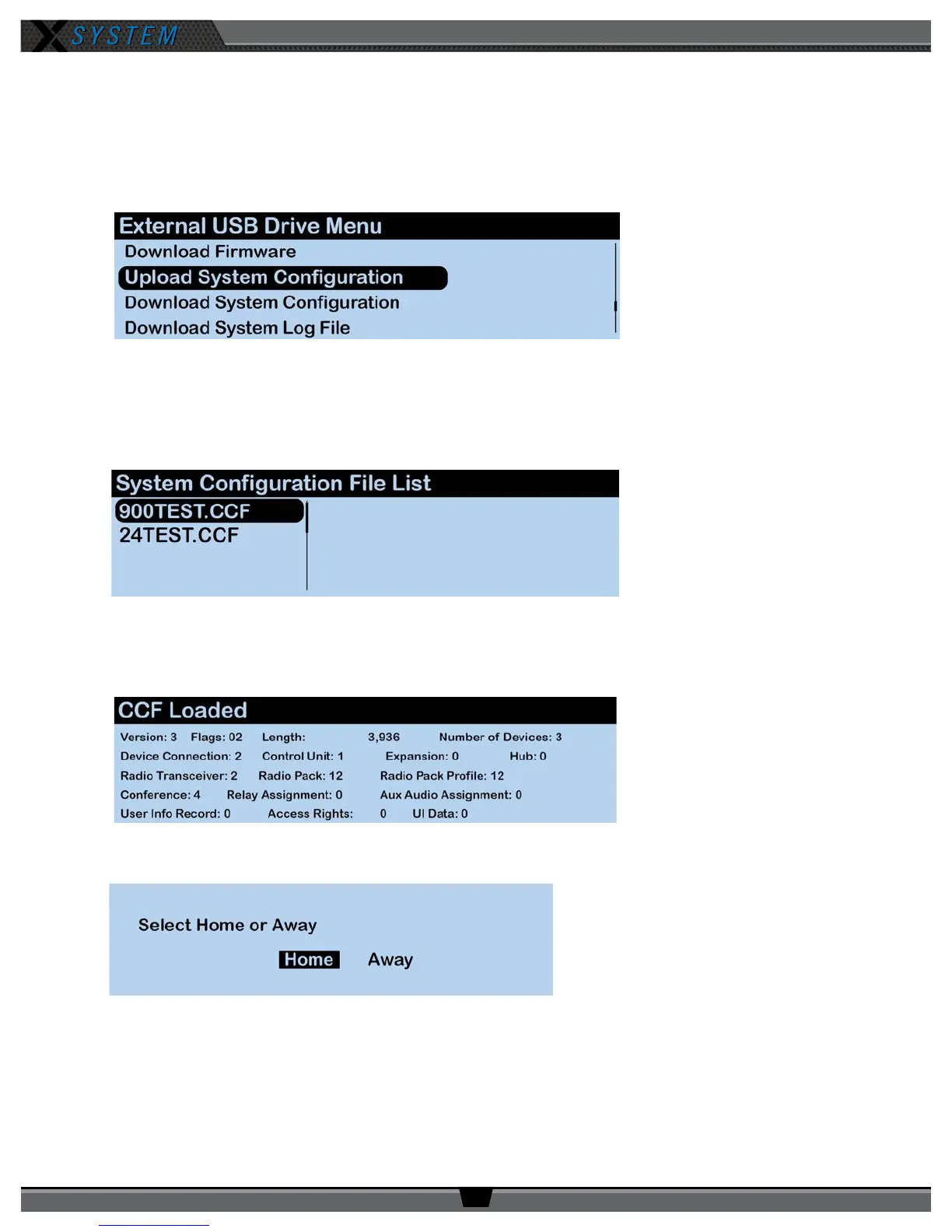
5. Re-insert your USB drive into the CU and navigate to the
Upload System Conguration
menu option
.
6. Press the Enter button and scroll until you nd the conguration le you wish to use, then press the Enter button
to select it. The CU screen will display a blank grid while the conguration le loads.
7. Once the conguration le has nished loading, the CU will display the following message: “CCF Loaded” along
with a conguration le summary. Once the message times out, the home screen will display on the front of the
CU. Power off the CU.
8. Power on the CU, then select
Home
or
Away
. The new conguration le will load and be in use.
Figure 55: CU LCD Upload Conguration File Prompt
Figure 56: CU LCD List of Available Conguration Files
Figure 57: CU LCD Conguration File Summary Screen
Figure 58: Control Unit Home/Away Status Prompt



 To Next Page