Software update
98-145510-E Chapter 7: Service and maintenance 7-6
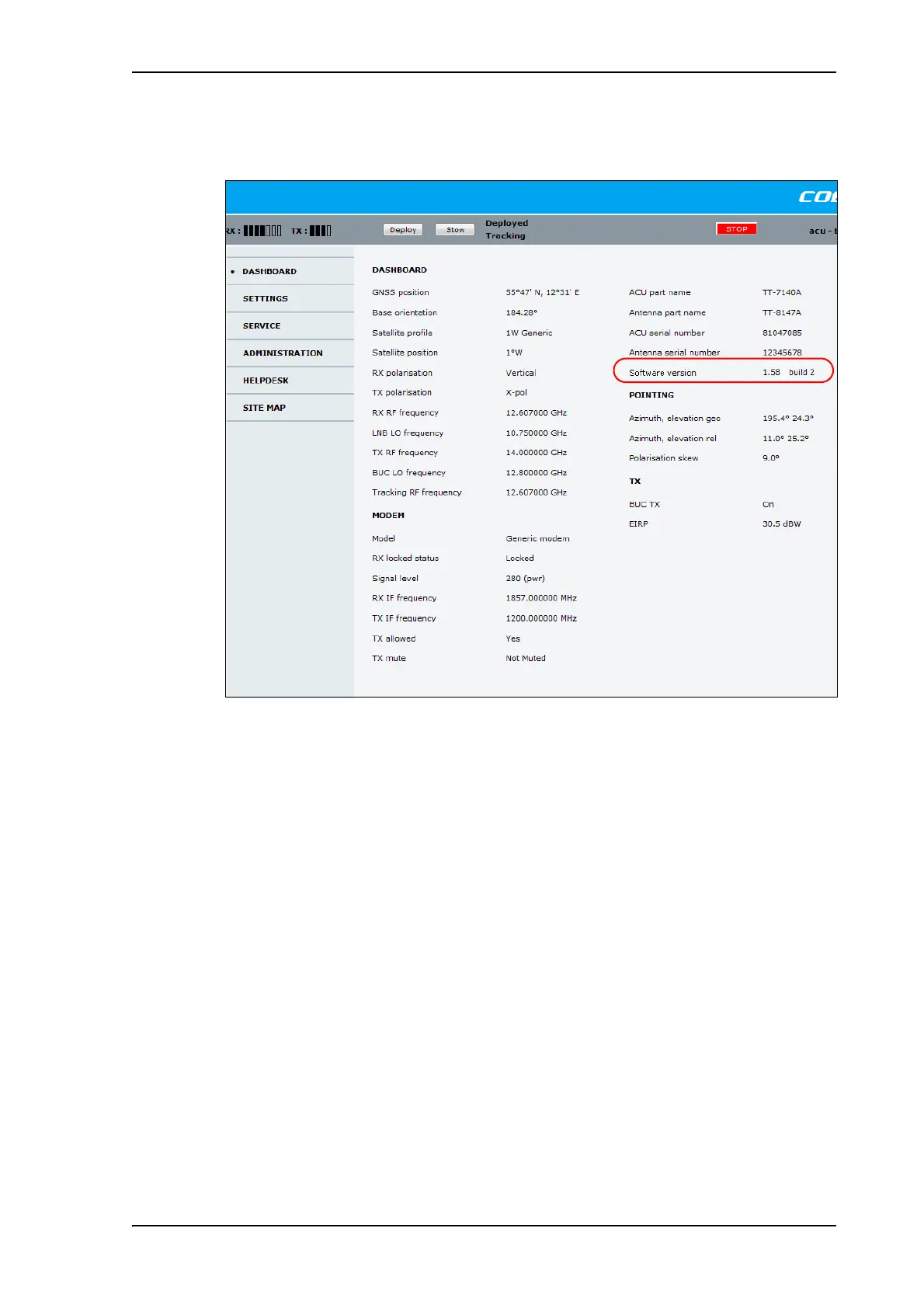
4. Verify that the software update has been completed successfully. You find the software
version number in the DASHBOARD window of the web interface.
Software recovery procedure (SAFE MODE)
To recover from a failed software upload, turn off the ACU and turn it on again. Then repeat
the upload procedure as described in Software update on page 7-4. If this does not help,
use the following procedure:
1. Switch off the ACU.
2. Press and hold down the arrow keys and simultaneously.
3. While holding down and , Switch on the ACU and wait for the display to show
SAFE MODE in the top left corner.
4. Release the arrow keys.
5. Connect a PC to LAN port 1 (service port) of the ACU.
6. Set the IP address of the PC to static: IP:192.168.0.2, Subnet: 255.255.255.0.
7. Open an Internet browser and type http://192.168.0.1 (Default IP address of the ACU).
The software upload page opens.
8. Click Browse... and locate the software file.
9. Click Upload.
Figure 3: Verifying software update


 To Next Page