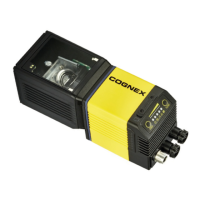
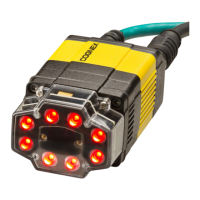
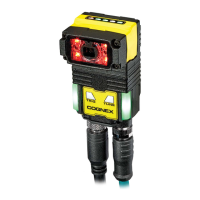
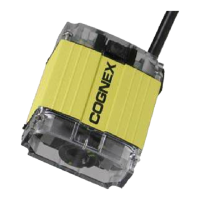
1. Connect the Ethernet cable's M12 connector to the reader ENET connector.
2. Connect the Ethernet cable’s RJ-45 connector to a switch/router or PC, as applicable.
Note:
Besides powering the reader through a Breakout Cable, it is possible to power DataMan
through PoE connection as well, in which case it is not necessary to use a Breakout Cable.
Connecting the Power and I/OBreakout Cable
CAUTION: To reduce emissions, connect the far end of the Breakout cable shield to frame ground.
Note:
l Perform wiring or adjustments to I/O devices when the reader is not receiving power.
l You can clip unused wires short or use a tie made of non-conductive material to tie them back. Keep bare
wires separated from the +24VDC wire.
1. Verify that the 24VDC power supply is unplugged and not receiving power.
2. Attach the Power and I/O Breakout cable's +24VDC and Ground wires to the corresponding terminals on the
power supply. For more information, see Specifications on page48.
CAUTION: Never connect voltages other than 24VDC. Always observe the polarity shown.
3. Attach the Power and I/OBreakout Cable's M12 connector to the reader's 24 VDC connector.
4. Restore power to the 24VDC power supply and turn it on if necessary.
Using your device through USB
You can utilize the DataMan 280's USB connector in three different ways:
l Emulating serial (USB-COM) functionality
The DataMan 280 establishes the connection through emulated serial port.
l Emulating Ethernet functionality
The DataMan 280 establishes the connection through emulated Ethernet.
l As HID (Human Interface Device)
If you use DataMan 280 in HID mode, the device serves as an emulated keyboard.
Emulating serial functionality
If you connect a USB-C cable, you can see a COM port in the Windows Device Manager, as a generic USB-COM port.
Set the USB Connection properties in the Serial tab of the Communication Settings panel in DataMan Setup Tool. Look
at the Windows Device Manager to identify the proper device. Enable the Serial-over-USBin the SetupTool because it is
disabled by default.
Emulating Ethernet functionality
You have to configure the connection between the PC and the DataMan 280 in order to use the emulated Ethernet-over-
USB functionality.
The DataMan 280 has the fixed IP 192.168.111.2/24 through an emulated Ethernet connection.
39



 To Next Page