Chapter 6 Configure Compex SXP2224WM using Web Interface
22
1. Using a RJ45 Ethernet cable to connect port 1 and 5 of Compex
SXP2224WM unit 1 to port 1 and 5 of Compex SXP2224WM unit 2
respectively.
2. From the control station, logon to http://192.168.100.128. Go to the
main menu and select Trunk Configuration option.
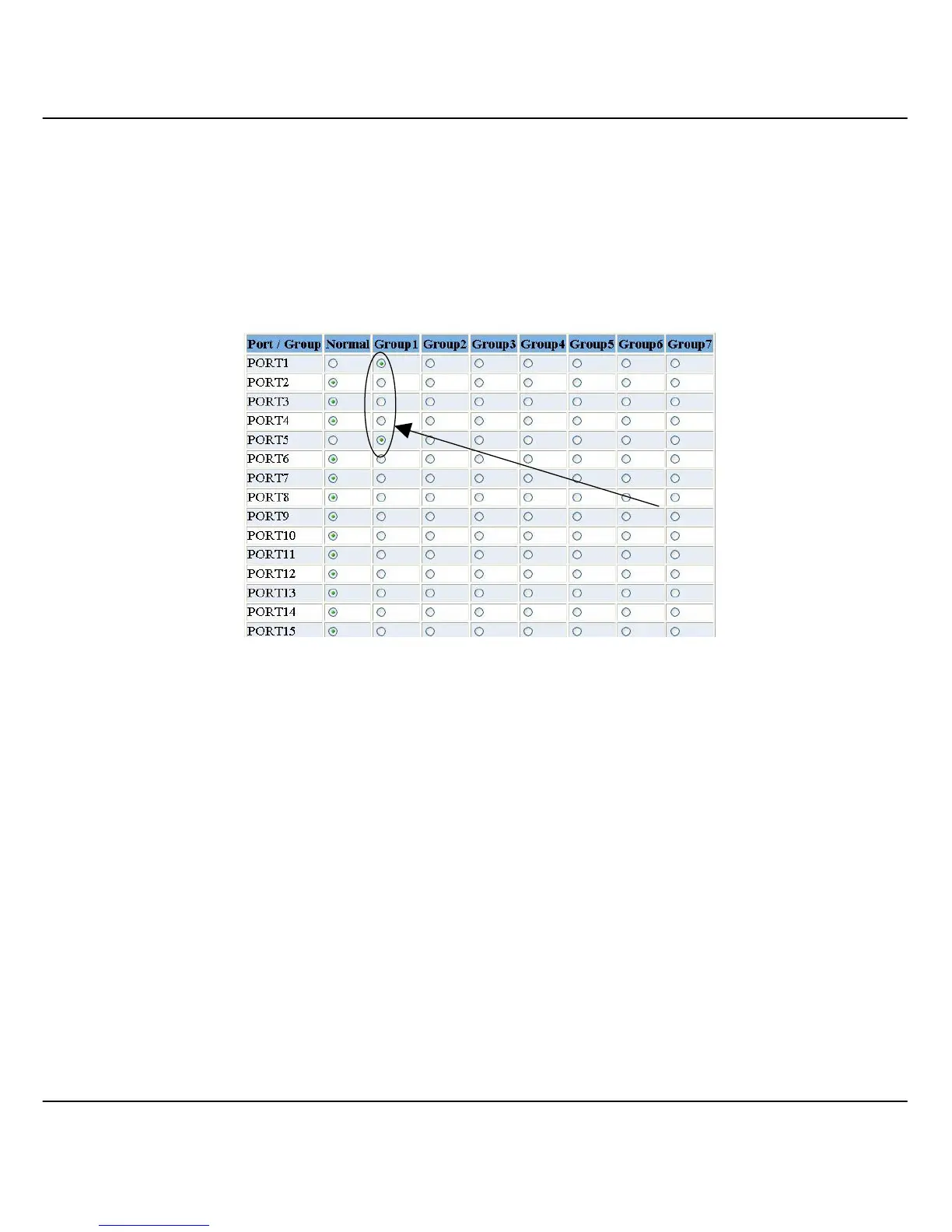
3. Select Port 1 and 5 of Group 1 as trunking ports.
Figure 6.3c Set trunking ports
4. Click on the “Apply” button to update the changes.
5. Next, for Compex SXP2224WM unit 2, logon to
http://192.168.100.129 and go to Trunk Configuration option.
6. Select Port 5 and 6 of Group 1 as trunking ports.
7. Click on the “Apply” button to update the changes.
Select Port 1 an



 To Next Page