- 21 -
thermostat you wish to assign to the installed application.
Touching the name of the thermostat concerned, it will be as-
signed to the application, and from now on the thermostat can
be controlled from anywhere. Following this, on the start scre-
en of the application all assigned thermostats appear, together
with currently measured (PV) and set (SV) temperatures.
Attention! If you want to avoid that other users can add
your
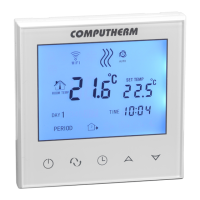
COMPUTHERM
E30 0 thermostat to their phone app-
lications, you can disable this operation as described in
Sub-chapter7.2.
7. BASIC SETTINGS
After the application has been started,
COMPUTHERM
E300
thermostats assigned to the application concerned appear on
page “MyThermostat’s”.
7.1.Renamingthethermostatassignedtotheapplication
Name HVAC is given to each thermostat in the factory. To mo-
dify the name, tap and hold the thermostat concerned within
the application until a pop-up window with the name of “Edit
Thermostat” appears. Here you can modify the name of the
thermostat within the application by tapping the “Modifycur-
rentthermostat” icon.


 To Next Page