Layout of the touchscreen pages
minis easyTOUCH user manual 34
► Layout of the work pages
Layout of the touchscreen pages for everyday tasks
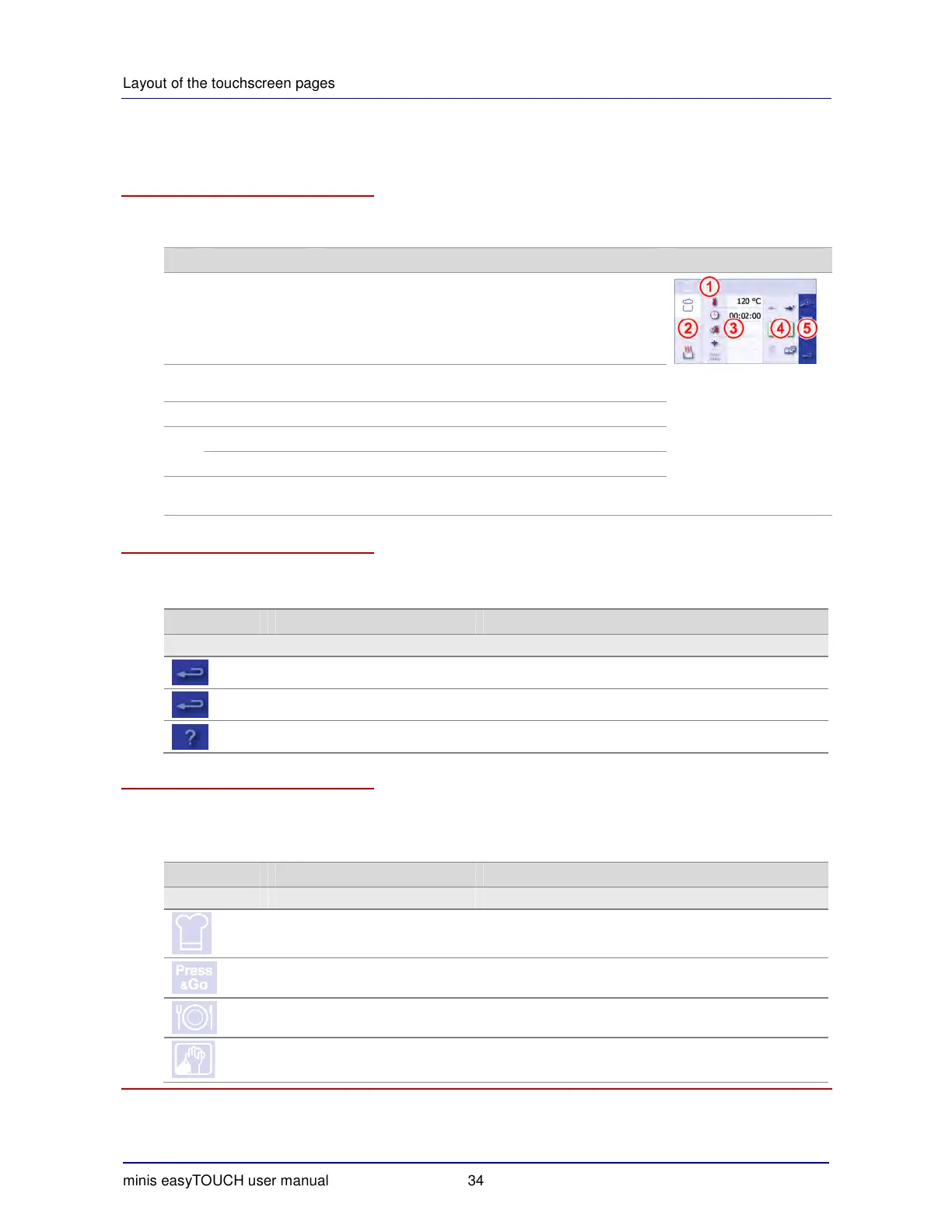
The following screenshot uses the 'Cook' page to illustrate the layout of a typical page for everyday
work. The page sectors contain the following functions:
No. Name Function Illustration
1 Header Always:
Displays the page that you are in.
While the cooking program is running:
Displays the remaining cooking time or regenerating
time.
2 Main selection Selection of the main cooking program or main regenerat-
ing program
3 Data input Temperature, time input etc.
4
Program Program start/stop
Management Various functions
5 Navigation area
Functions common to all pages
Various functions
Buttons common to all pages and what they do
The individual buttons are described separately for each page.
The navigation area contains buttons that have the same function in all pages:
Button Meaning Function
Navigation area
Close page On the main pages: returns to Start page.
Cancel On the input pages: cancels the entry.
Help Opens the Help facility.
The page display icons and what they mean
The page display icons are the inverse representation of the buttons used to open the pages con-
cerned. The following table shows just an example selection from the complete range of icons.
The indicators have the following meanings:
Indicator Meaning Description
Header
'Cook' page The 'Cook' page selected.
'Press
&
Go' page The 'Press
&
Go' page selected.
'Regenerate' page The 'Regenerate' page selected.
'Clean' page The 'Clean' page selected.


 To Next Page