Software Operation
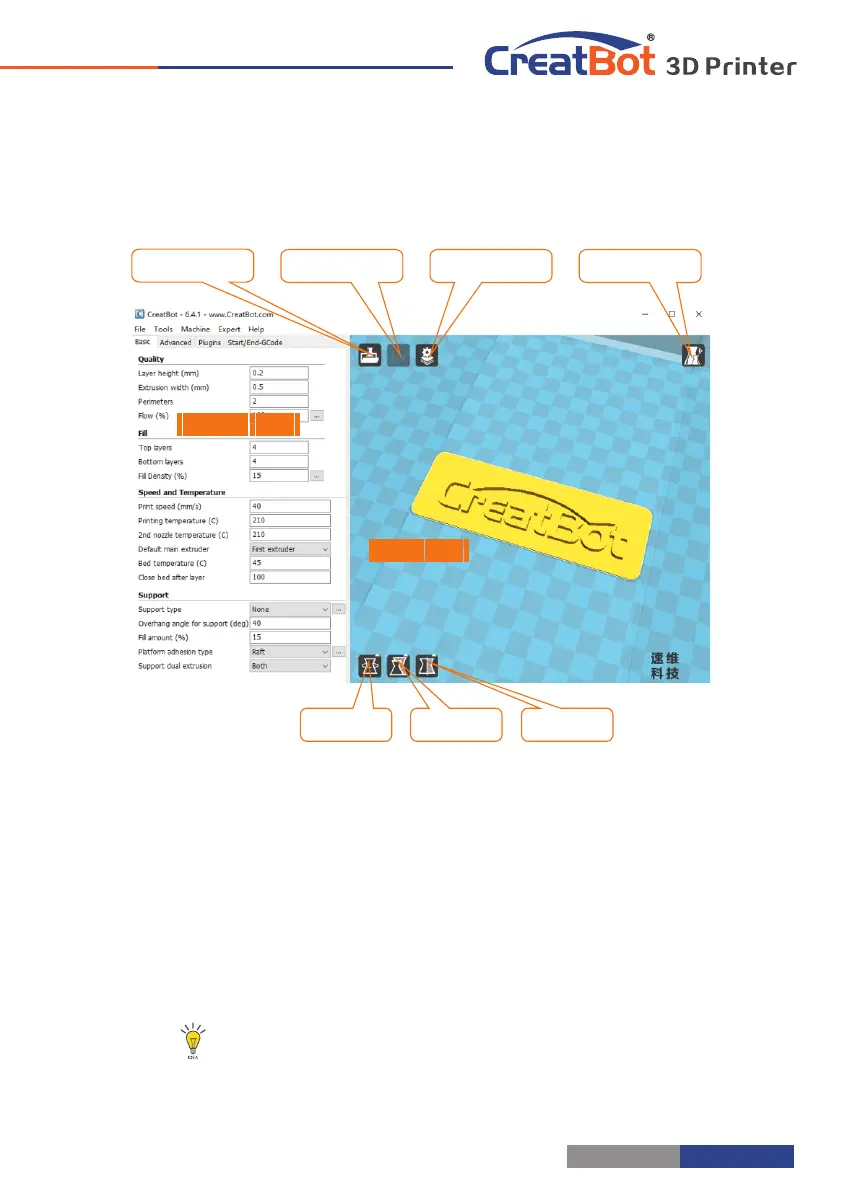
Full Setting UI
Tip: Double-click view area can quickly load 3D model file.
The view mode and edit icon will appear when you select the 3D
mode.
As you can see from the complete UI, the left side of the software is
setting area, the right side is view area. The setting area contain "Basic",
"Advanced", "Plugins", "Start/End GCode" four tabs. The Basic tab is the
most common settings, usually the most frequently used parameters are
here. Each parameter has a mouse-over tips, you can set parameters
according the prompt. If you want to restore the default settings, please
click on the menu "Tools"->"Restore Default".
Manual slicing
Rotate Zoom Mirror
View mode
Save toolpath
Load model
View area
Setting area
- 23 -
- 22 -
Quick Print UI
Software Operation
Insert U-Disk to the card reader, open the CreatWare, load 3D
model file , choose correct filament and option , finally click [1] [2]
save button , you can now finish slice model.[3]
Insert U-Disk to the printer, browse and select the Gcode file
you just saved, the printer will automatically start to heating, when
the temperature reaches, the printing will start.
When insert SD card, the toolpath will saved
to the SD card.
The file name can not contain non-Latinn
characters.
Print Your First Model
Load model
Save toolpath
31
2
Normal
Overhang
Transparent
X-Ray
Layers


 To Next Page