3
1
2
Software Operation
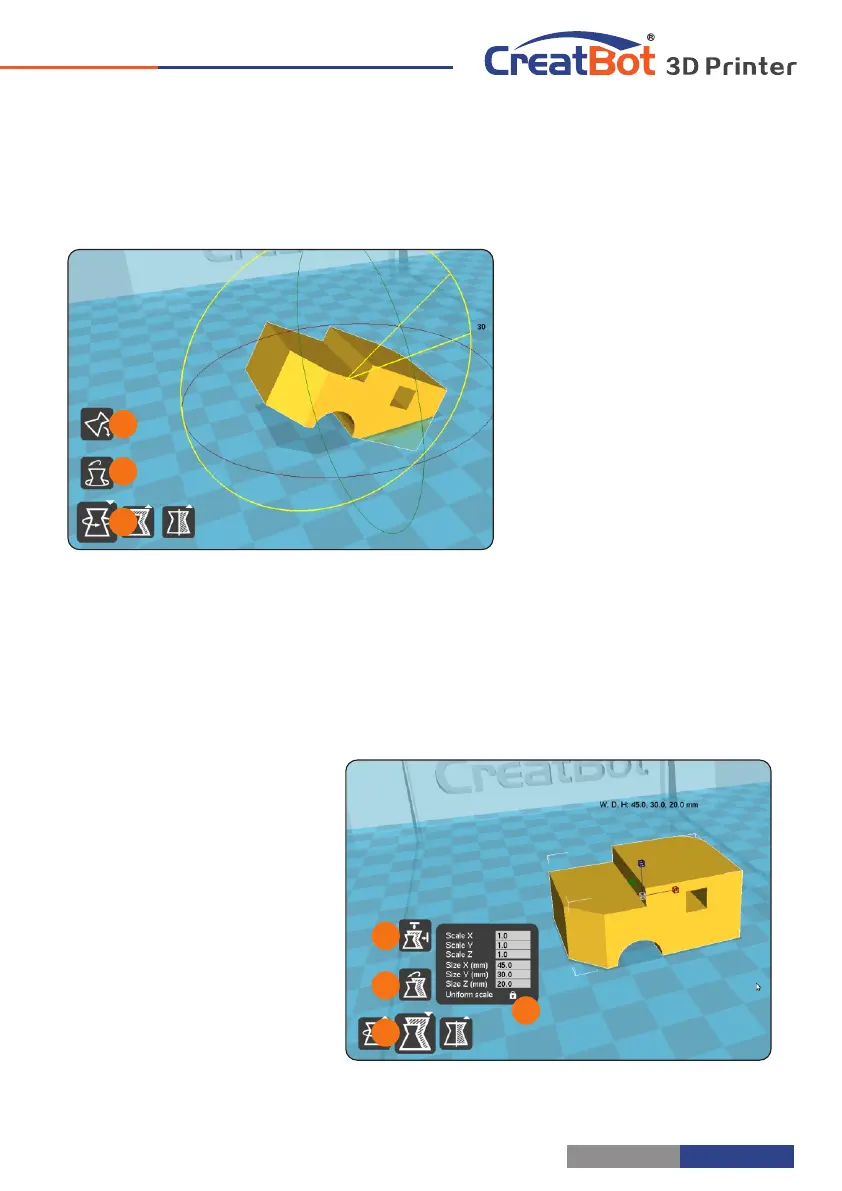
Model Rotate
Click on the left corner of
the rotate button , you can [1]
see three ring line around the
model, respectively along the X,
Y, Z direction. The default
rotation angle is 5 degrees,
press the Shift key can restrict
the rotation angle to 1 degree.
Button to is the reset [2]
button, can restore rotate status
to the default state.
Button is lay flat button, [3]
can lay the model flat on the
platform automatically.
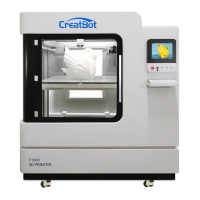
Model Scale
3
1
2
4
Click the left corner of the
zoom button , you can see a [1]
contour line around the model,
and shows the current size of the
model. You can input the value of
the zoom ratio in Scale X / Y / Z ,
may also directly enter the size
you need. Button indicates [4]
locking scaling.
Button is zoom reset [2]
button, you can restored the
model to the default size.
Button for the zoom [3]
model size to the maximum print
- 25 -
Mouse Operation
Software Operation
Left click
Select model, hold and
move to change
position, double-click to
load 3D models.
Right click
Hold and move to rotate
the viewpoint around
the 3D model.
Left + Right
Hold and move the
mouse to zoom.
Scrollwheel
Use the scroll wheel to
zoom in or out.
Left + Shift
Click and drag in rotary
model can according to
each 1 degree angle.
+
Shift
Right + Shift
Hold and move the
mouse to pan the 3D
view.
+
Shift
Keyboard Shortcut
Ctrl+L
Load model/Picture
Ctrl+S
Save model as
Delete
Remove model
F5
Refresh view area
Ctrl+E
Export setting
Ctrl+,
Preferences
- 24 -


 To Next Page