Software Operation
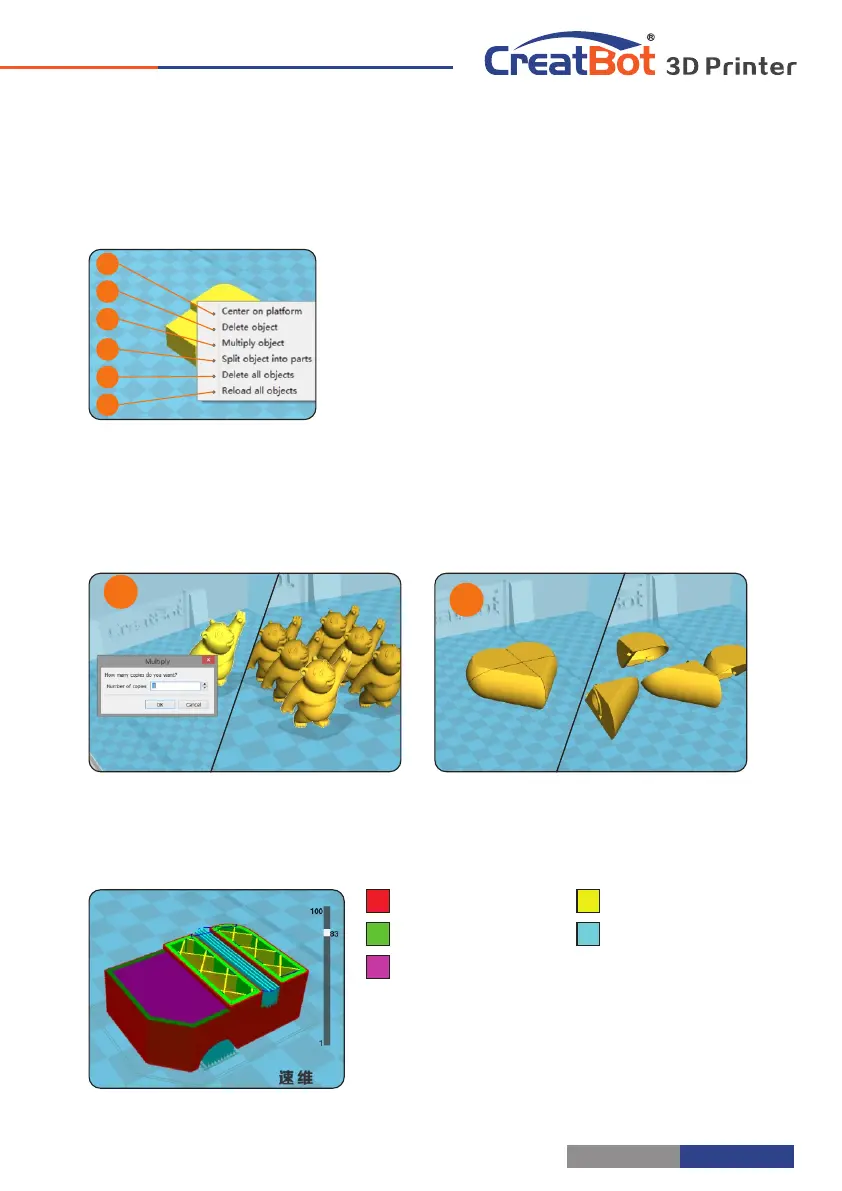
Right Click on Model
3
4
Red represents "outer shell"
Green represents "inner shell"
Yellow represents "infill"
Purple represents "bottom and top shell"
Blue represents "support"
Toolpath Structure
Drag layer indicator can browse different
level paths, Ctrl + arrow keys to browse layer by
layer. 3D printing is the superposition of these
different layers and built layer by layer.
4
6
5
2
3
1
Right-click on the model pop-up shortcut
menu, here are more features:
[1] "Centered" make the model back to the
center position of the platform. "Delete" to [2]
remove the currently selected model. "Multiply" [3]
to copy the currently selected model and
automatically position, which is useful for printing
more than one model at a time. "Split" multi-[4]
component model can be split into its separate
components, this process more time-consuming, try to split the model in the
modeling software, models splited can be printed individually and then assembled
together . "Delete All" to delete all the models loaded. "Reload all" Reload all [5] [6]
- 27 -
Model Mirror
Software Operation
Click the mirror button , [1]
you can pop up the mirror menu.
Button is a mirror along [2]
the X axis.
Button is a mirror along [3]
the Y axis.
Button is a mirror along [4]
the Z axis.
Note that the mirror
transformation is different from
the rotation, such as the mirror
transformation will lead to a
change in the direction of
rotation, and the rotation will not change the
model.
3
1
2
4
View Mode
From the overhang view, you
can see the suspended part of the
model which is shown in red color.
By changing the supporting angle
can be seen suspended parts size is
dynamically changing.
By slice view can easily observe
the generated path, you can easily
observe the different layers of sliced
by slicing altitude indicator, use Ctrl
+ arrow keys can also be observed
layer-by-layer.
- 26 -


 To Next Page