Using Your NOMAD Jukebox 3-1
3
Using Your NOMAD Jukebox
An online interactive tutorial is included to guide you through
the important operations on NOMAD Jukebox. We recommend
you run through the tutorial first before proceeding. Refer to
“Step 3: Install Software” on page 2-3.
Overview of Screen Icons
The following table describes the various icons that may appear beside
an item listed on the NOMAD Jukebox screen.
Navigating Screens in NOMAD
Jukebox
The Music Library screens allow the content on NOMAD Jukebox to be
viewed and selected for playback. To select Lists or Tracks, use the
SCROLL UP/DOWN
button. To play, press the
PLAY
button. To
queue Albums or Tracks, press the
QUEUE
soft button.
There are 4 main types of screens in the Music Library:
Categories
,
Lists
,
Tracks
and
Details
. These screens apply to ALBUMS,
ARTISTS, STYLES and PLAY LISTS.
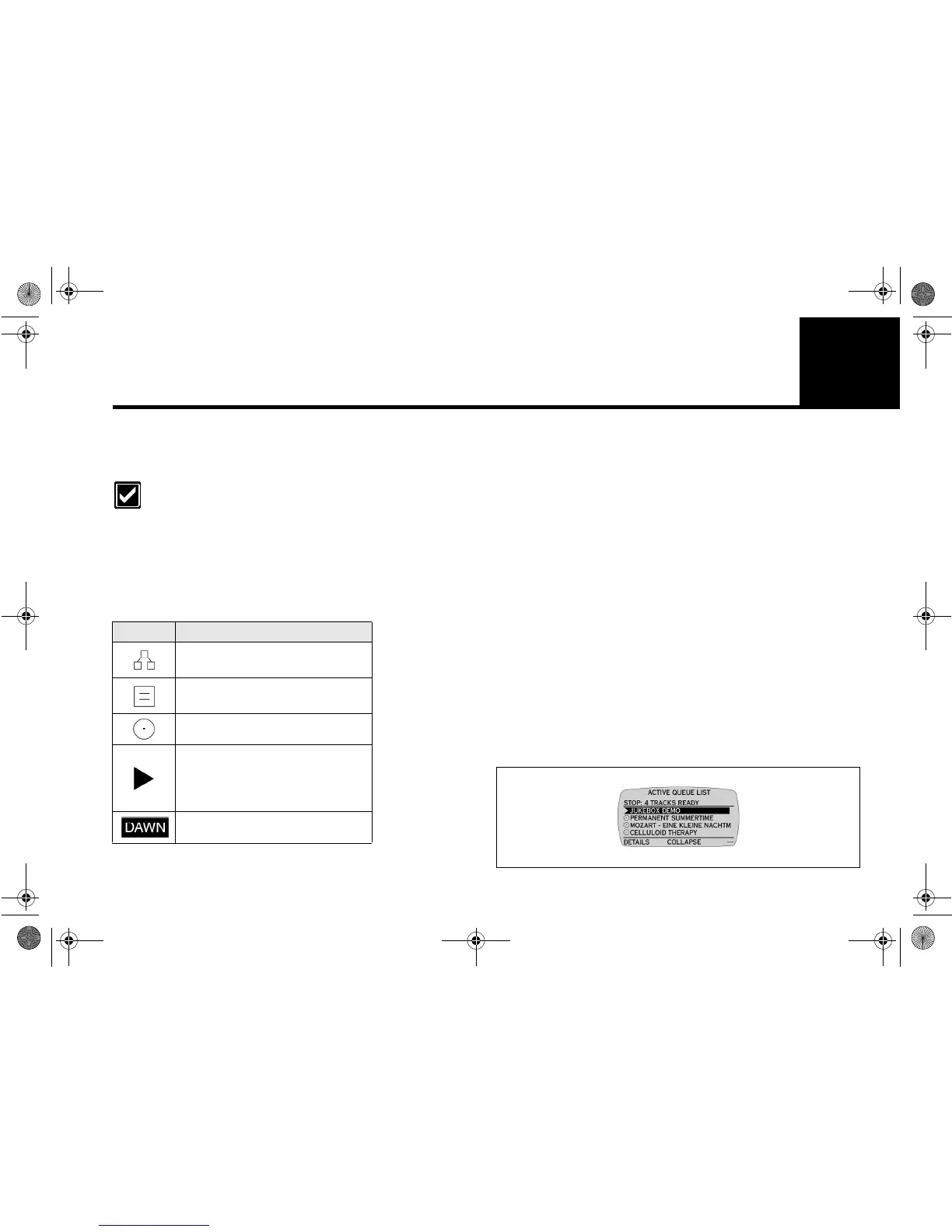
Opening Screen
The
ACTIVE QUEUE LIST
screen appears whenever you switch on
NOMAD Jukebox. Also, if you make any changes to the ACTIVE
QUEUE LIST, the settings will be saved when you switch off NOMAD
Jukebox and appears when you switch on NOMAD Jukebox the next
time.
Icon What it means
Category (Artist, Style, Albums,
etc.).
List of Tracks (an Album, Play
List, etc.).
Single Track.
PlayPointer. Appears beside the
Track or List which is currently
being played (depending on the
ACTIVE QUEUE LIST screen).
The highlighted item is selected.
NJb.book Page 1 Friday, August 11, 2000 10:08 AM



 To Next Page