29 • Product Manual — Doc. 9132A
Switching from Microsoft Teams Rooms to Zoom
Rooms
Minimum Firmware Requirements
l
UC Engine: 1.00.16.715b
l
TSW-1060 touch screen: 2.006.0063.001
l
TS-1070 touch screen: 1.001.0014.001
l
UC-2 Mini Tabletop conference device: 1.0.1.59
l
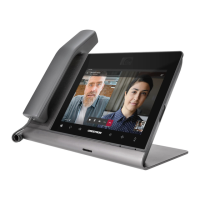
CCS-UC-1-T-V Crestron Mercury Tabletop UC Video Conference Console:
1.4906.00015.001
l
CCS-UC-1-X Crestron Mercury X Tabletop Console: 1.4160.00050.001
Change UC Engine Settings
Use one of the following methods to change the UCEngine settings:
l
Crestron Settings App
NOTES:
o
Some dual display systems cannot switch from the Microsoft Teams Rooms to the
Zoom Rooms application. For example, if the Crestron Settings app does not show
the Change to Zoom button, the system does not support the mode switch
function.
o
If the XiO Cloud service manages the UC Engine, changes made in the Crestron
Settings app will revert to the settings established by the XiO Cloud service.
o
Crestron recommends using a keyboard and mouse connected to the UC Engine
when using the Crestron Settings app. If a USB port is not available, temporarily
disconnect the system’s camera.
1. Open the Crestron Settings app as described in Crestron Settings App (on page19).
2. Click Advanced.
3. Click Change to Zoom and click Ok to confirm. The system will reboot.


 To Next Page