47
GB
Using the DVD Features
Using the Built-in DVD Player
1. Press the button on the right side panel of the TV or on the remote
control and select DVD mode.
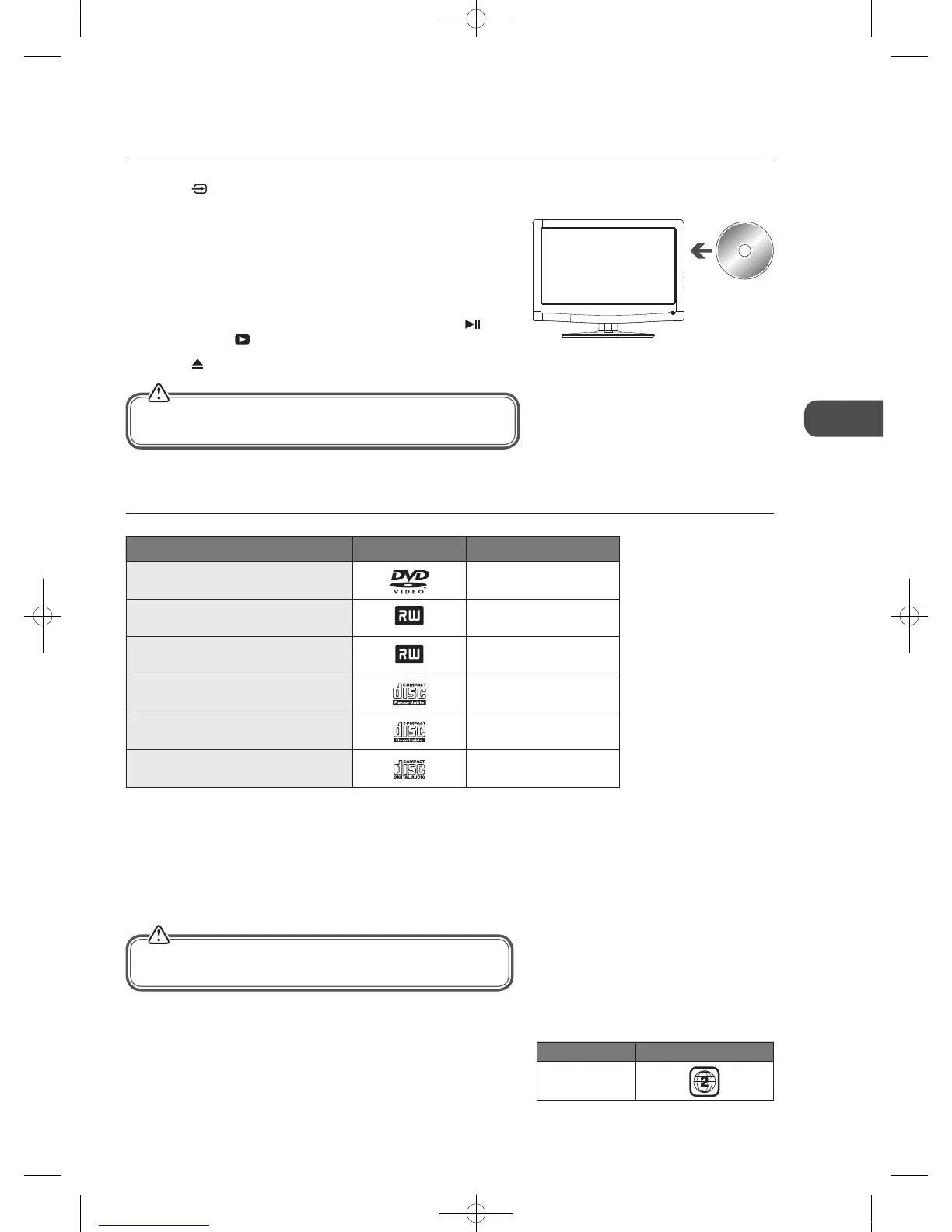
2. Insert a disc with the label side facing backwards you. (CD-R, CD-RW, DVD-R,
DVD-RW, CD, DVD+R, or DVD+RW) Allow 10 seconds for the player to load
the disc.
3. After the disc is inserted, Smart NAVl will show the content of the disc
automatically.
4. If the DVD player does not automatically play the disc, press the
button
on the unit or the
PLAY button on the remote control to start playing.
5. Press the
button if you want to remove the disc.
Compatible Disc Types
Disc Types Disc Logo Recorded Content
DVD-VIDEO (Digital Versatile Disc)
AUDIO + VIDEO
DVD±RW (Audio/Video format or JPEG files)
DVD+ReWritable
AUDIO + VIDEO + JPEG
DVD±R (DVD Recordable - Audio/Video
format or JPEG files)
DVD+R
AUDIO + VIDEO + JPEG
CD-R (CD Recordable - Audio/Video format
or JPEG files)
AUDIO + VIDEO + JPEG
CD-RW (CD-Rewritable - Audio/Video
format or JPEG files)
AUDIO + VIDEO + JPEG
AUDIO-CD (Compact Disc Digital Audio)
AUDIO
Supported Formats
JPEG
• The file extensions has to be .jpg and not .jpeg.
• Pictures encoding must comply with JPEG/ISO format.
• This DVD player can only display DCF-standard still pictures or JPEG pictures such as TIFF.
Region Code
Both the DVD player and the discs are coded by region. These regional codes
must match in order to play the disc. If the codes do not match, the disc will
not play.
The Region Number for this DVD player is described on the rear panel of the
TV.
Using the DVD Features
Only insert 12cm discs. Do not insert or play 8cm discs. They will get
stuck.
Some recorded files may not be able to be played due to the type
and format of the disc or condition of the recording.
Disc Type DVD-VIDEO
Region code
Label side at
the back
C16LDVB11_IB_110404_Annie.indd 47 11年4月4日 下午6:05


 To Next Page