52
GB
Using the DVD Features
Aspect Ratio
Selects the aspect ratio.
Using the DVD Language Setup Page
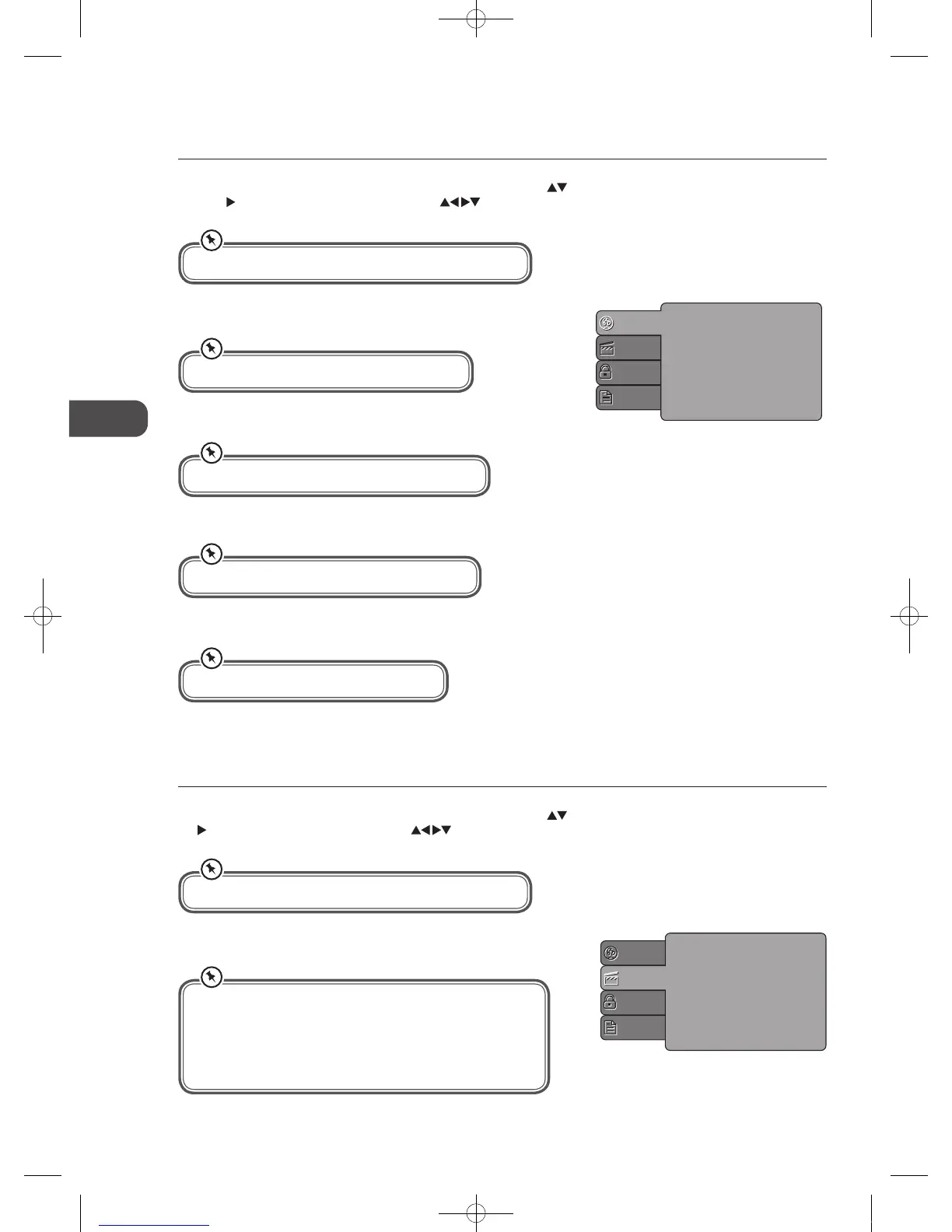
In DVD mode, press the D.SETUP button on the remote control. Press the buttons to select the Language menu and then
press the
button to enter the sub menu. Press the buttons to select the menu options. Press the D.SETUP button to
exit the menu.
OSD Language
Set the OSD language to your language of choice.
Subtitle
Select the subtitle language.
Audio
Set the audio language to your language of choice.
DVD Menu
Select the Disc Menu language.
OSD Language
Subtitle
Audio
DVD menu
Language
Video
Rating
Misc
Using the DVD Video Setup Page
In DVD mode, press the D.SETUP button on the remote control. Press the buttons to select the Video menu and then press
the
button to enter the sub menu. Press the buttons to select the menu options. Press the D.SETUP button to exit the
menu.
Aspect Ratio
TV System
Language
Video
Rating
Misc
In Setup mode, the disc playback function will not be available.
Not all DVD discs support multiple OSD Languages.
Not all DVD discs support multiple Subtitle Languages.
Not all DVD discs support multiple Audio Languages.
Not all DVD discs support multiple DVD Menu.
In Setup mode, the disc playback function will not be available.
The image display ratio is related to the recorded disc format.
Some discs cannot display images in the aspect ratio you choose.
If you play a disc recorded in 4:3 format on a wide screen TV, black
bars will appear on the left and right side of the screen. You must
adjust the screen setting depending on the type of the television
you have.
C16LDVB11_IB_110404_Annie.indd 52 11年4月4日 下午6:05


 To Next Page