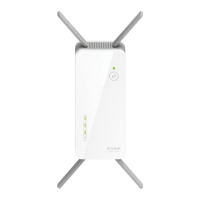
D-Link DAP-X1870 User Manual
30
Section 3 - Conguration
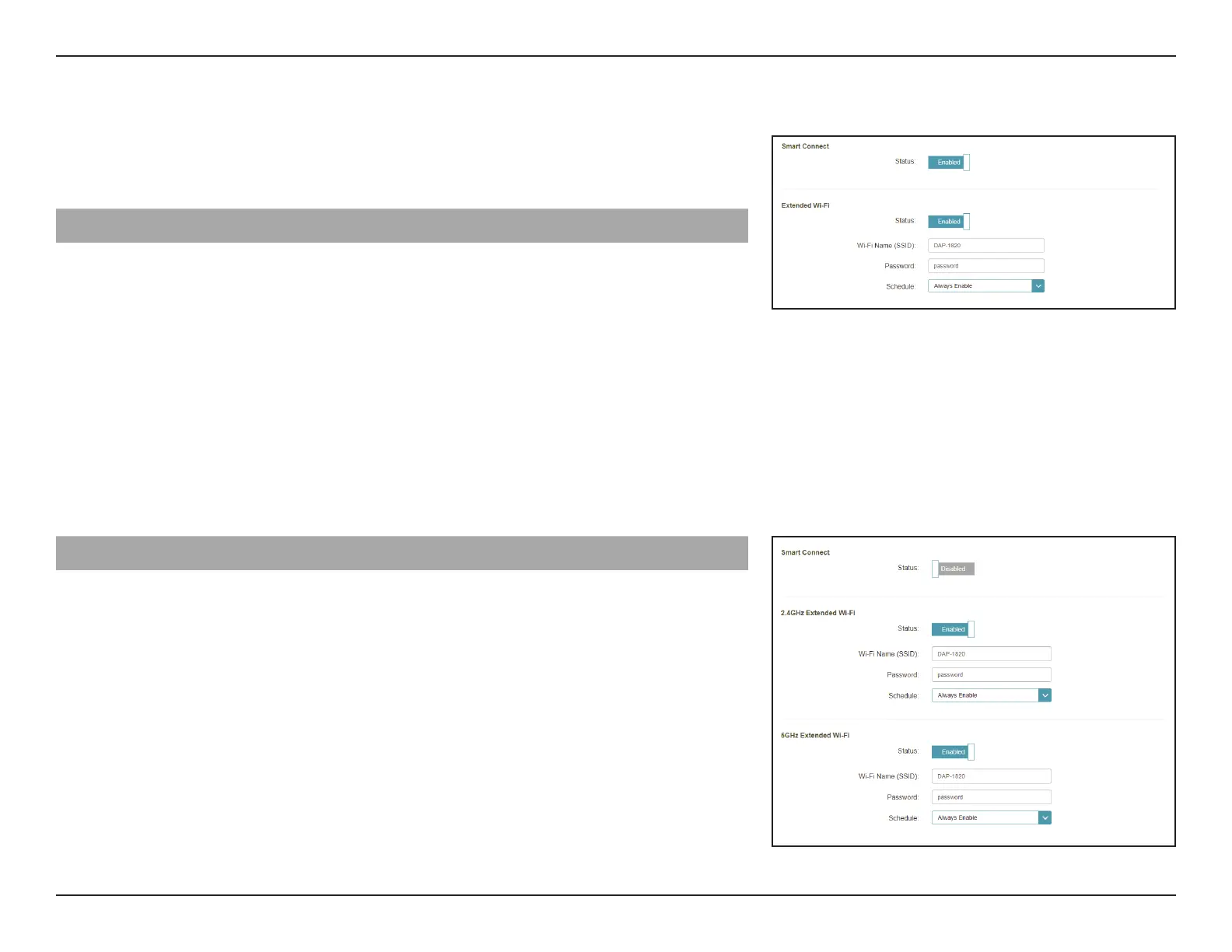
Smart Connect
Smart Connect
Enable or disable the Smart Connect Feature. When enabled,
only
a
few
conguration
options
are
available
to
simplify
conguration.
Extended Wi-Fi - Smart Connect Enabled
Status
Enable or disable the Extended Wi-Fi wireless network.
Wi-Fi Name (SSID)
This
is
the
name
of
the
DAP-X1870’s
extended
network.
If
using
Wi-Fi,
the
DAP-X1870
will
rebroadcast
the
uplink
router’s
Internet
connection
under
this
SSID.
You
may
also
manually set the SSID of the extended network.
Password
Enter the password or network key that you wish to use for
the extended Wi-Fi network.
Schedule
Use
the
drop-down
menu
to
select
the
time
schedule
that
the
rule
will
be
enabled
for.
The
schedule
may
be
set
to
Always Enable or you can create your own schedules in the
Schedules
section. Refer to “Schedule” on page 35 for more
information.
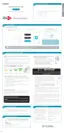
Wireless - Smart Connect Disabled
2.4 GHz Extended Wi-Fi
Status
Enable or disable the 2.4 GHz network by toggling this slider.
Wi-Fi Name (SSID)
Th
i
s
i
s
the
name
of
the
DAP-X1870’s
extended
network.
If
u
sing
Wi-Fi
,
the
DAP-X1870
will
rebroadcast
the
uplink
router’s Internet
connection
under
this
SSID.
You
may
also
manually set the SSID of the extended network.
Password
Enter the password or network key that you wish to use for
the extended 2.4 GHz network.
Schedule
Use the drop-down menu to select the time schedule that the
rule will be enabled for. The schedule may be set to Always
Enable or Always.


 To Next Page