D2D Technologies
FLEX 3000 V5.2-2301
5
The GUIDE feature provides the essential tools to create and maintain the Electronic
Program Guide (EPG) tables and Program and System Information Protocol (PSIP) guide
data for ATSC digital transport streams. The program guide information can be imported
from a standard spreadsheet and is used by D2Guide to create the EIT tables necessary to
meet FCC PSIP requirements. (NOTE: In order for the GUIDE Feature to operate, the
3500 upgrade must be purchased and installed first)
3. Connecting to the Flex
2. D2 TCP/IP - Control Port Setup Guide
NOTE: The FLEX System is shipped with default, static IP addresses. You will need to have a
direct Ethernet connection with the 3000 Chassis. The recommended way to achieve this is to set
a stand-alone PC (Not on your LAN) with direct cable to the ETH 1 port.
You will need:
1. 1 Ethernet cable. (CAT 5 or CAT 6).
2. A PC (Windows or MAC) is set to a static IP address of 192.168.1.150 that has a wired
Ethernet port and has either Chrome, Firefox or Microsoft edge.
3. 1 dedicated port and a dedicated static IP address from your IT or Network Facilities
Administrator.
1. IP addresses and login info
The Flex 3000 default is 192.168.1.205. Login is admin/admin.
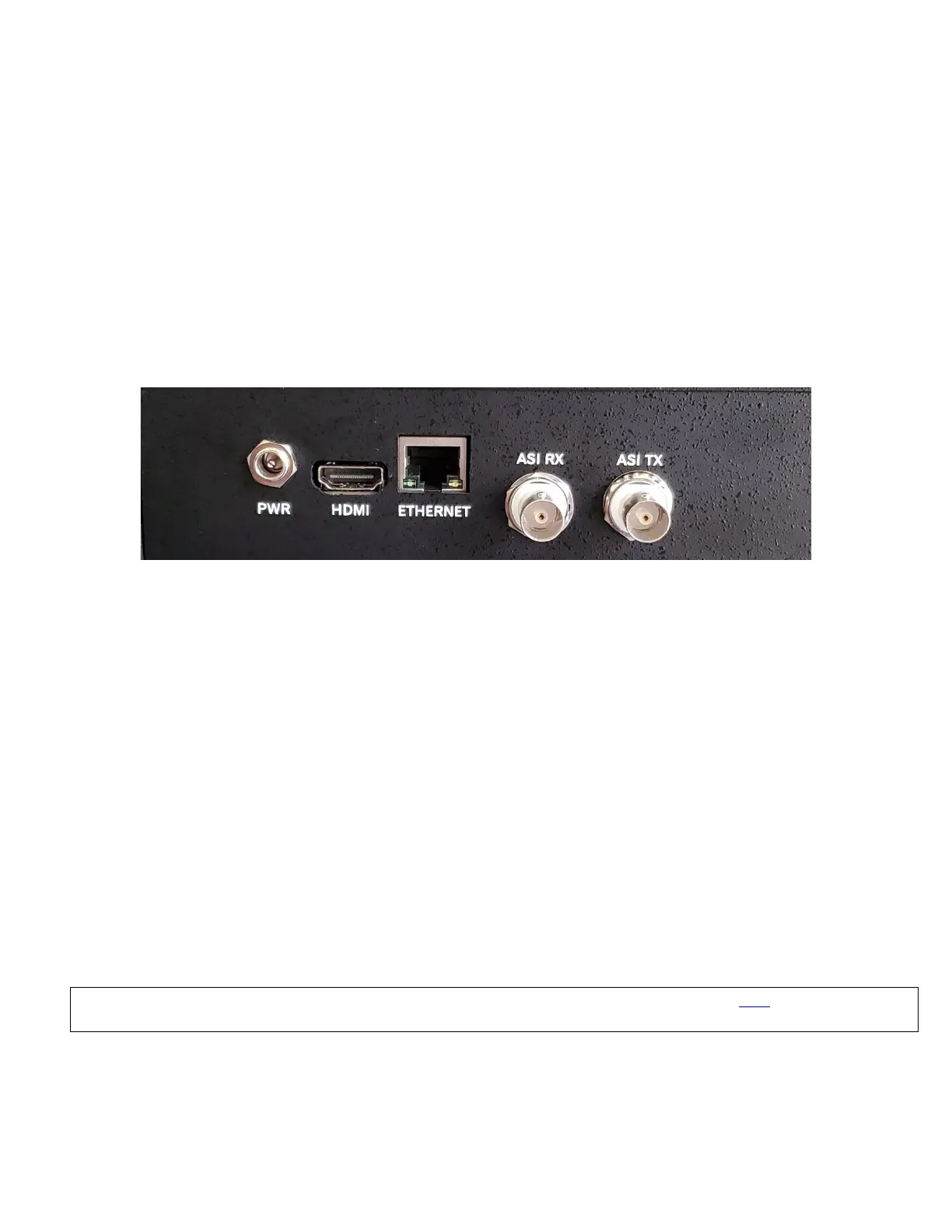
1.D2 FLEX 3000 and 3500 Backplane:
1. Power: Supplied by 5VDC 3.6 amp external power supply provided with unit.
Redundant power supply optional.
2. HDMI Port: Currently not used.
3. Ethernet Gigabit Data Port: Used for configuring the FLEX 3000 via the
D2Manage web server and sending/receiving Transport Streams over IP with
UDP or SRT
4. ASI RX: Inputs for receiving ASI Transport Streams into the unit.
5. ASI TX: Output for sending ASI Transport Streams away from the unit.
If you are NOT familiar with the process of changing your PC’s IP settings, there are instructions here, or contact D2D
Technologies support at: 904-323-4777 Option 2.


 To Next Page