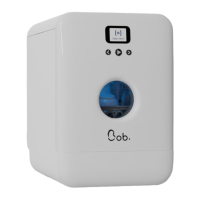
If you have ordered several Bobs with the same Daan Tech customer account, you can switch
from one Bob to the next using the drop-down menu “Select another Bob” Warning: Each
option or service must be activated separately and independently for each Bob.
Every Bob is linked to a natural person. If you have ordered a Bob for a relative
or friend or if you would like to sell it, you must transfer the ownership to
the customer account of the future owner.
To do so you need to follow these steps:
y Within the Daan Tech customer area, go to “Manage my Bob”
y Select the Bob you want to transfer using the drop-down menu “Select
another Bob”
y Now click on the “Transfer my Bob” button at the bottom of the page.
y A new window opens
y Enter the email adresse of the future owner in the dedicated field (Note :
the future owner must have a user account on www.daan.tech)
y Enter the text transfer-my-bob to confirm the transfer and then validate the
option.
A confirmation email will be sent to both you and the new owner.
Bob can be connected to Wi-Fi and paired with your Daan Tech
account thanks to its MAC address (for more information, please refer
to page 51).
If you Bob is not connected yet, connect by going to “Settings” >
“Connect my Bob”. For more information, please refer to page 12 of the
Quick Set-Up Guide.
Once your Bob is paired with your account, you can activate Bob+.
Transferring the ownership of your Bob (gifts, sale)
Connecting Bob to Wi-Fi and pairing it with your
Daan Tech account
52
QUICK UTILIZATION GUIDE



 To Next Page