Picture Adjustment
34
- You can enjoy various screens by adjusting Brightness, Contrast, Color, Tint, Sharpness, Noise Reduction,
Color Temp., Dimming, Aspect Ratio, PC Screen Mode(Only in PC Mode), etc to the user’s taste.
- Through color temperature control, you can change the tone of color
When adjusting the screen to taste
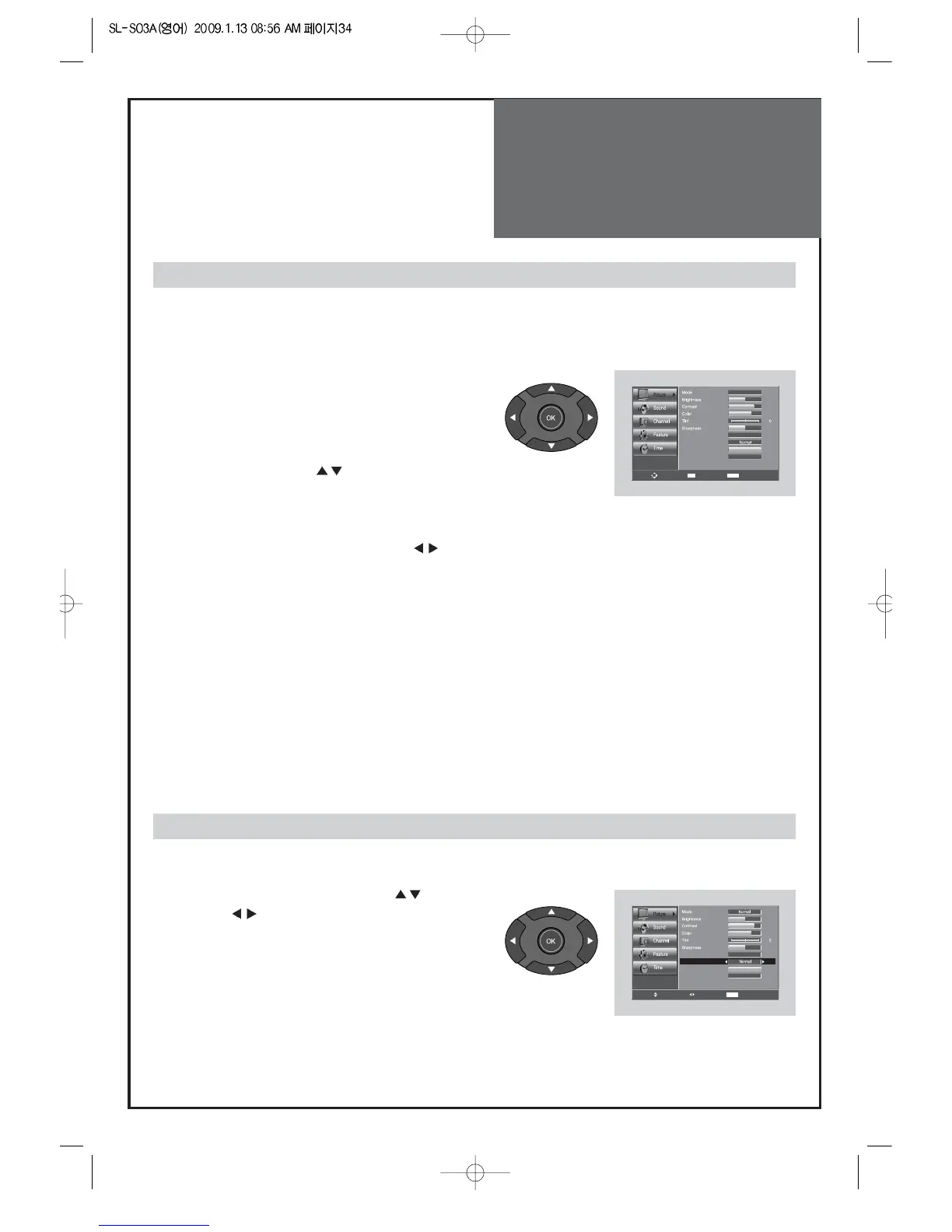
1. Select Picture by pressing the “Menu” button.
• The menu screen appears as follows.
2. Select and adjust each items.
• Move to the PICTURE menu.
• Whenever pressing the ”
” button, you can select in
order of Brightness, Contrast, Color, Tint(NTSC Only),
Sharpness, Noise Reduction, Color Temp., Dimming,
Aspect Ratio, PC Screen Mode(Only in PC Mode).
• You can adjust all items by pressing the ”
” buttons
Note:
• Brightness : Adjust the whole of screen brighter or darker.
• Contrast : Adjust difference between brightness and darkness between objects and background on the screen.
• Color : Adjust color thinly or thickly.
• Tint : Adjust the natural tint of the image.
• Dimming : Adjust Backlight`s brightness.
• Sharpness : Adjust outline of the screen smoothly or sharply.
• N . R : Reduce the noise in the picture due to poor reception or poor picture quality.
Note:
• Tint actives when receiving a NTSC signal.
• The adjusted levels are stored automatically in User mode.
1. Move to the Color Temp menu with ”
” buttons.
• Press the ”
” buttons, select the desired Color
Temperature.
Note:
• Normal : Normal White
• Warm : Reddish white
• Cool : Bluish white
Adjustment of Color Temperature in TV


 To Next Page