IV. Instructions before Use
22 Dakewe (Shenzhen) Medical Equipment Co., Ltd.
www.dakewemedical.com
Example 1: When printing an ID on S200 using the input hopper A for the "DAKEWE(Chinese)"
template or input hopper B for the "DAKEWE(English)" template, the configuration is as follows:
After the configuration is completed, select the type on the homepage. If the user select “A-Chinese” and
add ID “2200001-A01”, this ID will be printed using Hopper A slides and “DAKEWE (Chinese)” template.
If the user select “B-English” and add ID “2200002-A01”, this ID will be printed using Hopper B slides
and “DAKEWE (English)” template.
Example 2: Scan the QR code using S200 to obtain the content "2212345$A01$A-Chinese"
corresponding to the QR code, configure the template-type correlation as per Example 1 (see 4.2.3 Config
Template-Type Correlation) (be sure that the QR code or barcode scanned contains the configured type
field), and then create the corresponding scan parsing rule, as shown in the configurations below:
After completing the configuration, select and apply this scan parsing rule. Scan the QR code using
the scanning gun, and the Pathology ID "2200001-A01" will be added. The slides in the input hopper A and
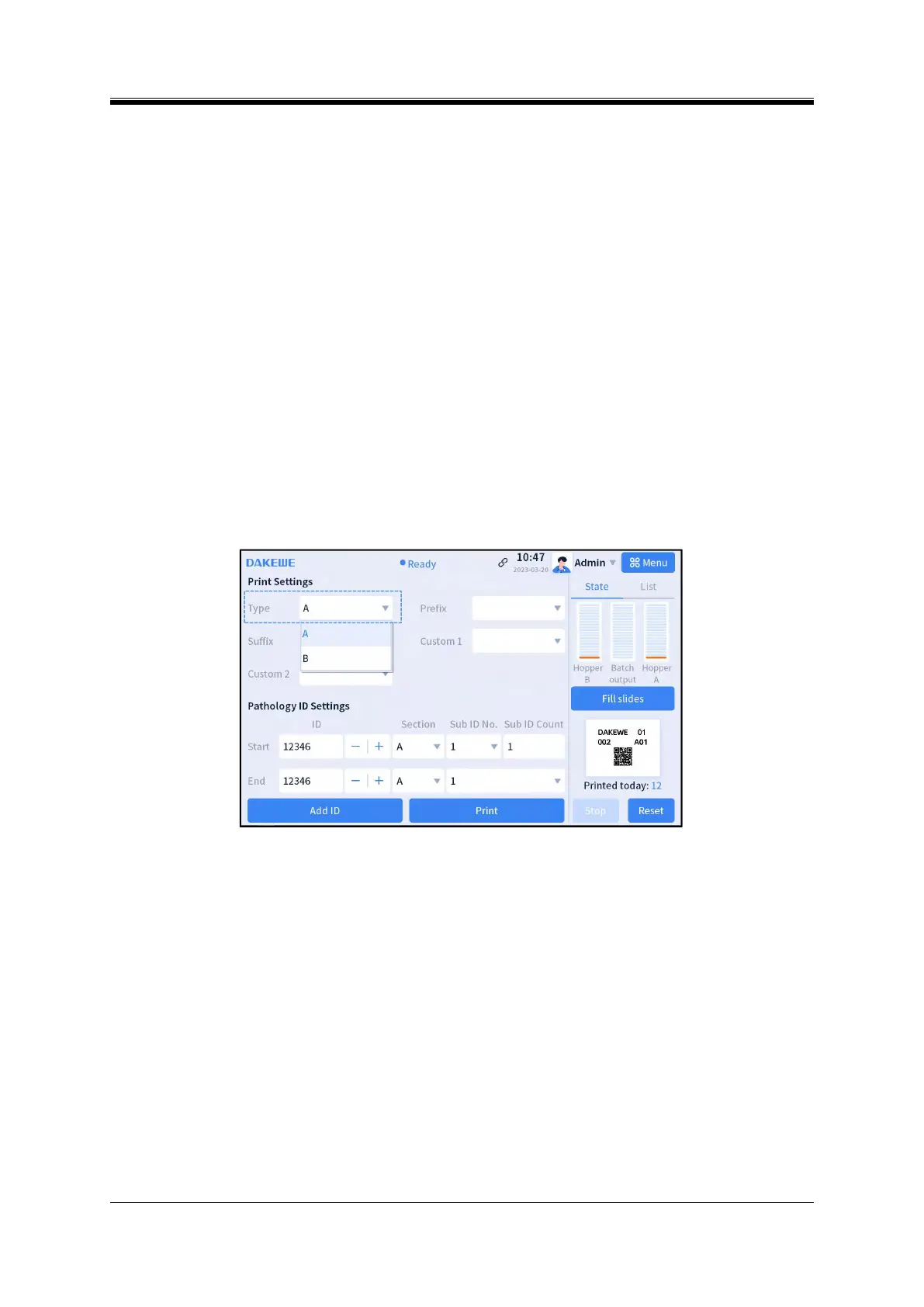
the "DAKEWE(Chinese)" template will be used to print the Pathology ID (Figure 4-14).
Figure 4- 14 Home Page - Example 2 Type Selection
4. Edit Parsed ID
If the parsed ID needs to be edited before being added to the list of print jobs, enter the [Menu] - [Print
Settings] - [Others] interface, enable "Scan parser", and then check "Edit parsed ID" (Figure 4-15).
After checking "Edit parsed ID", the scanned barcode will be parsed under the current parsing rule,
and the parsed result will be displayed in the input box of the corresponding field on the main interface.


 To Next Page