DC-2300 User Manual v1.0
45
CHAPTER 4 CLEANING
4.1 Cleaning with a Cleaning Card
Use the Cleaning Card provided to clean the Card Transport Roller if cards do not feed smoothly.
We recommend cleaning the rollers after printing 250 cards.
Cleaning Cards can only be used once and cannot be reused. Use a new
Cleaning Card with the adhesive side down every time you clean the rollers.
Do not touch the platen with hands.
(1) Switch from Normal Mode to User Mode. Press the 【▲ 】or【▼ 】to find the [Cleaning].
(2) Press the SET button, the second line displays “No”. Press the SET button and press 【▼ 】,
the second line displays “Yes”, then press the SET button. At the moment, the second line
displays [Remove ribbon/sponge].
(3)Open the top cover to remove the ribbon and sponge, then close the cover. [Please remove
the card in the card cassette] is displayed. After taking out the card, [Please remove ribbon
and cleaning sponge] is displayed.
(4)Put the cleaning card in the card feeding slot, and press the SET button to start cleaning.
(5)After cleaning, [Cleaning, Over, Put ribbon/sponge] is displayed.
(6)Open the top cover to put in the Ribbon, then close the cover. [Cleaning, Menu Key, Exit] is
displayed.
(7)Exit the User Mode, [Push Set button] is displayed.
(8)When user presses the SET button, the Printer will be initialized. After initialization, the
Printer can continue printing.
4.2 Maintaining the print head
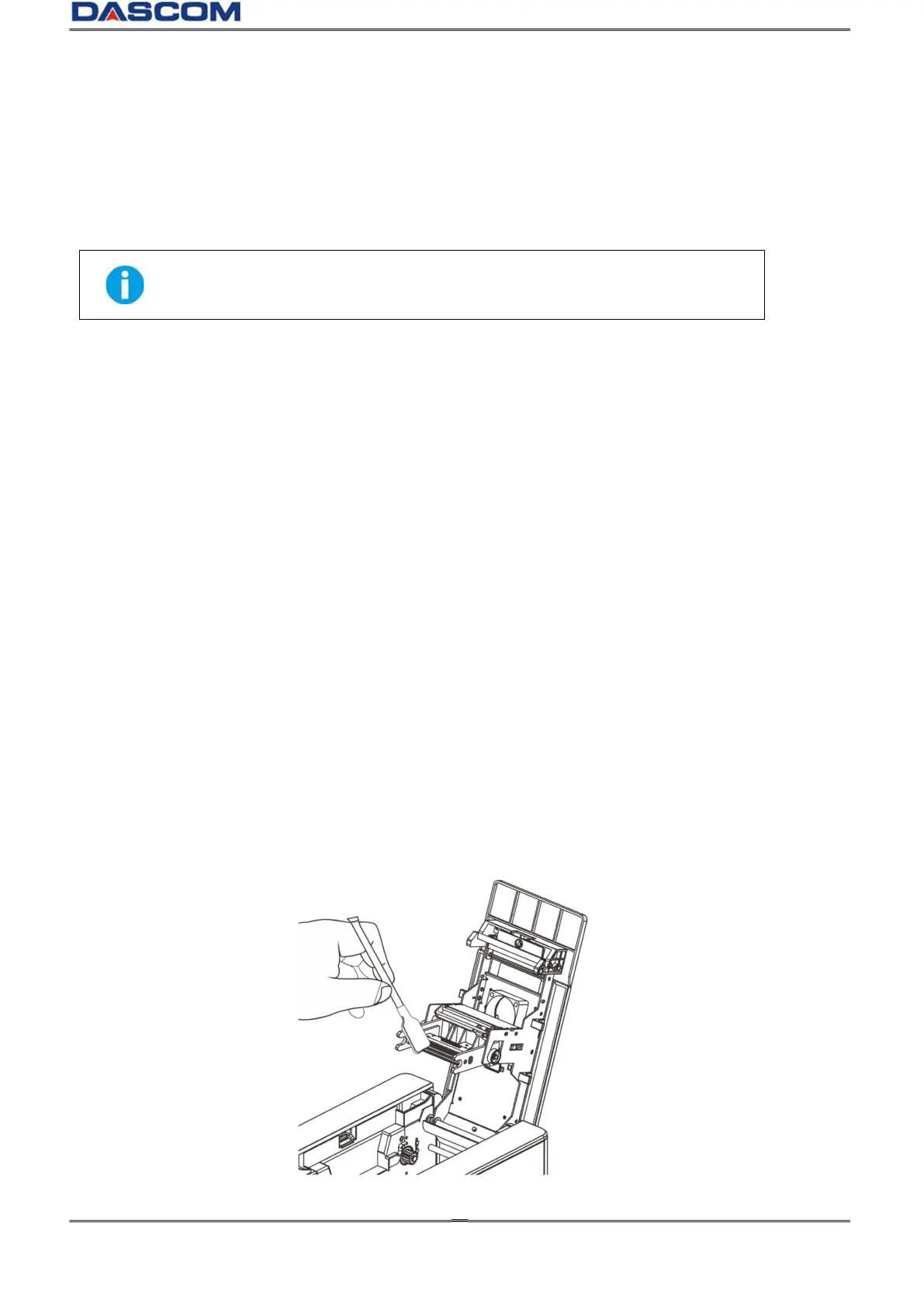
Use a clean cotton swab or a soft cloth to remove any foreign material accumulated on the Print Head,
such as dust, sticky dirt, etc.
After long-term printing, it is particularly important to clean the printing head, which can guarantee
the print quality and extend the service life of the Print Head.


 To Next Page