22
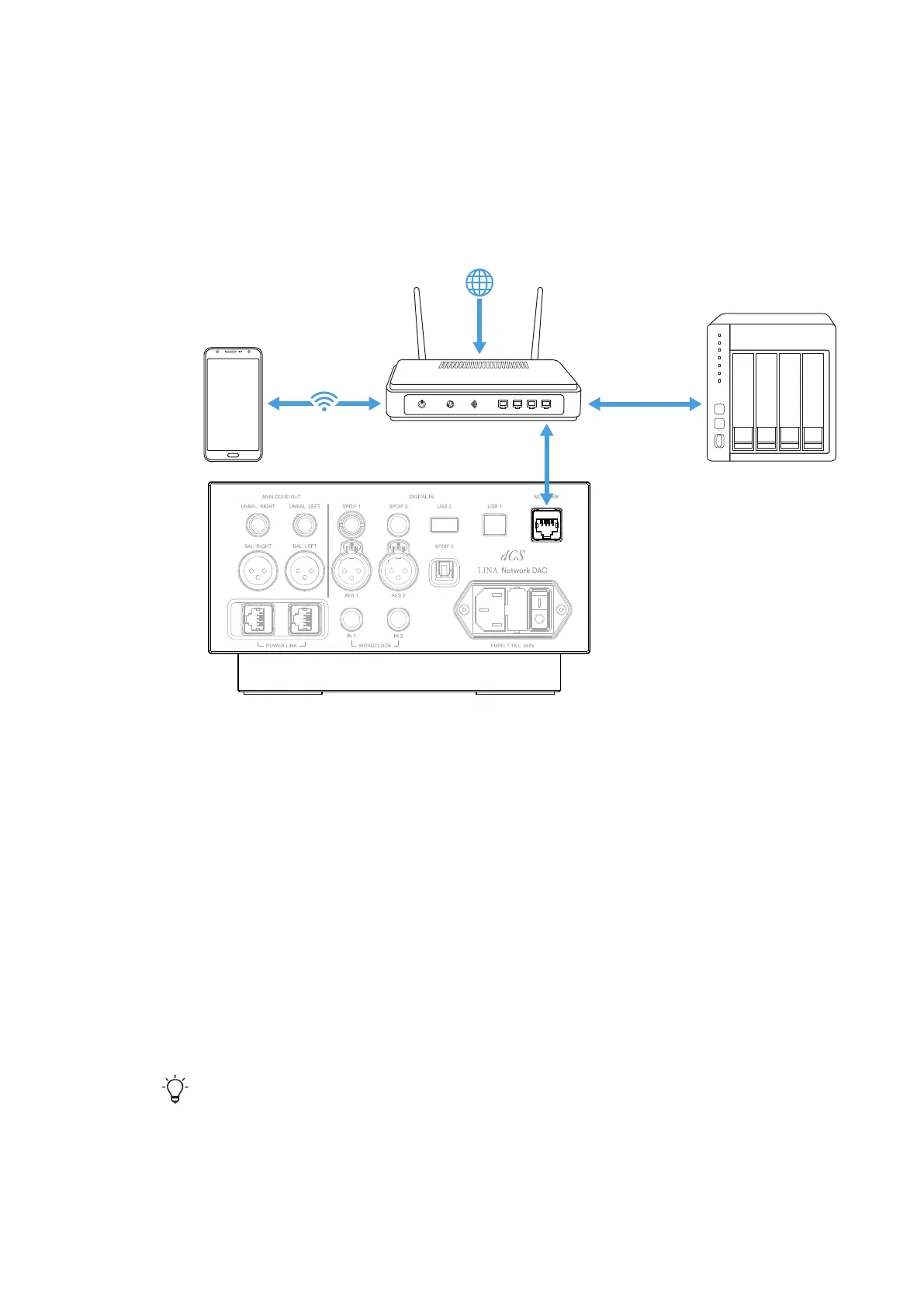
To connect your LINA Network DAC to your network:
1. At the rear of the unit, connect an Ethernet cable to the
NETWORK
socket.
2. Connect the other end of the Ethernet cable to your router.
3. On your mobile device, connect to the same network as your router.
4. On your mobile device, open the Mosaic Control app and connect to your LINA
Network DAC.
5. To stream from internet services, your router must be connected to the internet.
Connecting a computer
You can connect a computer to the
USB1
socket on your LINA Network DAC. For best results,
we recommend using a premium music streaming program instead of software included with
the operating system.
The
USB1
socket can operate in two audio classes:
• Class 1, which accepts data at up to 96kS/s. No additional drivers need to be
installed on the connected computer.
• Class 2, which accepts data at up to 384kS/s, or DSD/64 or DSD/128 in DoP format.
A dCS USB Class2 driver needs to be installed on computers running Windows™
versions before Windows™ 10 Creator's Update. No additional driver needs to be
installed on Apple desktops and notebooks running macOS10.6.3 or above.
The
USB1
socket has been tested with various PCM streaming programs on
Windows™ 10, Windows™ 8.1, and macOS10.11. However, the socket may not work
with all devices, operating systems, or software.
►
For more information, see "Setting the USB audio class" on page36.
1. Using a USB cable, connect a computer to the
USB1
socket on the rear of the unit.
2. Change the source input on the unit to USB / PC.
Setting up
LINA Network DAC User Guide


 To Next Page