40
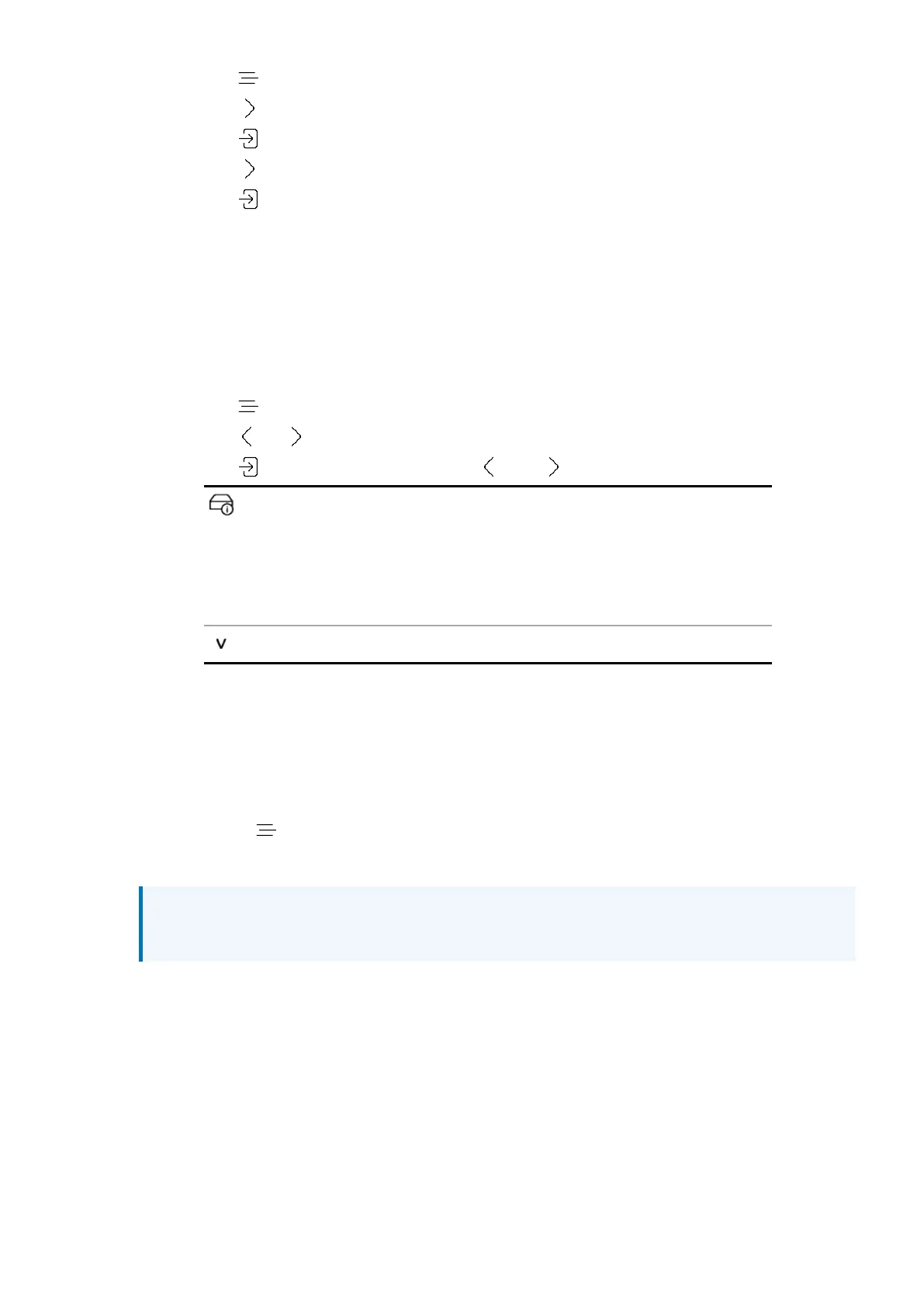
1. Tap .
2. Tap to select Test.
3. Tap .
4. Tap to select Burn In.
5. Tap to start conditioning the unit.
6. After conditioning has started, increase the amplifier volume to a sensible level.
7. Tap any button to stop conditioning the unit.
Viewing information about the unit
Information about the unit can help you solve setup or connection errors.
1. Tap .
2. Tap or to select Information.
3. Tap to view information and use and to page up and down.
Unit status. Displays the unit status, including:
• Serial number
• The frequency detected on each word clock input
• The sample rate detected on each input
• USB1 audio class
• IP address
Version. Displays the control board version and Mosaic processor version.
Updating the software
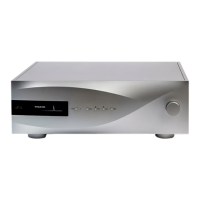
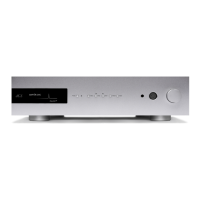
You can update the software on the LINA Network DAC using the Mosaic Control app.
1. On your mobile device, open the Mosaic Control app.
2. Select > SUPPORT > Versions > Check for updates.
3. If an update is available, follow the instructions to complete the update.
NOTICE
A software update can take up to 45 minutes. Do not switch off the unit until the software
update is confirmed on the display.
Settings
LINA Network DAC User Guide


 To Next Page