10
Overview
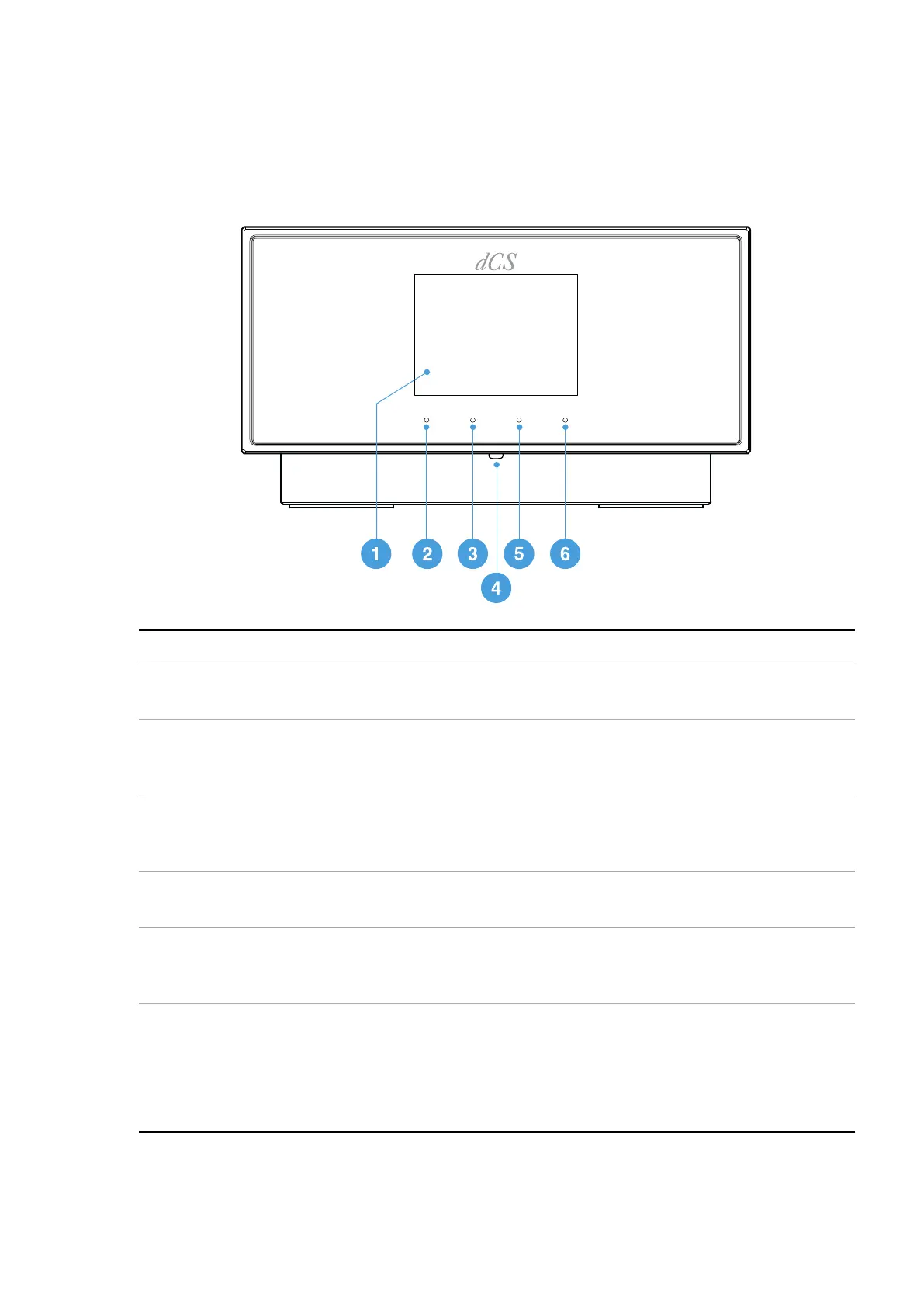
Front
Item Description
1 Display Displays menus and information about the current input, for example, track name
and artist.
2 Touch
button
Tap to select the option shown in the display above the button.
• On the home screen, tap to use the assigned shortcut.
• In a menu, tap to move up a level or exit the menu.
3 Touch
button
Tap to select the option shown in the display above the button.
• On the home screen, tap to use the assigned shortcut.
• In a menu, tap to go to the previous page.
4
Power
button
To switch on or enter sleep mode, press briefly.
To switch off, press and hold until POWEROFF is displayed.
5 Touch
button
Tap to select the option shown in the display above the button.
• On the home screen, tap to use the assigned shortcut.
• In a menu, tap to go to the next page.
6 Touch
button
Tap to select the option shown in the display above the button.
• On the home screen, tap to open the main menu. Touch and hold to change the
function of the three shortcut buttons.
►
For more information, see "Changing the shortcut buttons" on page33.
• In a menu, tap to select a menu item or change a setting.
Overview
LINA Network DAC User Guide


 To Next Page