Rooster™ Sensor100 USER MANUAL
Rooster
TM
Sensor100 USER MANUAL 62320MN000-A04 20
o 0-10 VDC
o 0-20 mA (available upon request)
o 4-20 mA (available upon request)
Home>Settings>System>Advanced>Analog Out
Your unit has been calibrated from 30-4,000 fpm (0.15- 20.0 m/s); however, you may select a
range to scale within your chosen analog output.
For example: Velocity maximum can be set to 500 fpm, and if 0-5V is selected as the analog
output, then 5V will correspond to 500 fpm. In this regard, the client can scale the output to the
most convenient application.
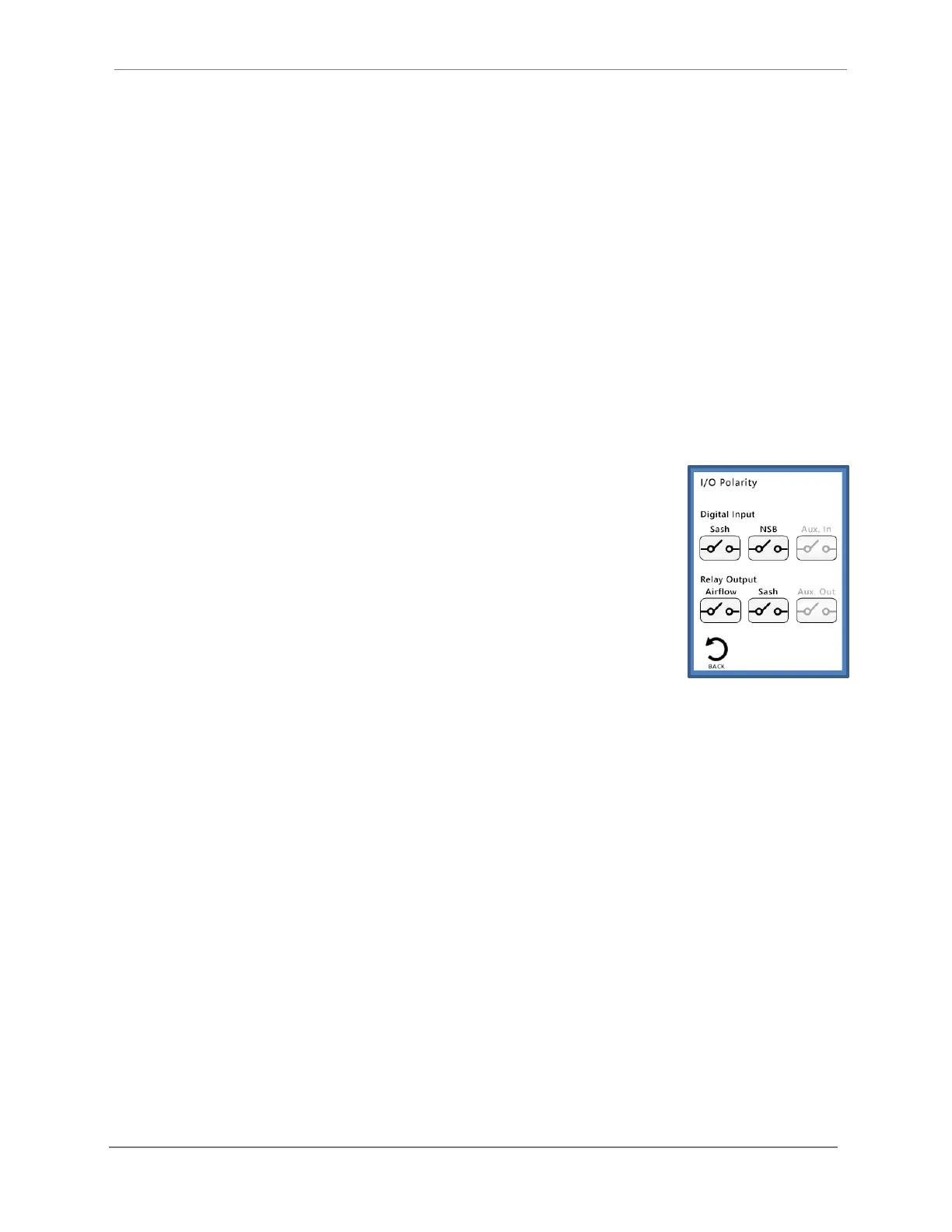
I/O Polarity
For advanced users, it may be helpful to toggle relay and input nodes
from normally open to normally closed. In the default state, a closed relay
output denotes an alarm. If the alarm state is required to be an open relay,
then toggle the output on the Rooster™. For example: The Airflow Alarm is
configured by default to alarm when the relay is closed. If this is toggled
to Normally Closed (NC), then this logic is reversed.
Home>Settings>System>Advanced>I/O Polarity
Import/Export
EEPROM
The user can save all current Rooster
TM
settings to a USB thumb drive for future use. Importing
the EEPROM configuration file to another Rooster
TM
in your facility ensures operational
consistency and saves valuable setup time. Plug a USB thumb drive into the Rooster
TM
and
navigate to the Import/Export menu to select the Import EEPROM or Export EEPROM option.
Home>Settings>System>Advanced>Import/Export
Event Log
Rooster
TM
logs the date and time of alarms and alarm recovery as well as system boot time to its
internal SD card. Users can export the event log in .csv format to a USB thumb drive. Simply
plug a USB thumb drive into the Rooster
TM
, and select Export Event Log from the Advanced
menu. Users also have a selection to delete the event log.
Home>Settings>System>Advanced>Import/Export
Users can also view the event log on screen by navigating to the Info screen and then pressing
“Event Log” to view.


 To Next Page