Rooster™ Sensor100 USER MANUAL
Rooster
TM
Sensor100 USER MANUAL 62320MN000-A04 5
A yellow banner will appear beneath on-screen velocity readings to alert users of the following
scenarios: 1) Uncalibrated Sensor 2) Sensor Failure 3) Low Airflow. Alarm latched status will also
display here.
Home
TOGGLE VELOCITY UNIT TYPE
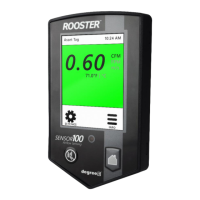
Instantly toggle displayed velocity units between m/s, fpm, or cfm by pressing on the displayed
velocity reading on the home screen.
Home
Instantly toggle displayed temperature units from Fahrenheit to Celsius or vice versa by pressing
on the displayed temperature reading on the home screen.
Home
PASSWORD-PROTECTED ACCESS TIERS: CERTIFIER & EH&S
Password protected access tiers enable advanced configuration options and features.
Home>Settings>System>Advanced>Change Passwords
USB INTERFACE FOR FIELD UPGRADE PROCEDURE AND DATA IMPORT/EXPORT
Firmware upgrades can be installed on-site via USB flash drive. See the USB Field Upgrade
section for more information. Users may also import/export Rooster™ settings and export the
event log through the USB interface.
Our engineers can configure your unit with a custom image or logo file (240x320) in portable
network graphic (.png) format to display on bootup. Contact our sales team to get started:
sales@degreec.com
EH&S or Certifier users can configure three convenient modes (Audible, Muted, or Off) of
operation. The Rooster
TM
Sensor100 is a normally open (NO) device, to trigger audible or muted
night setback, the dry contact relay must be closed. See the “Alarm Threshold Configuration”
section for instructions on how to setup night setback alarm thresholds.
Home>Settings>System>Alarms/Sound>Alarm Controls>Night Setback
EH&S or Certifier users can setup latched alarms to indicate that a low airflow state has occurred
in the “Alarm Controls” menu. The user must then enter EH&S or Certifier passcode to unlatch


 To Next Page